1. Manage Supplier Invoice Page
Navigation: Global Level > Finance > Suppliers > Invoices
The screen below will be where all Supplier invoices will be managed. This includes recurring ( Variable & Fixed ) and ad-hoc.
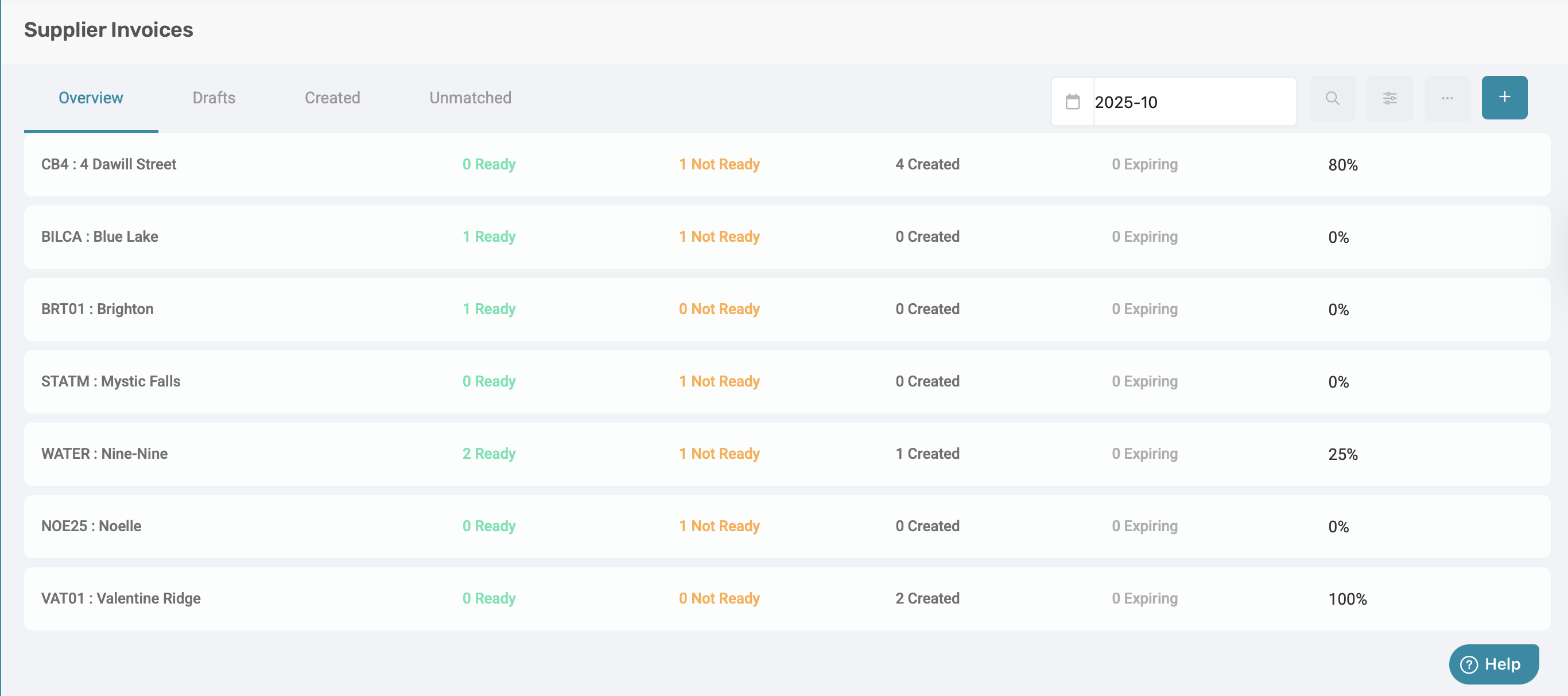
Important: The Month selector at the top of the page will determine which supplier invoices are displayed on the screen. Please ensure that you are working in the correct calendar period.
|

The screen below will appear with the next three tabs: Overview, Drafts, Created, and Unmatched. On this page, the processing of the invoices will be done.
- Overview: List of ALL invoices
- Drafts: Invoice which require either a Source document, Invoice number
- Created: Invoice which has been captured and created successfully
- Unmatched: Invoice uploaded via the AI Assistant which requires manual input.
1.1 Overview Tab
The Overview page will have a card for each community that displays a summary of each community's invoices. The date at the top indicates which month the invoices are currently being viewed. Simply adjust the date at the top of the page to view upcoming invoices. (Please note this tab will only appear on the Global Level, and not in the Community Level).
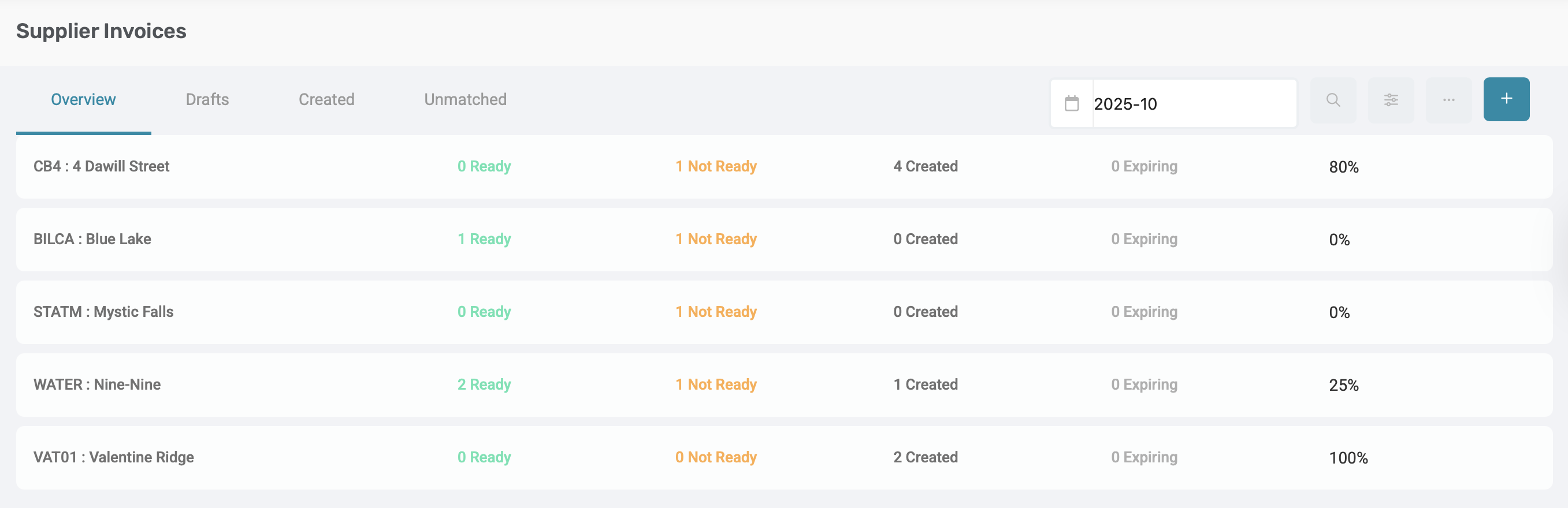
Each card represents one community and provides a summary of its supplier invoice activity for the month selected. Each card should display:
- Ready: The number of drafts ready to be created for the selected month.
Example: "2 Ready" - Not Ready: The number of drafts that are not yet ready for creation.
Example: "1 Not ready"
A Small Progress bar with a percentage showing the % of total invoices created for the month. If there is a total of 20 recurring instances, and only 10 have been created, then the percentage will be 50%.
For quick navigation, click on one of the text that states "Not Ready" on the card, and the draft page will appear where the filter is already applied.
For example: If you click on the 1 Not Ready on 4 Dawill Street card, then it should go to the drafts page and apply the filter of Community: 4 Dawill Street and Status: Not Ready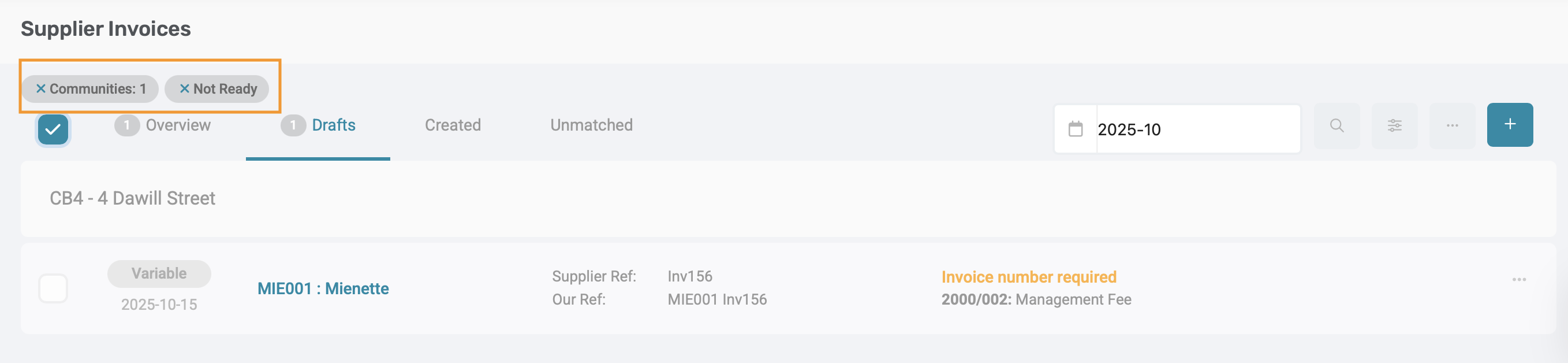 |
Another method for quick navigation is to apply filters by clicking on the filter icon top right corner.
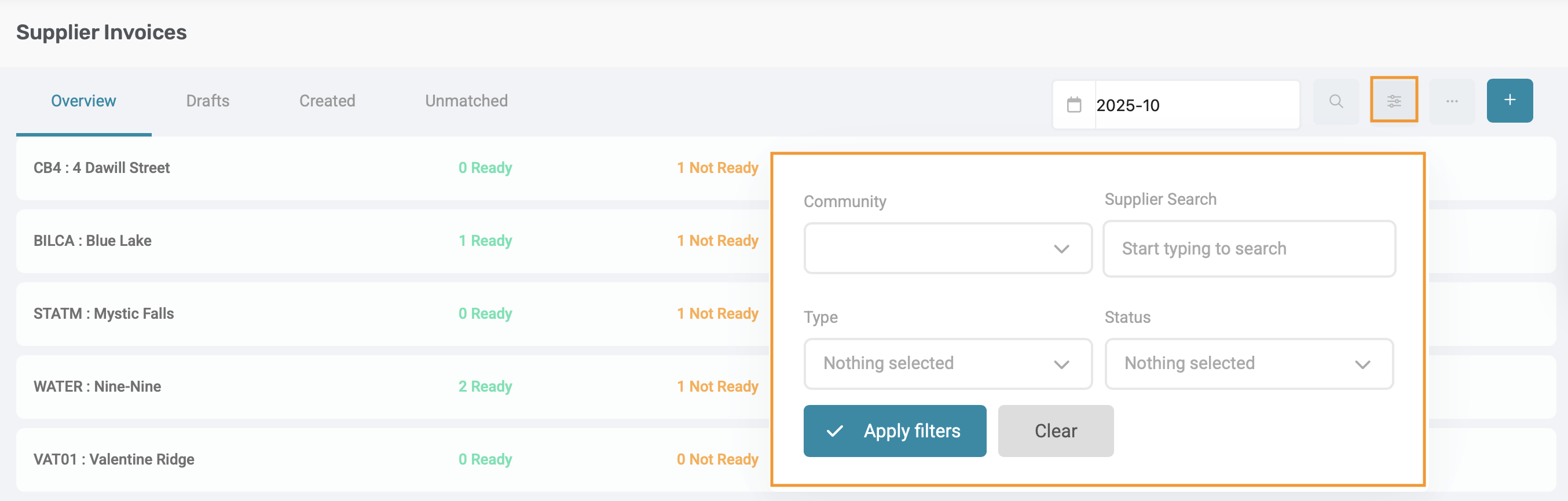
Filters available are as follows:
Community: A Multi-select dropdown allowing you to select one or more communities.
Supplier: Type in the Supplier name or Supplier Code.
Invoice Type: Recurring and Ad-hoc. When selected, the card details (Ready, Not ready, Created, Expiring) will only reflect the selected invoice type.
Status: Ready, Not Ready, Created, Expiring. When a status is selected, the view will display all communities that have at least one instance matching the status.
The Search bar allows for quick location of the invoices based on key details. Any of the following search fields can be searched.
- Community Name
- Supplier Name/ Code
- Ledger Name/ Code
- Supplier and Our reference

1.2 Unmatched Tab
The Unmatched list view displays all invoices scanned by the AI Invoice Assistant where a Community, Invoice date, or Supplier could not be identified. This view is where all invoices which requires manual input will be displayed.
Each invoice card will indicate the date on which the invoice was scanned by the AI Assistant.

As well as the following information:
- Invoice date
- Supplier Reference
- Ledger Selection
1.2.1. Preview Invoice Card:
Click on any card in the Unmatched list. The selected invoice will open in a pop-up
- Review the uploaded file
- Enter or correct missing details (e.g., community, supplier or date)
- Save, or create the invoices as needed
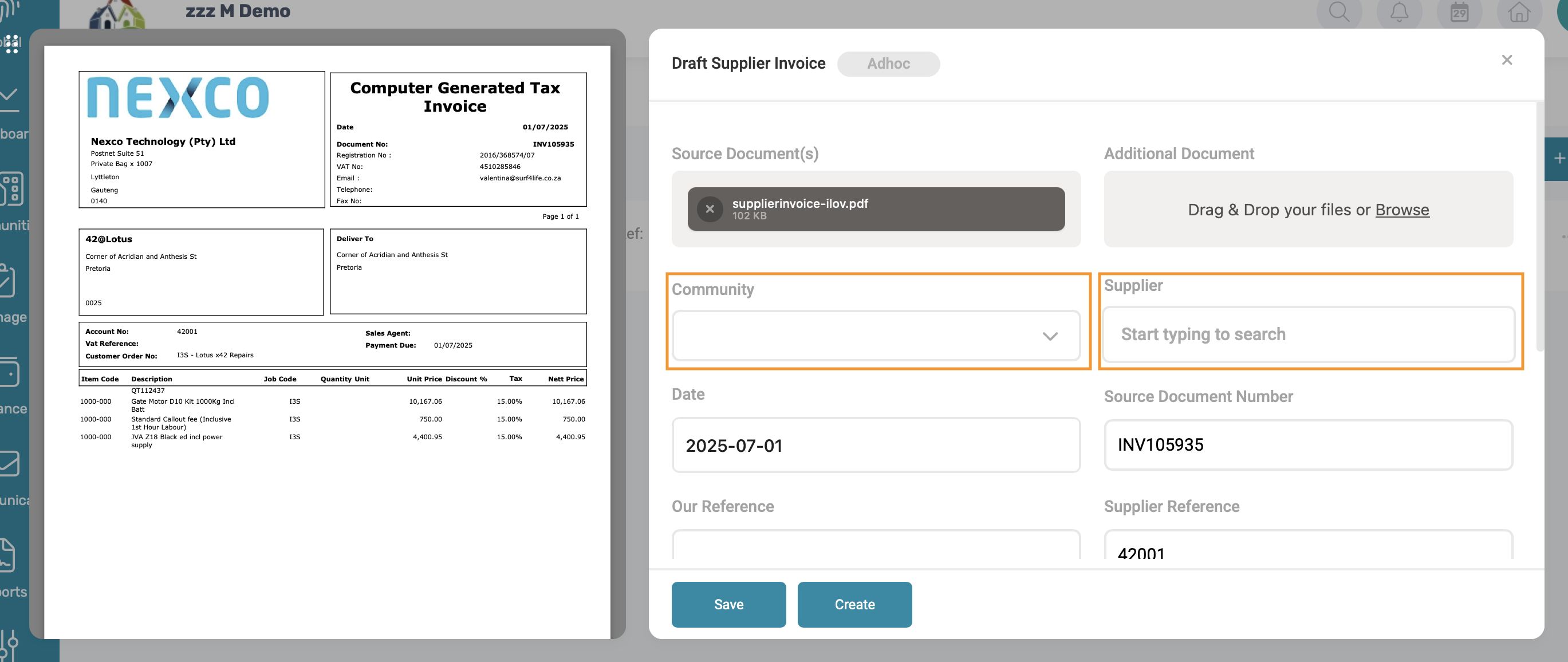
Note: The Unmatched list will always show the same results regardless of which month is selected in the page date picker. This ensures you can always find unassigned or incomplete invoices without filtering by date. The list is automatically sorted with the most recently scanned documents displayed first (from newest to oldest) Once missing details are completed and the invoice is successfully matched, it will move out of the Unmatched list. |
1.3 Draft Tab
The draft page displays all recurring and ad hoc invoices that have not been created for the month as per the month picker. Sorted according to date (earliest in a month till latest). Change the date to view future invoice drafts.
All draft invoices are grouped by Community.
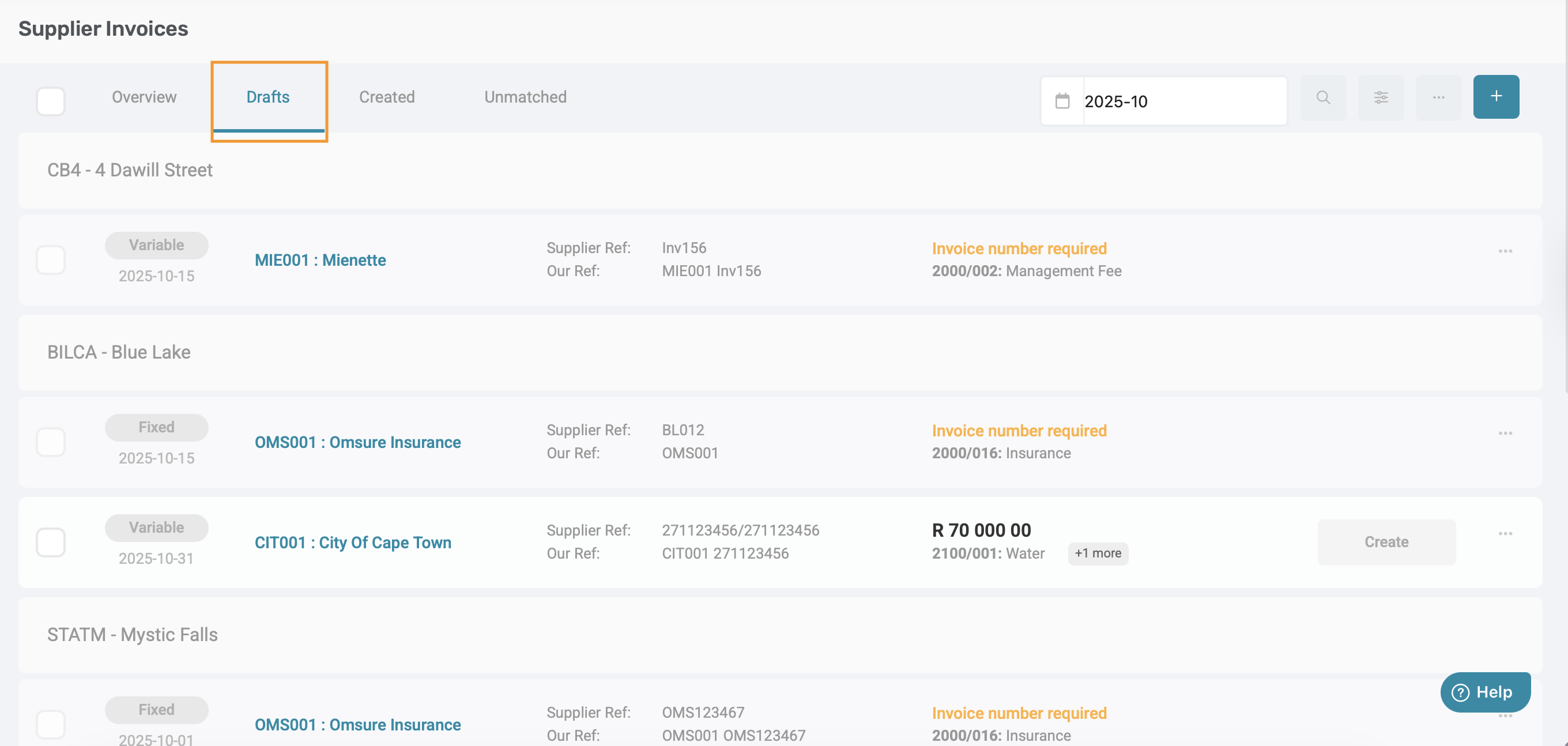
1.3.1. Draft Card
Each draft invoice is displayed as a payment card, and should display the following information:
- Invoice Type
- Invoice date
- Supplier Code and Supplier Name
- The first two ledgers, or "Ledgers required" if missing
- Amount
- Reference: Display both Supplier Reference and Our reference, or "Reference Required" if missing

Important: A warning icon will appear next to the Supplier Reference if a duplicate is detected.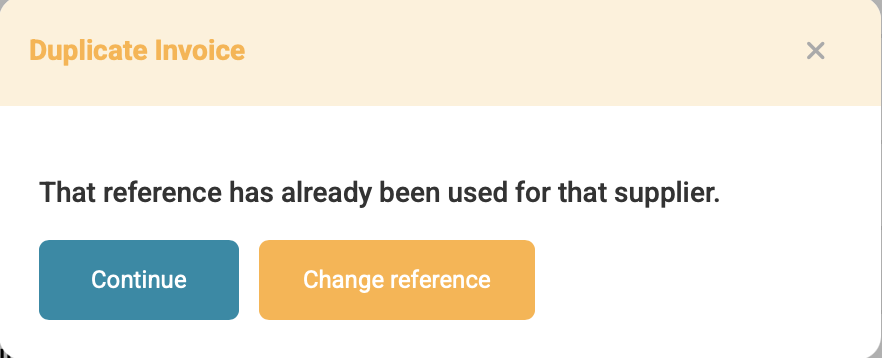 |
1.3.2. Types of Draft Invoices
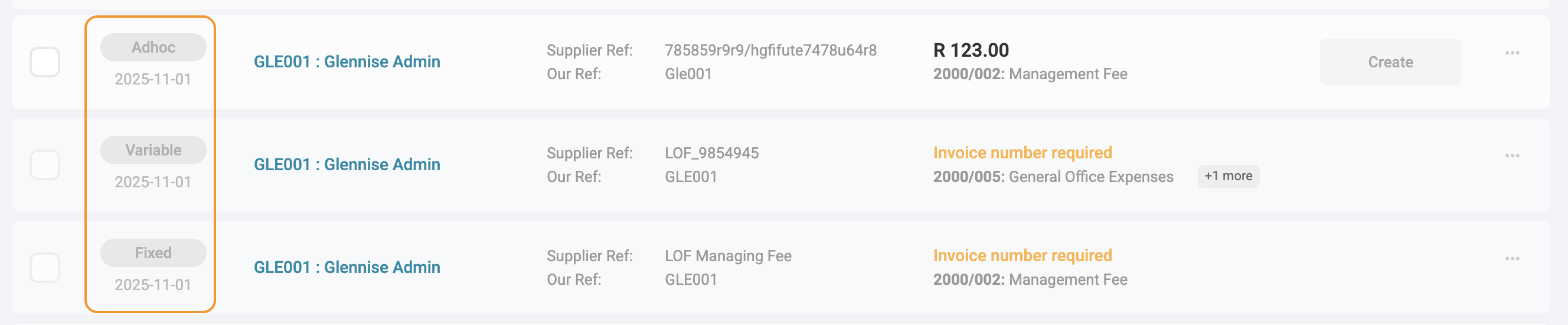
Each draft invoice will display a label indicating its type:
- Variable - Created via Recurring Supplier invoice
- Fixed - Created via Recurring Supplier invoice
- Ad-hoc - Created via Manual Supplier & AI Invoice Assistant
1.3.3. Draft Status
A status label of Create will display on each draft if the draft is ready for creation. A draft invoice will display Create if the following required fields are completed:
- Amount
- Description
- Ledger
- Our Reference
- Supplier Reference

However, on each invoice setup, supplier invoice requirements can be added:
- Source Document field
- Supporting Documents
If all applicable fields are completed, the status will display as Create.

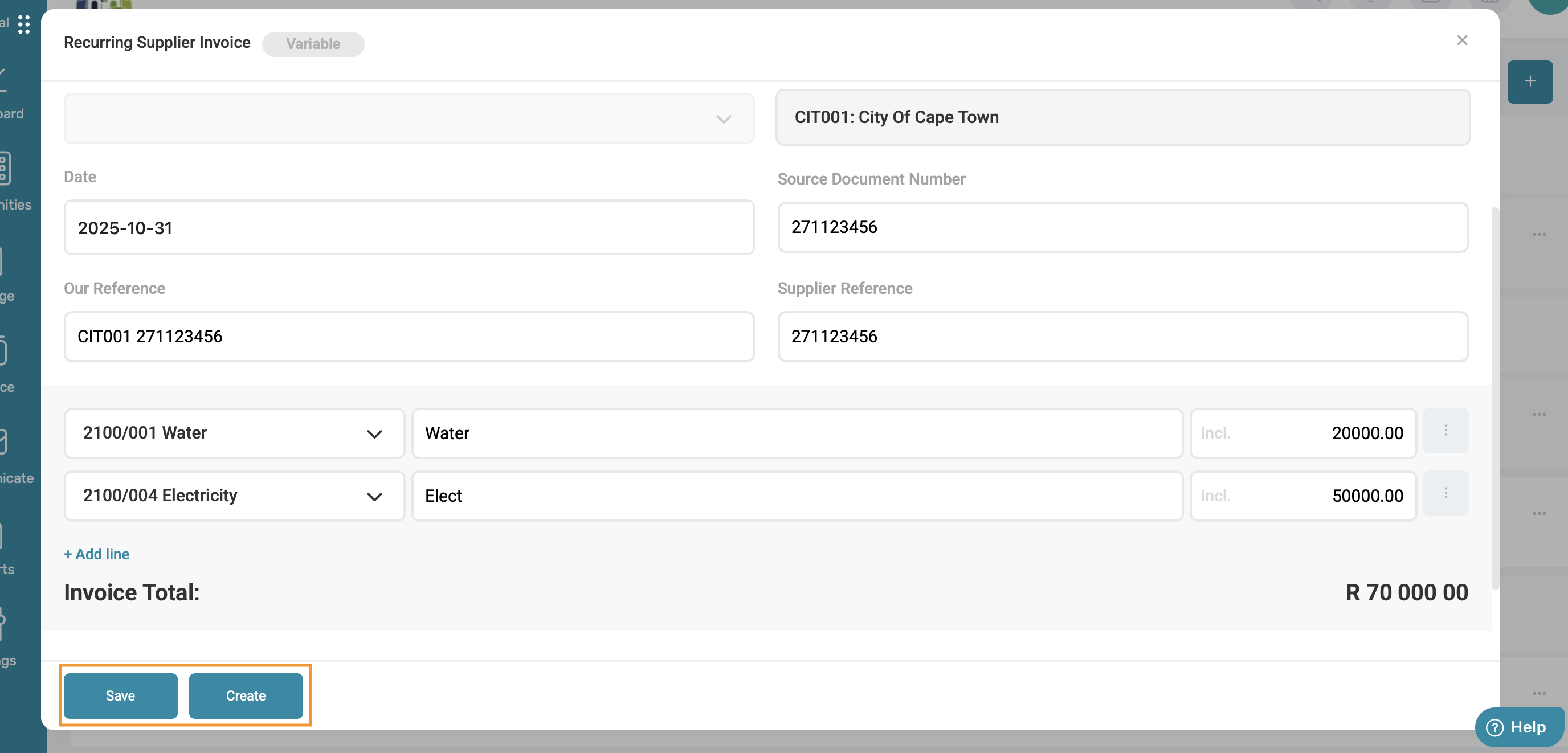
To create the invoice, click on the card a pop-up will appear. Depending on the invoice type, certain fields can be edited:
Variable: Our reference, Supplier Reference, Amount, Ledgers, Description, Add line item, and Supporting Documents.
Fixed: Description, Source Document Number, Our Reference, Supplier Reference, and Supporting Documents.
Ad-hoc: All fields, including Supplier and Community.
Either click on Save to be able to add to the invoice at a later stage if needed, or click on Create if the invoice is ready to be created.
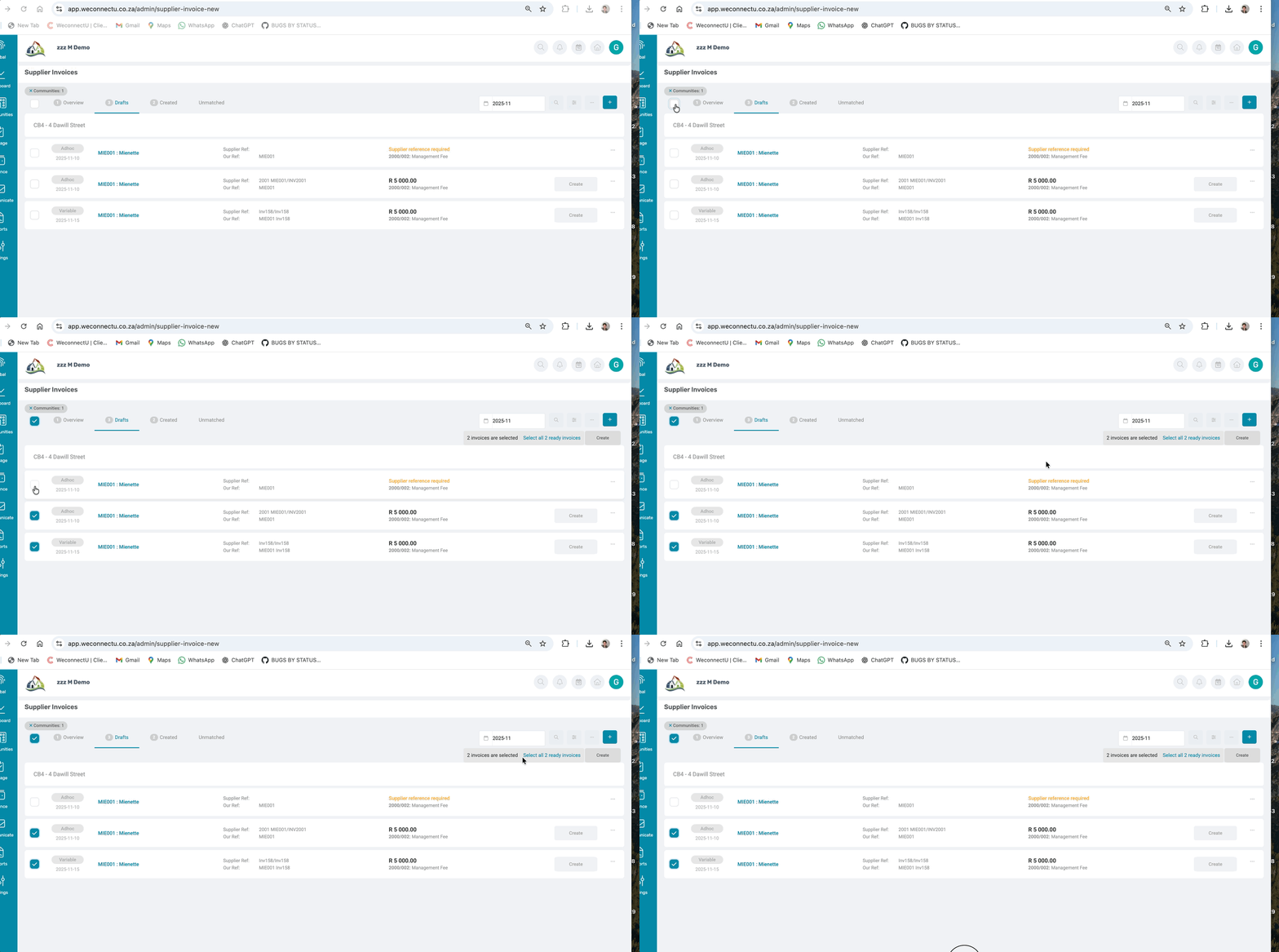
Next to each card, a tick box is displayed, which will be tickable if the card has a Ready status, if the card does not have a Ready status, the tick box will not be able to be ticked for creation.
1.4. Created Tab
Created tab displays all invoices that have been created for the month selected. This page will display all created recurring and ad-hoc supplier invoices for all communities. No changes can be made to created recurring invoices.
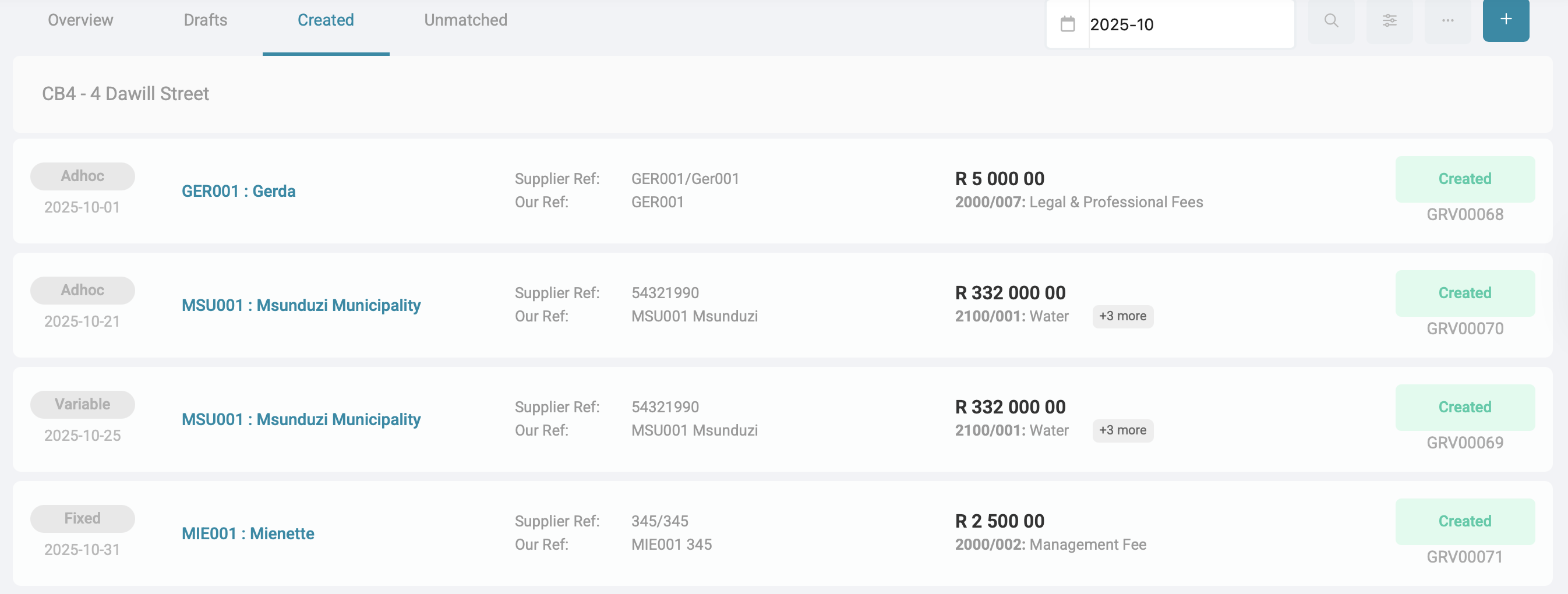
| Important: Use the month selector dropdown menu to select the desired period. The solution will display all invoices created within that selected month. |
Each invoice card should display the following information:
- The invoice label indicates whether the invoice is Variable, Fixed, or Ad-hoc, as determined on the setup.
- Invoice date: The date the invoice was created.
- Supplier information: The Supplier Code and Supplier Name.
- References: Both the Supplier Reference and Our Reference fields are displayed as captured during the invoice creation.
- Ledgers: The first 5 ledgers are linked to the invoice, as per the creation.
- Invoice Amount.

| Note: The "Created By" and "Created On" details will appear in the Document Report for additional reference. |
| Resources: | ||
| CMS - How to Manage the Supplier Invoice Page Part 1 | ||
| CMS - How to Manage the Supplier Invoice Page Part 2 |
Was this article helpful?
That’s Great!
Thank you for your feedback
Sorry! We couldn't be helpful
Thank you for your feedback
Feedback sent
We appreciate your effort and will try to fix the article