1. Trust Account Cashbook
Navigation: Global Overview > Finance > Trust Cashbook
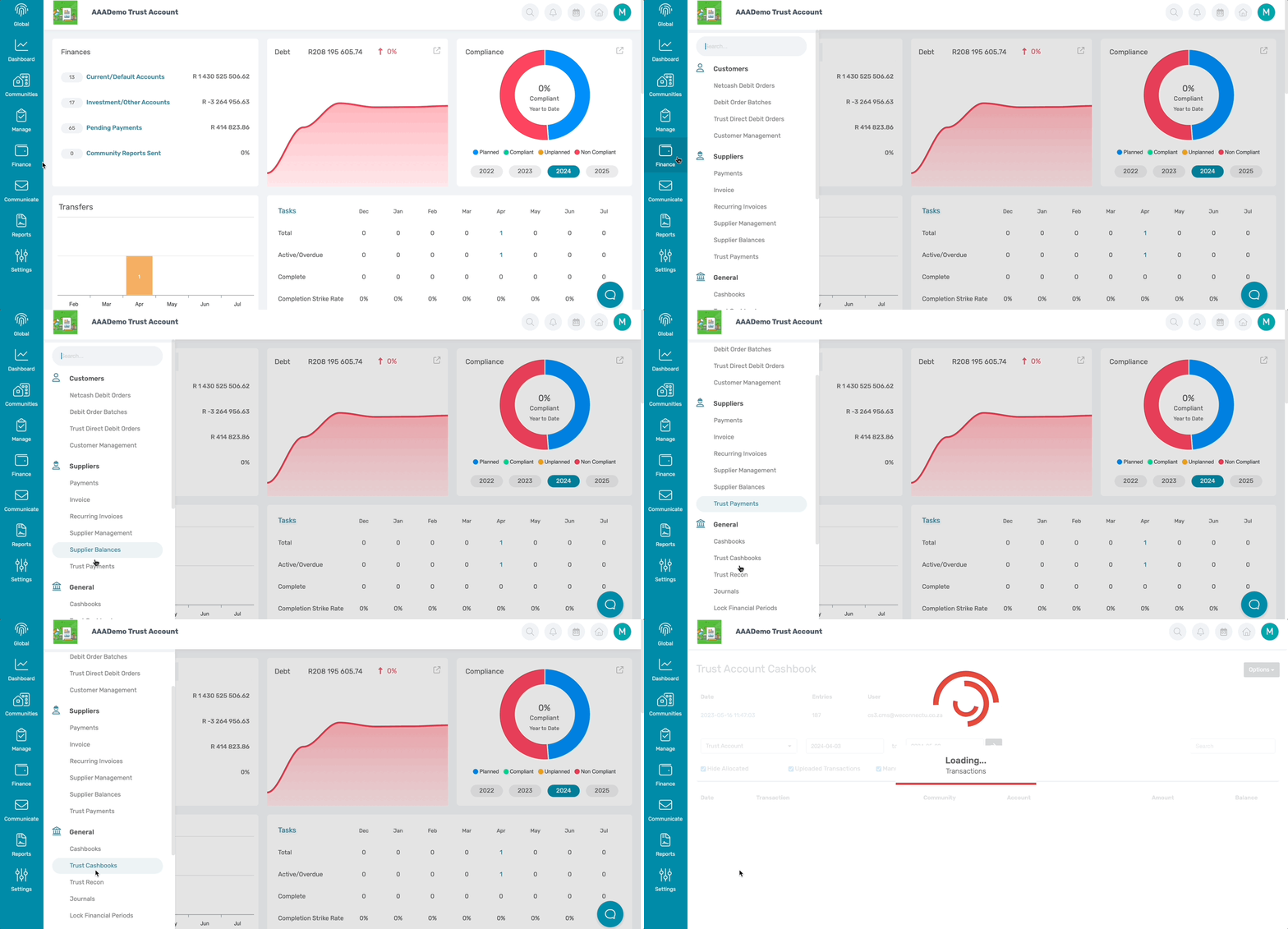
The first screen displays the most recent transactions, along with the date they were uploaded and the user who uploaded them.

By clicking on the Cashbook option on the far right, the following drop-down menu will appear.
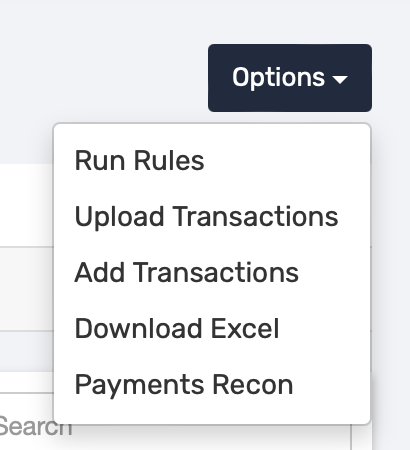
Note: Trust Cashbook processing can only be done on a Global Level and not on a Community Level. |
1.2. Upload Transactions
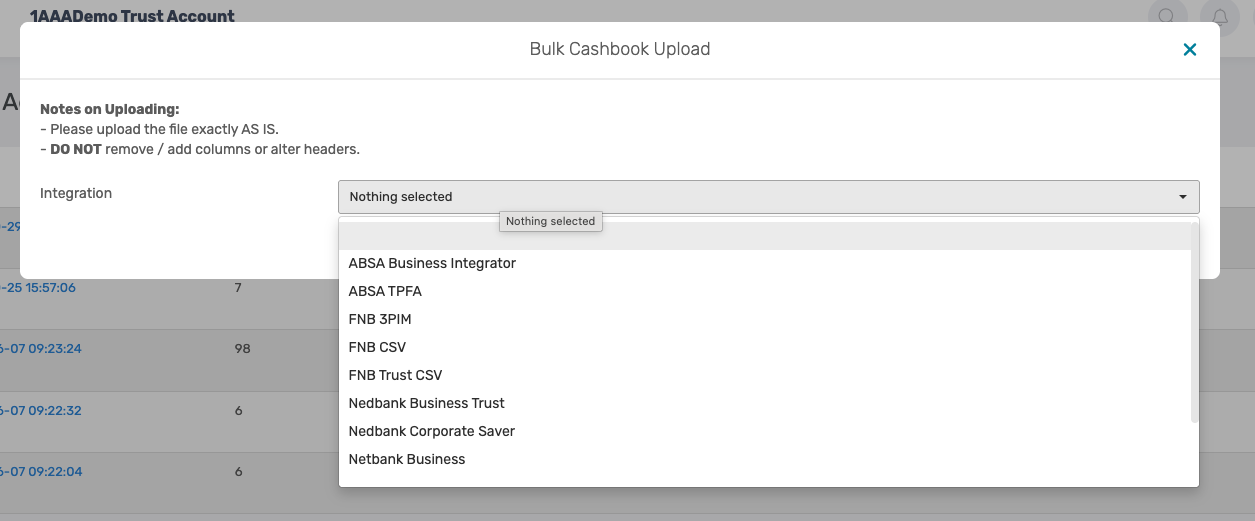
Here, there will be the opportunity to upload your cashbook statement. The bank integration can also be selected, and when it is done loading, click on Upload.
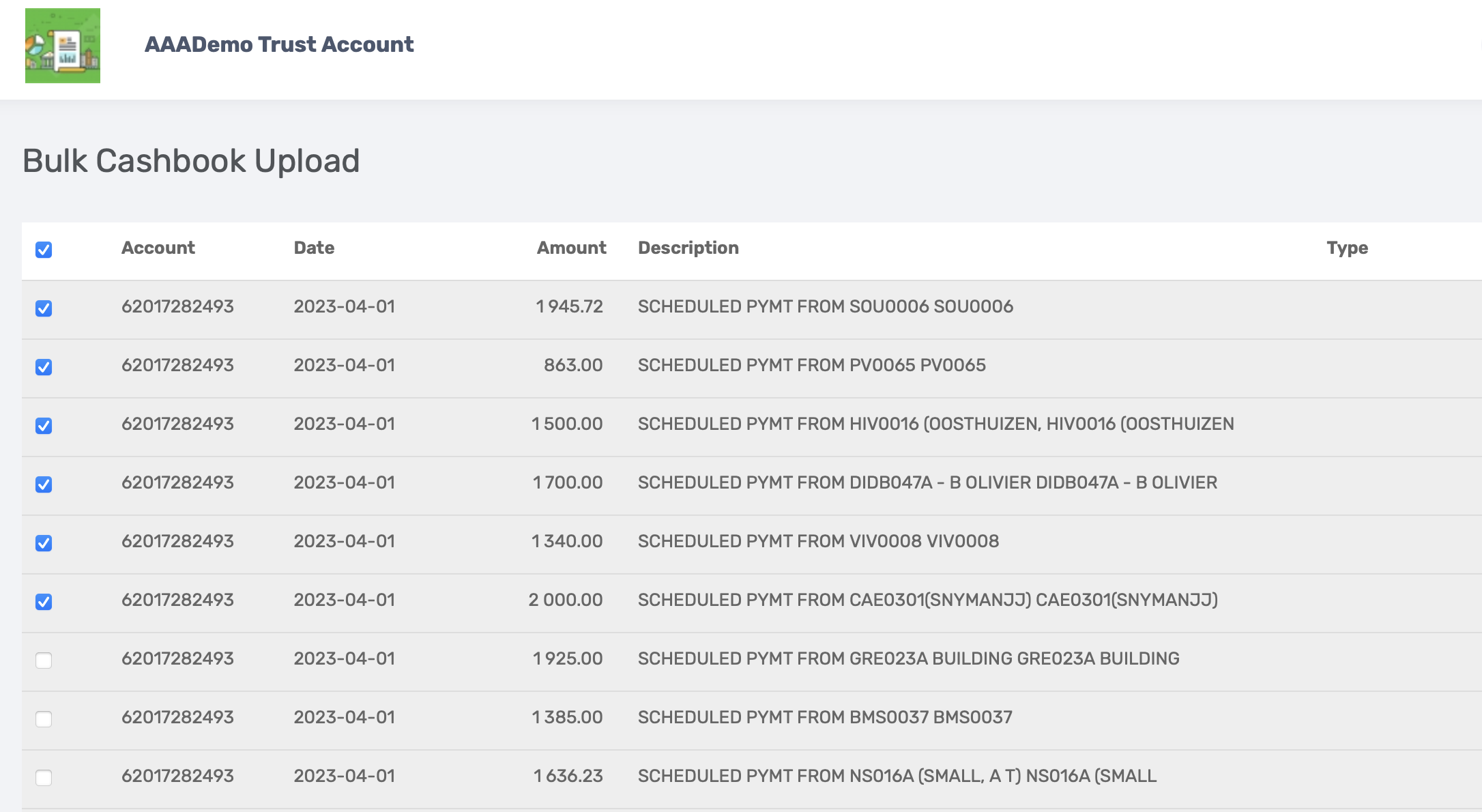
The Solution will display the Bulk Cashbook Upload, along with any transactions that may be potential duplicates. If the items are not duplicates, users can simply tick the checkbox next to them. Once completed, click Submit.

1.3 Add Transaction
Here, manual transactions can be added. After filling in the entry/entries, click on Submit Transactions.
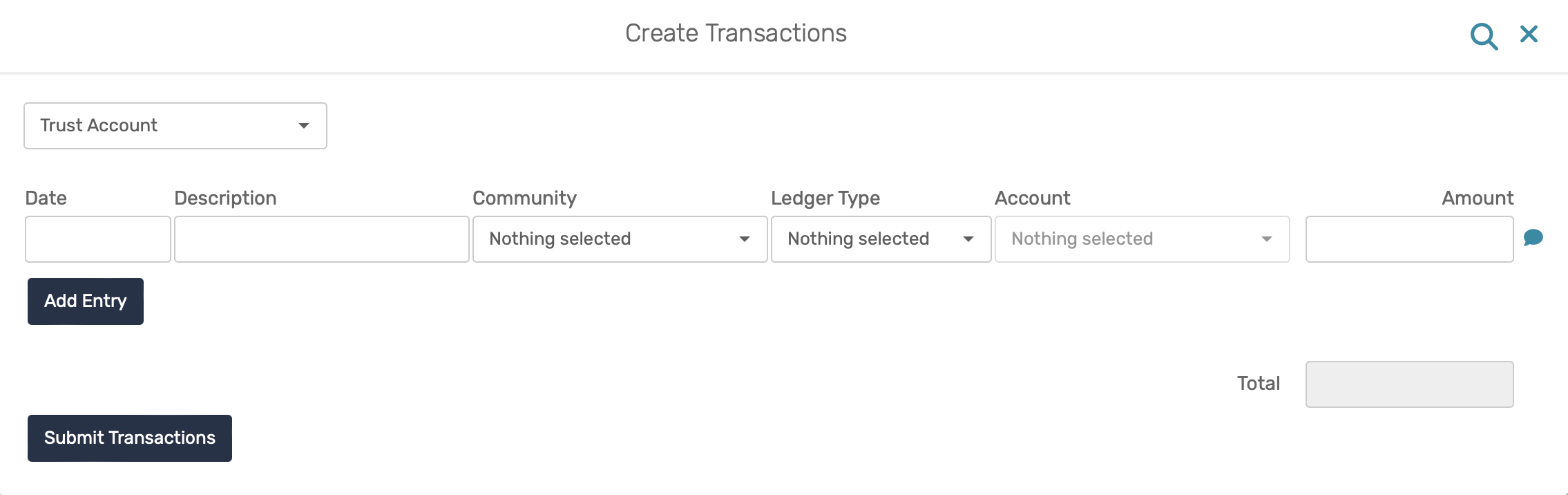
Important: Ensure to select the correct Trust cashbook at the top before Submitting Transaction. |
1.4. Download Excel
This button will download all the transactions that are shown on the screen. Transactions are discussed more in the next section.
2. Transactions
Just below the Trust Account Cashbook, the following options will be displayed. Here, users can select their cashbook account and specify the desired date range. There are also options to hide allocated transactions, show uploaded transactions (uploaded via bank statements), and/ or show manual transactions.

According to the filters used (as shown above), the transactions will follow. The transactions with the man-icon are transactions that were manually uploaded. Hovering over this icon will also show who added it and when.

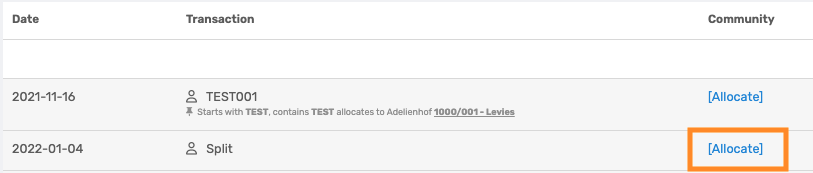
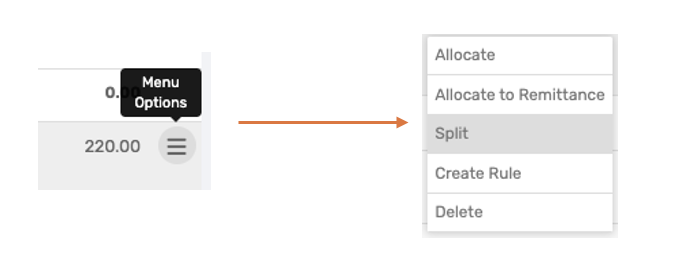
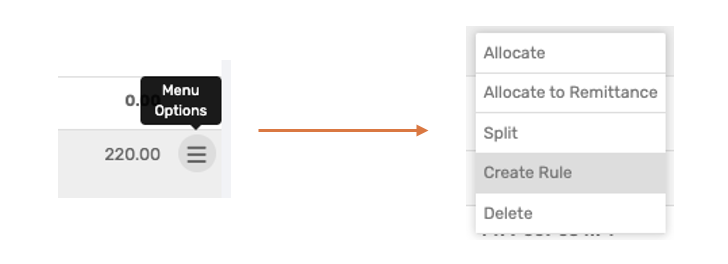
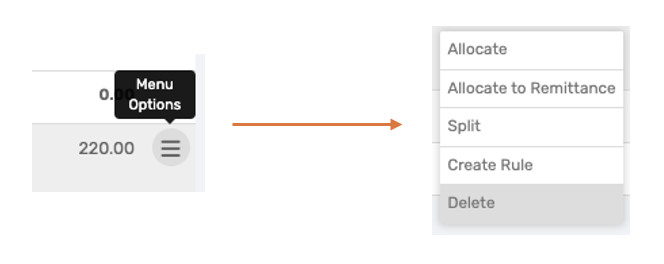
There are a few options regarding these transactions. These transactions can be allocated by clicking on the Allocate button or by clicking on the Menu Options.
2.1. Allocate
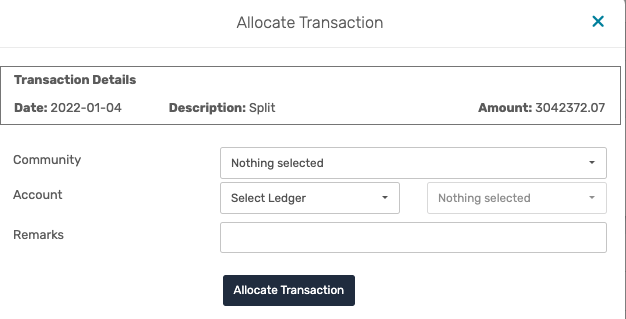
When clicking on Allocate, the following screen appears to allocate the transaction to the appropriate community and account.
2.2. Allocate to Remittance
When clicking on Allocate to Remittance, the following screen displays to allocate the transaction to the appropriate remittance invoice and add remarks.

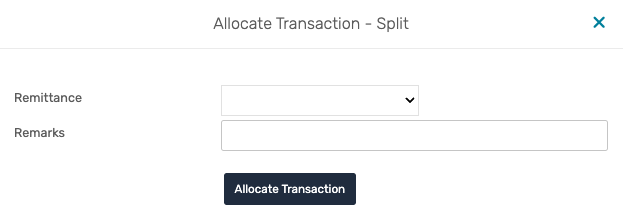
Golden Rule: DO NOT ever unallocate a remittance, because the remittance option will not reappear, and instead rather pass a journal to reallocate the transaction. |
2.3. Split
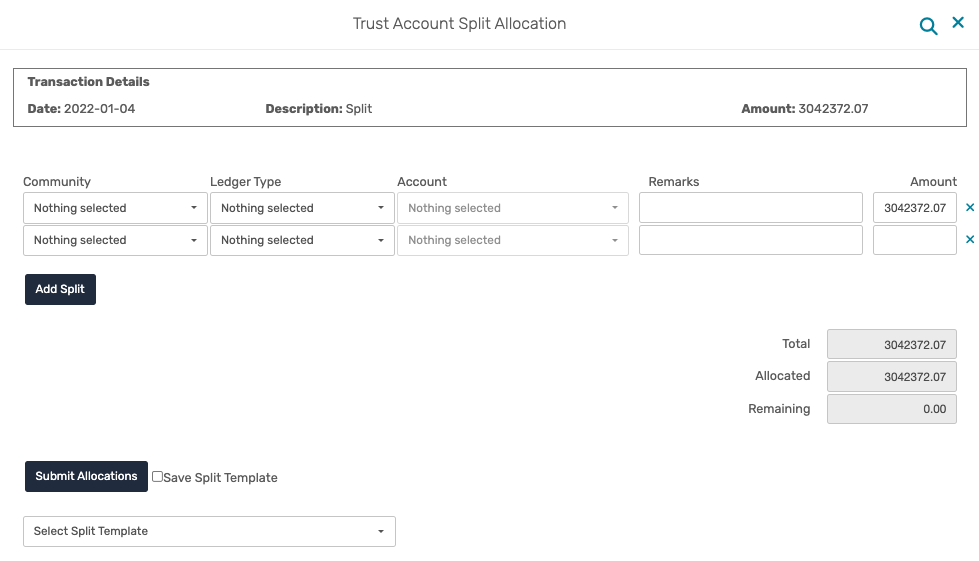
When selecting Split, the following screen appears, where the transaction can be split to the appropriate account(s). This can be done manually or by using the template. If this is a split that occurs regularly, save the split template to reuse at a later stage.
2.4. Create Rule
When clicking on Create Rule, the following screen appears to create allocation rules to automate the allocation process. Read more about allocation rules here.
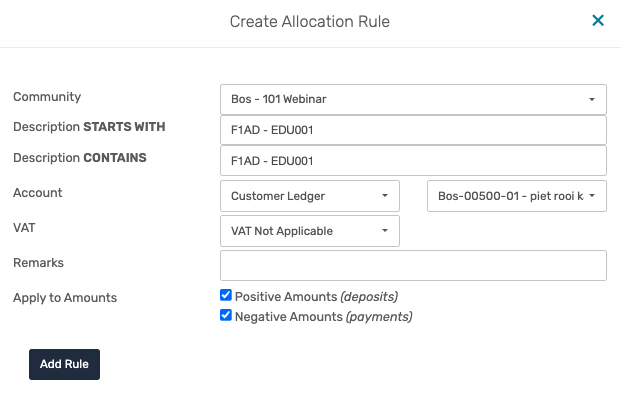
Note: Allocation rules can only be modified or deleted in the relevant community itself and not on the Global level. The separators in the rule description can only be a full stop, slash, or hyphen. |
2.5. Delete
To delete transactions, select Delete from the menu, but this action cannot be undone.
Was this article helpful?
That’s Great!
Thank you for your feedback
Sorry! We couldn't be helpful
Thank you for your feedback
Feedback sent
We appreciate your effort and will try to fix the article