Four Supplier invoicing options:
- Single Community Invoice
- One Supplier for Multiple Communities
- Remittance Invoice - One Payment
- Inter-account Invoice
1. Single Community Invoice
Navigation: Global Overview > Finance > Trust Payment
On the Trust Payments page, the following screen will appear. To only capture a single invoice for one community, complete the following fields:
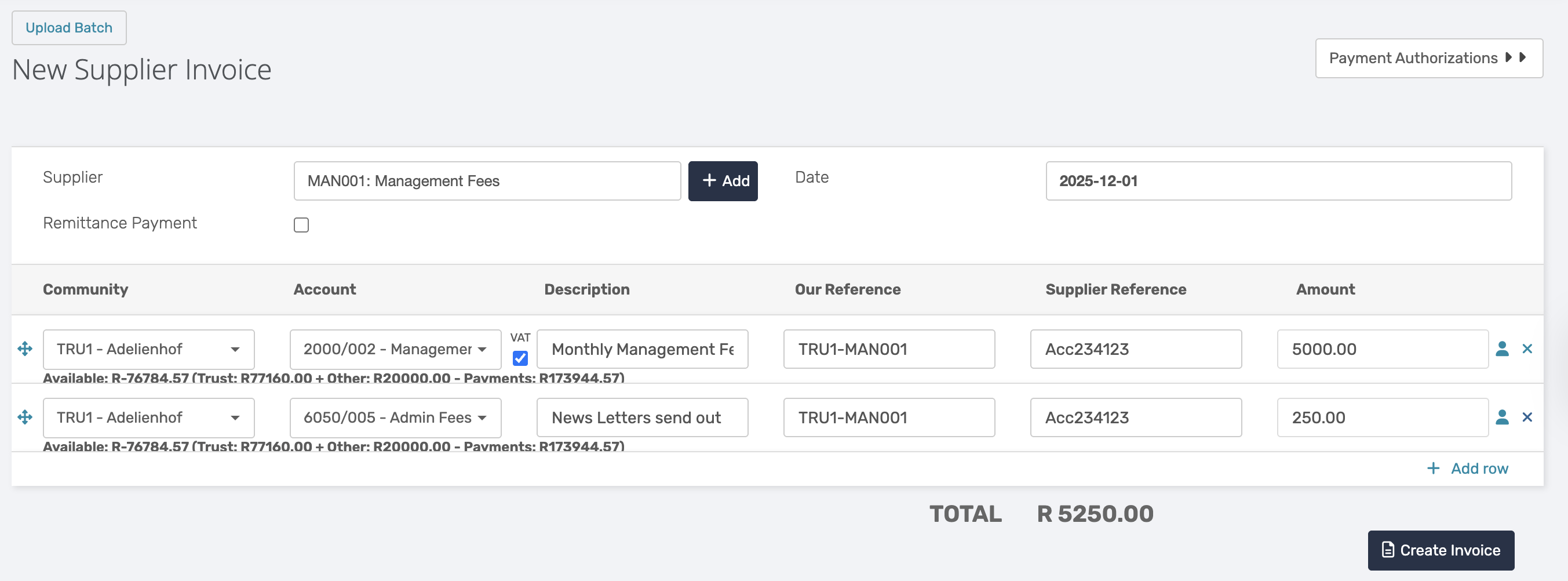
- Supplier: Select the supplier as per the invoice received - the supplier must be verified.
- Date: Select the invoice date.
- Create the line items relevant to the invoice:
- Select relevant Community
- Ledger selection
- Invoice Description
- Our reference: Best practice would be to first use the Community code, followed by the supplier code, e.g., TRU1-MAN001 - this will ensure that payments made will not be allocated to the incorrect Community with a similar invoice
- Supplier reference: the reference that will reflect on the supplier's bank statement.
- To add multiple line items, select Add Row (This applies to all invoicing options).
- The same community can be selected so that all the line items can be on the same invoice for the community (Use the same reference on each line item, so all line items appear on one invoice).
- Once all the information has been added and confirmed, click on Create an Invoice
Note: To recover costs from Owner/ Customer, click on the 'Little Man' icon. 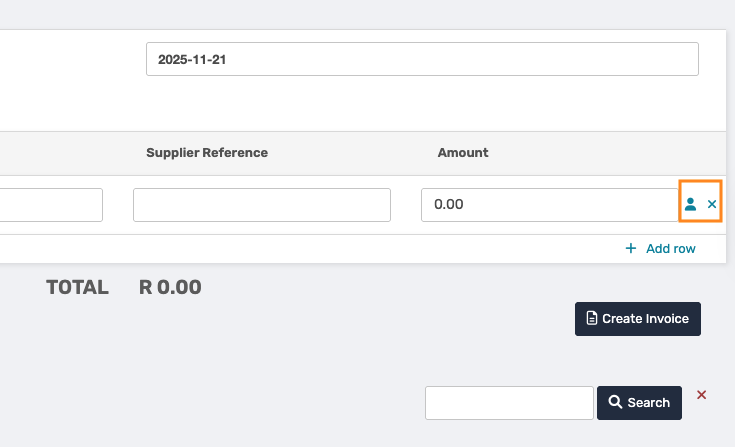 This will create a journal entry on the selected Customers account. If the supplier invoice needs to be debited, the customer journal entry will have to be adjusted separately. |
2. One Supplier for Multiple Communities
Navigation: Global Overview > Finance > Trust Payment
To capture a single invoice for multiple communities, complete the following fields:
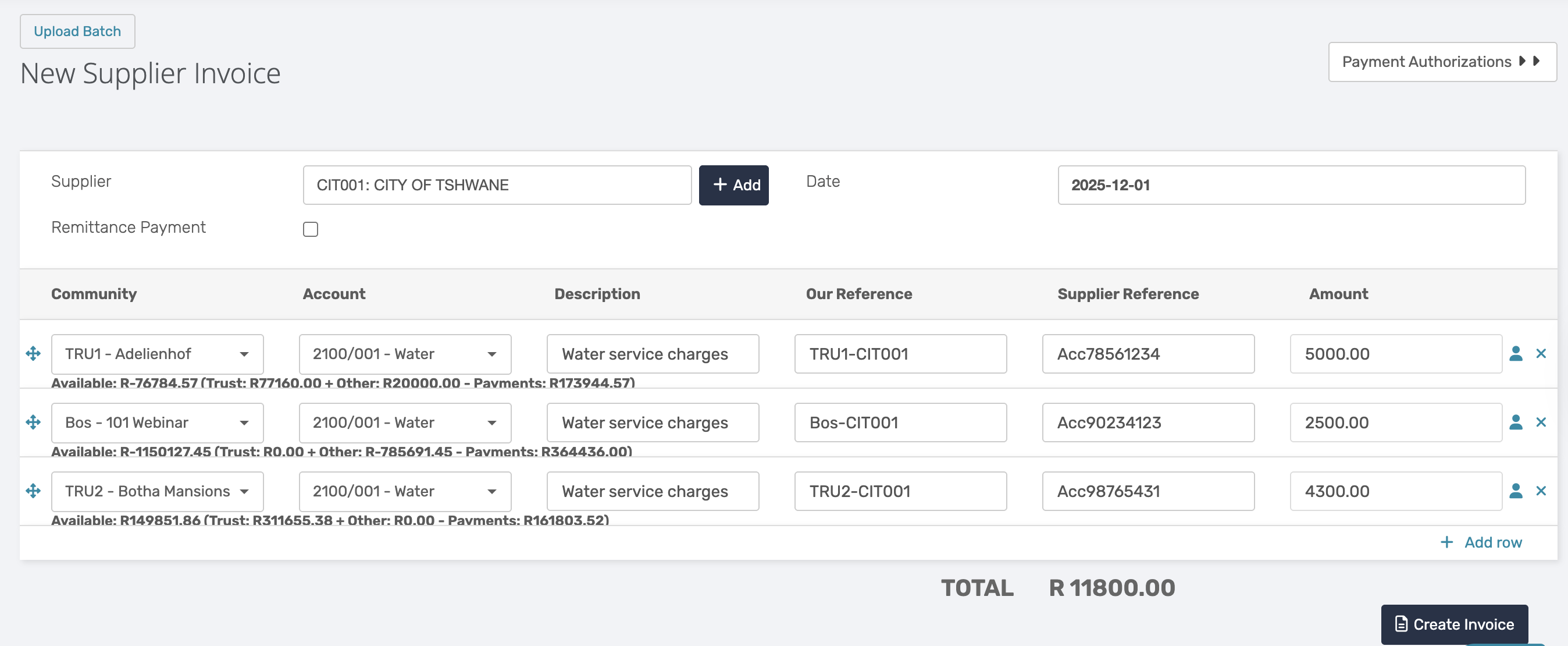
- Supplier: Select the supplier - the supplier must be verified.
- Date: Select the invoice date.
- Create the line items relevant to the invoice:
- Select relevant Community
- Ledger selection
- Invoice Description
- Our reference: Best practice would be to first use Community code followed with the supplier code, e.g., HOA01-SUP001 - this will ensure that payments made will not be allocated to the incorrect Community with a similar invoice
- Supplier reference: the reference that will reflect on the supplier's bank statement
- To add more line items, select Add Row
- To add another community, for example, click on Add Row and select the relevant Community.
- Once all the information has been added and confirmed, click on Create an Invoice
Example: This method is used for Municipal payments. |
3. Remittance Invoice: One Payment
Navigation: Global Overview > Finance > Trust Payment
Supplier is paid with one payment for multiple Communities.
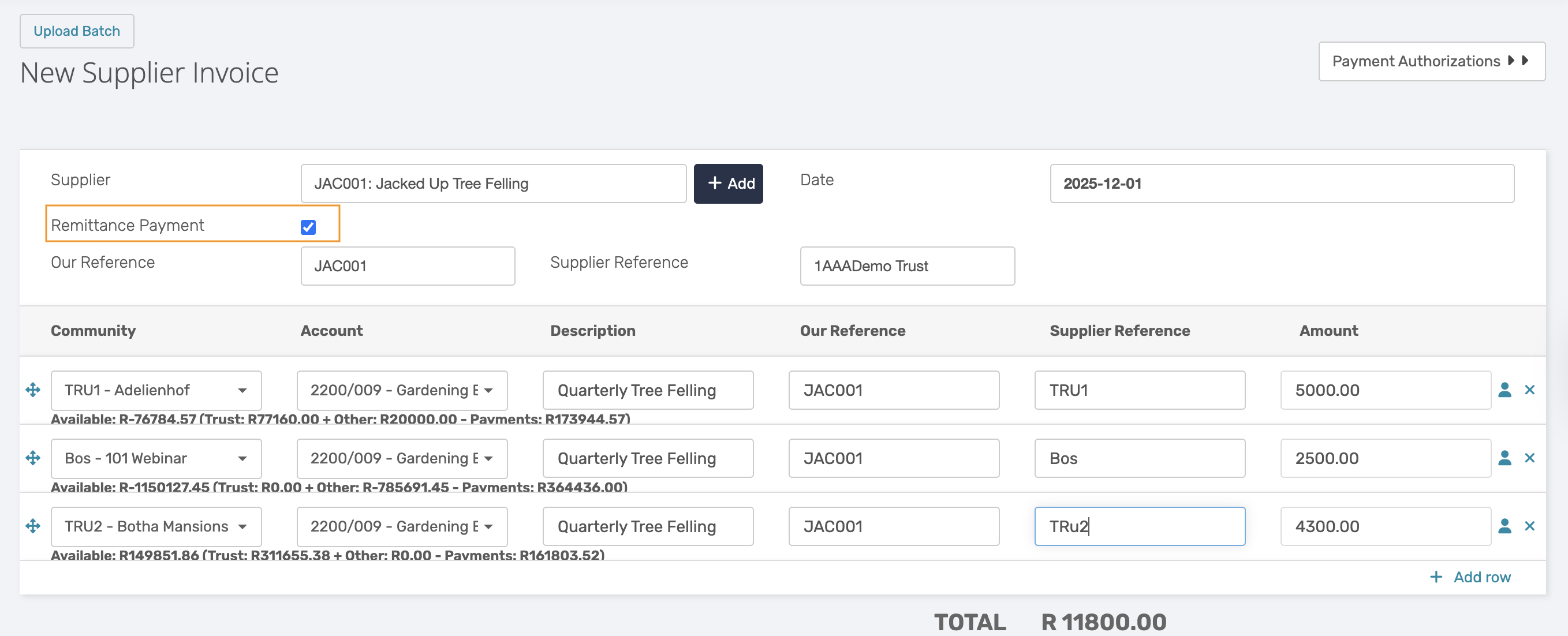
To capture a remittance payment, complete the following fields:
- Supplier: Select the supplier - the supplier must be verified.
- Date: Select the payment date.
- Remittance Payment: Tick this box for the Remittance Payment to be captured
- Our Reference: Best practice is to use the Supplier Code
- Supplier Reference: Best practice is to use the Managing Agents name
- Email Supplier: Tick this box to send the remittance to the supplier
- Create the line items relevant to the invoice:
- Select relevant Community
- Ledger selection
- Invoice Description
- Our reference: the reference that will reflect on the Trust Cashbook, and needs to match the first Our Reference box completed at the top
- Supplier reference: enter the Community code
- To add another community, click on Add Row and select the relevant Community.
- Once all the information has been added and confirmed, click on Create an Invoice
Note: Remittance payments do not require payment Authorization. While a remittance can be edited, the community cannot be changed, and individual rows cannot be removed. |
4. Inter-Account
Navigation: Global Overview > Finance > Trust Payment
An inter-account invoice can be used to make financial provisions or adjustments between communities. This is helpful when a previous invoice was processed incorrectly and needs to be corrected.
An Inter-Account invoice acts as a bulk journal entry, allowing to move funds from one community to another.
Step 1
To capture a inter-account payment, complete the following fields:
- Supplier: Select the supplier - the supplier must be verified.
- Date: Select the invoice date.
- Remittance Payment: Tick this box to enable the inter-account selection
- Our Reference: Best practice is to use the Supplier Code
- Supplier Reference: Best practice is to use the Managing Agents name
For inter-account payments, the line items should be captured as follows:
- Select the first Community for which the inter-account payment is being made
- Ledger selection
- Invoice Description
- Our reference and Supplier Reference
- The first line item amount should be the amount that needs to be paid
- Add another line item and select the Holding Community in the Community drop-down
- Ledger selection
- Our reference and Supplier Reference
- The second line item amount should be negative - this will initiate the 'Inter Account' tick box
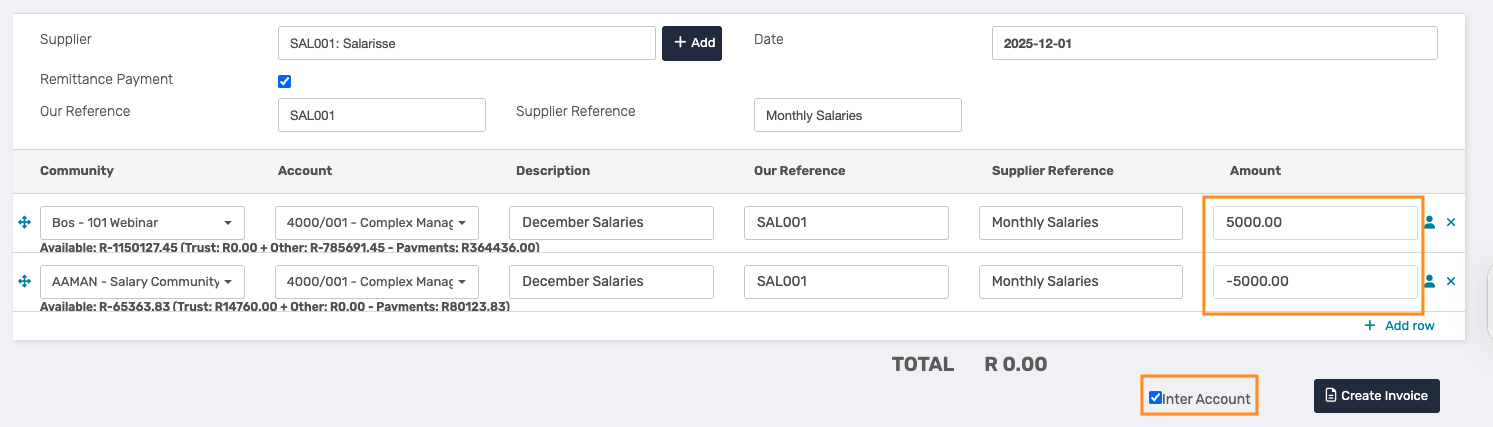
- Once all the information has been added and confirmed, click on Create an Invoice
Note: The actual supplier invoice within the community will automatically be marked as paid, and the corresponding cashbook transaction will be created in the cashbook. |
Step 2
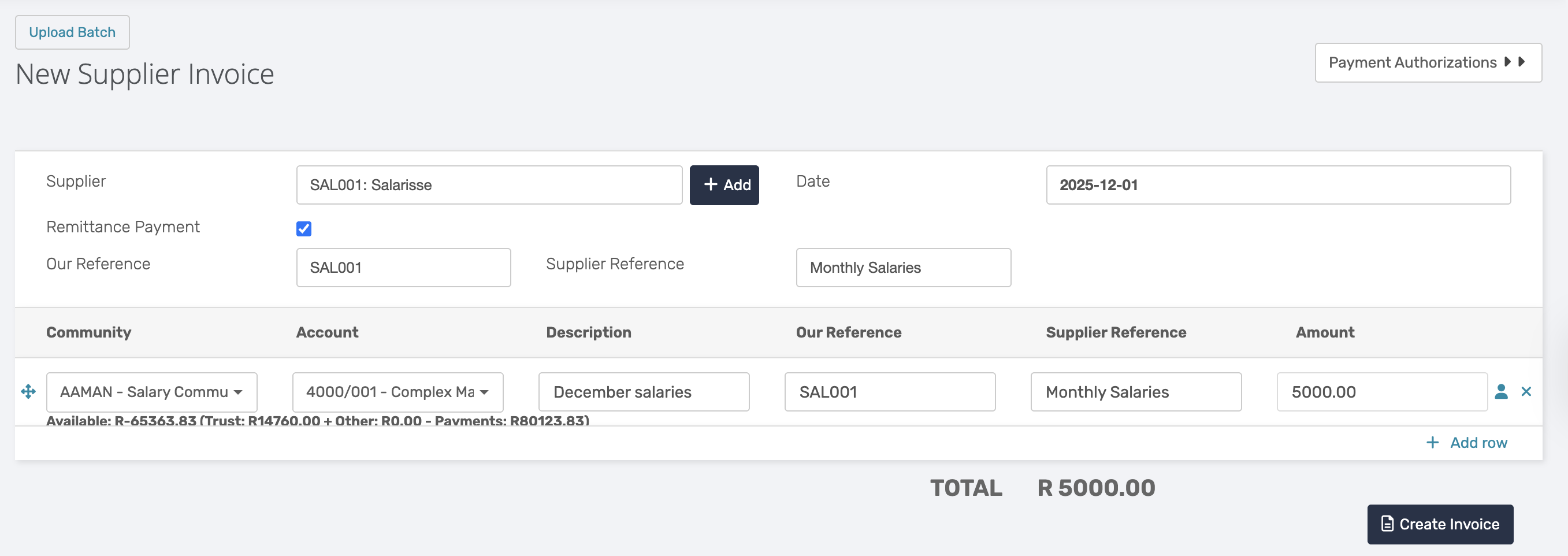
After creating the Inter-account payment/ invoice, a single invoice needs to be raised in the holding community.
The same details as above will be used. When payment is physically made, allocate the cashbook transaction against this single invoice raised in this step.
Example: The Holding Community supplier will look as follows. 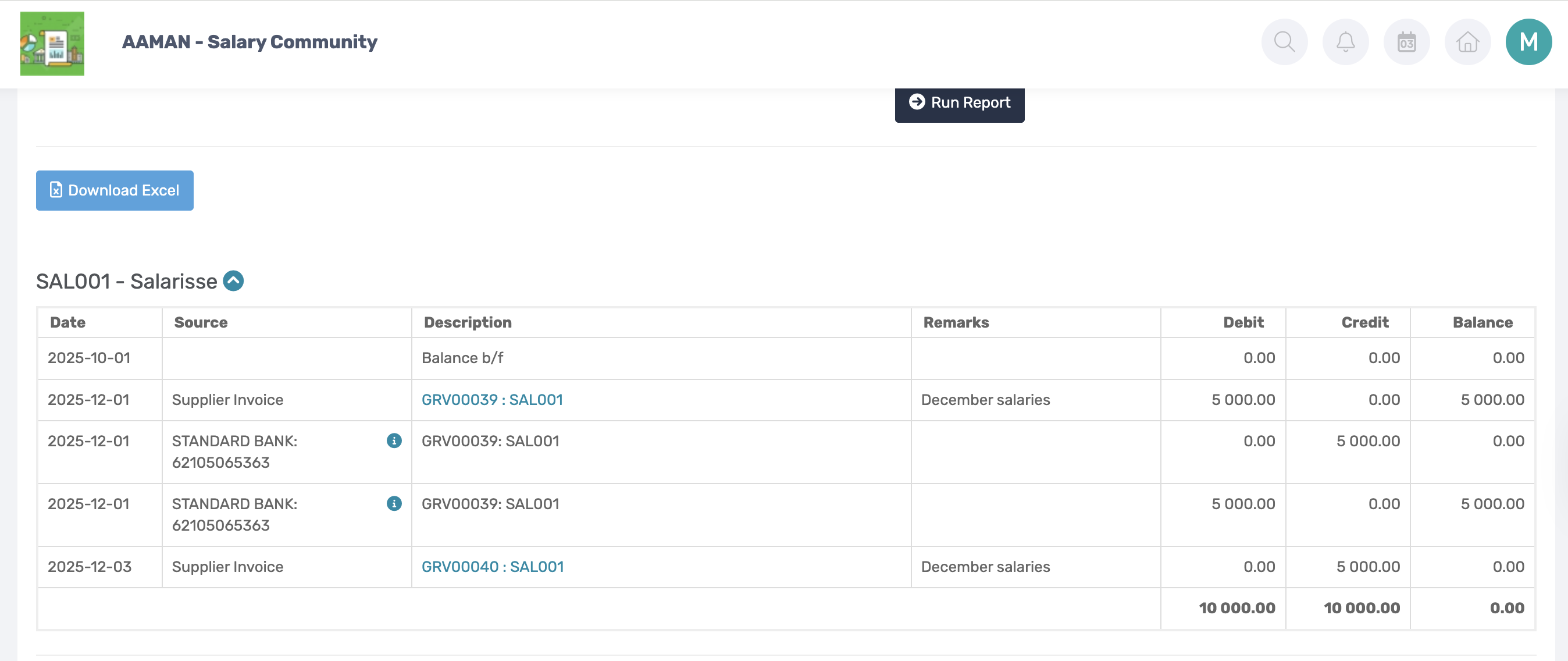 And the actual community is as follows. 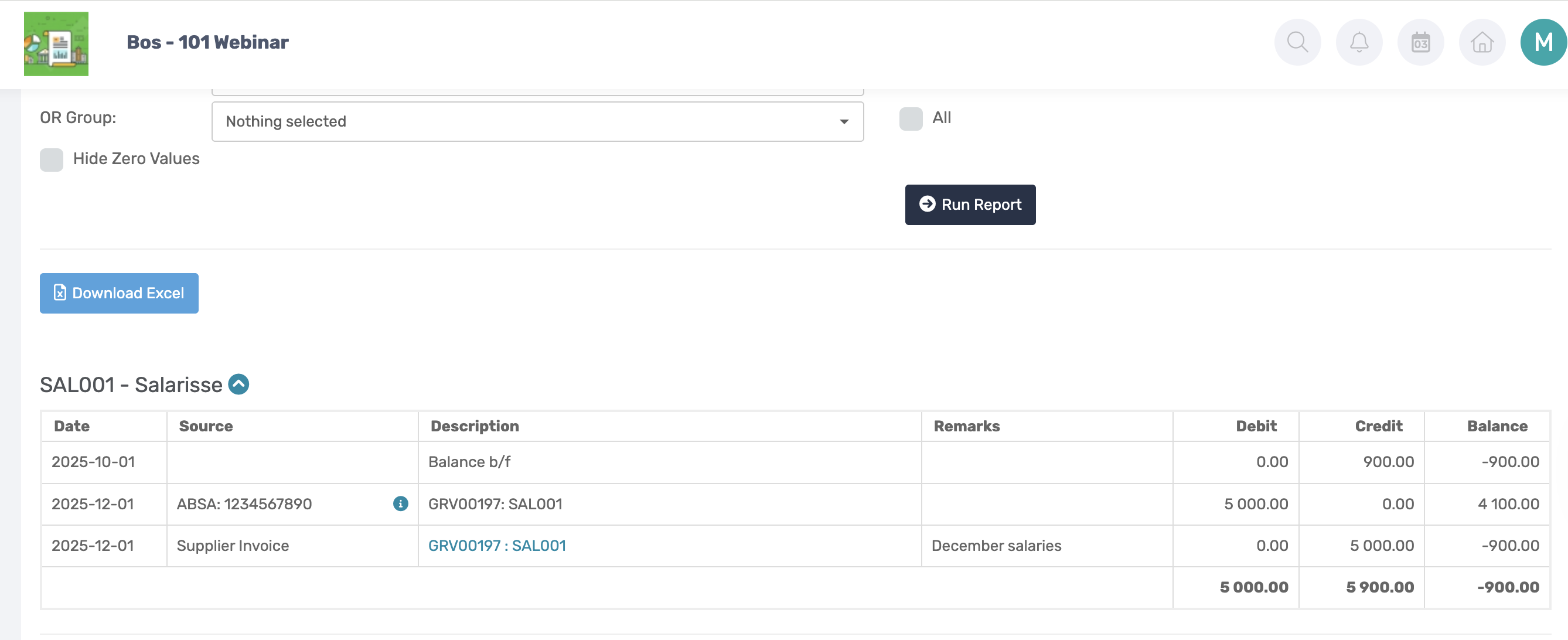 |
Note: Holding Community/Reconciliation Community is a non-operational community used for administrative purposes. It does not represent an actual community. Instead, it serves as a central place to store, allocate, or manage funds temporarily. |
5. Upload Batch
The four above-mentioned methods can also be done via the Upload Batch option.
Navigation: Global Overview > Finance > Trust Payment > Upload Batch
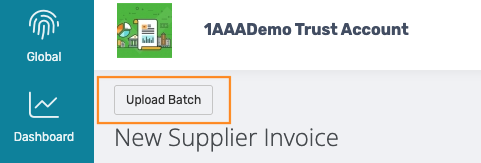
By clicking on Upload Batch in the top left corner, a pop-up window will appear.
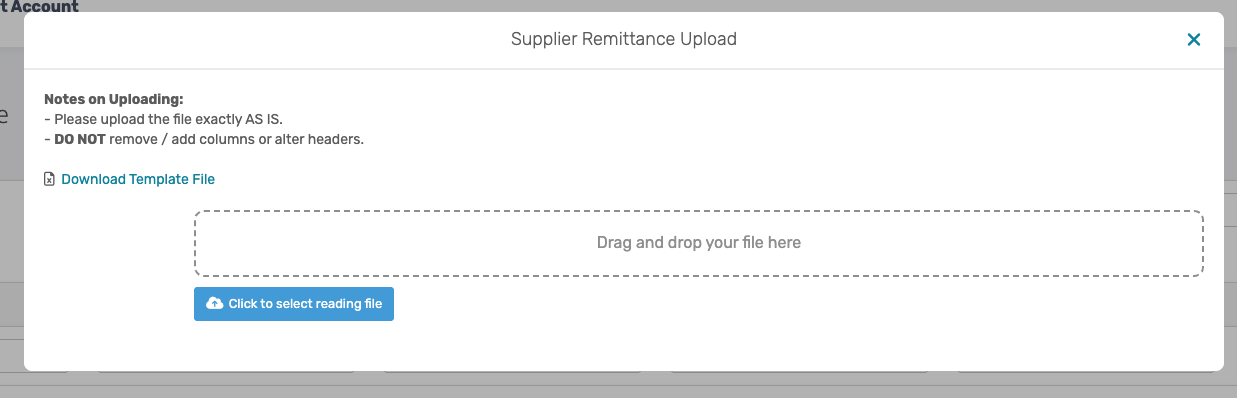
Select 'Download Template File'. This action will download an Excel with the following fields that need to be completed:

Top Row:
- Supplier Code: Use the Supplier this upload is for
- Our Reference: Community code and Supplier code
- Supplier Reference: What will be displayed on the Supplier's bank statement
- Total
Next Row:
- Community Code: Enter the Community Names.
- Account: Ledger to be selected.
- Description: Invoice Description
- Our Reference: Best practice is to reflect as the 'Community Code - Supplier Reference'.
- Supplier Reference: The reference that will reflect on the supplier's bank statement, e.g. the account number held at the supplier.
- Amount: Invoice amount to be paid.
- Customer Code, Customer Description, Customer Reference, and Customer Recovery Amount: These fields will only be completed if costs need to be recovered from Owners/ Customers.
Once the Excel file has been completed, upload it to the pop-up window.
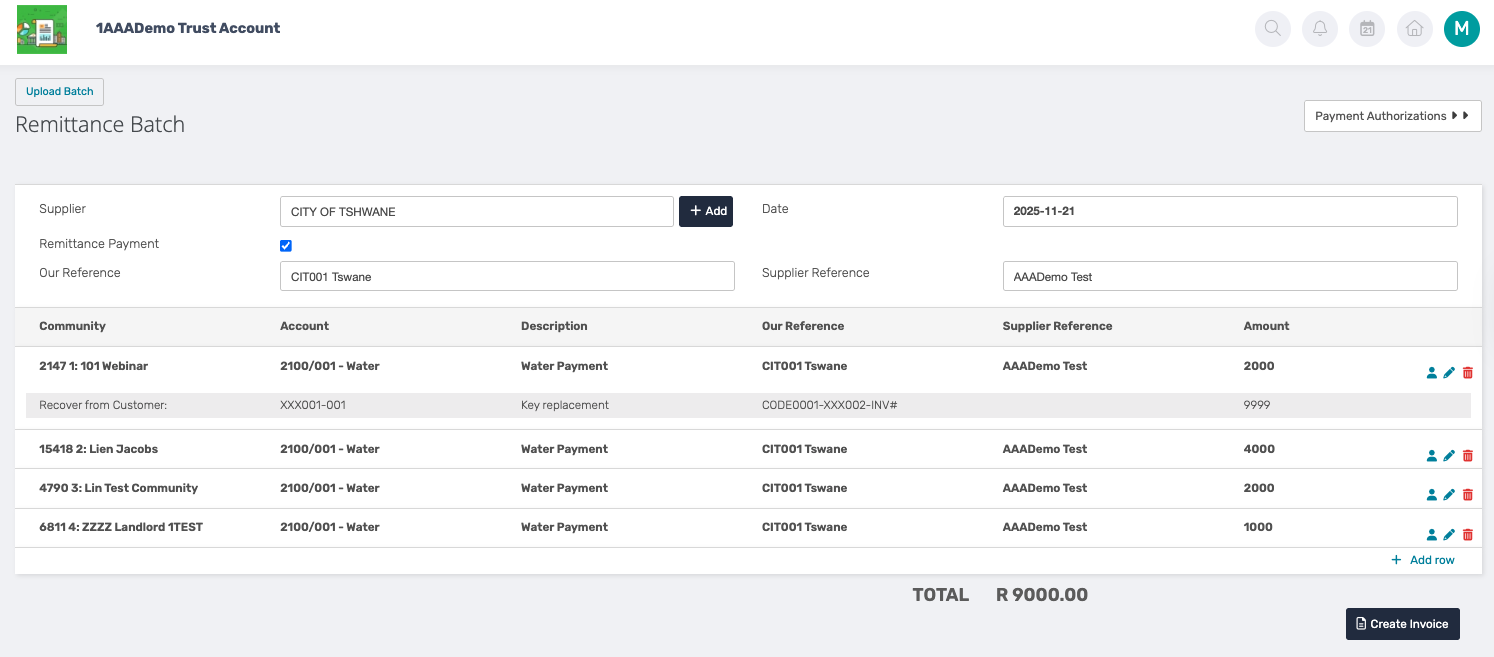
After uploading, a Summary will display of all the line items entered on the Upload file.
Was this article helpful?
That’s Great!
Thank you for your feedback
Sorry! We couldn't be helpful
Thank you for your feedback
Feedback sent
We appreciate your effort and will try to fix the article