AnyDesk is a remote desktop application that allows a support consultant to securely connect to a computer remotely, with the user's permission.
This guide explains how to download and install AnyDesk on both Windows and Mac computers.
Important: Only download AnyDesk from the official AnyDesk website to ensure that the correct and secure version is installed. |
1. Open the AnyDesk Website
- Open an internet browser such as Google Chrome, Microsoft Edge, or Safari.
- Go to the official AnyDesk website - https://anydesk.com/en
- Select Download.
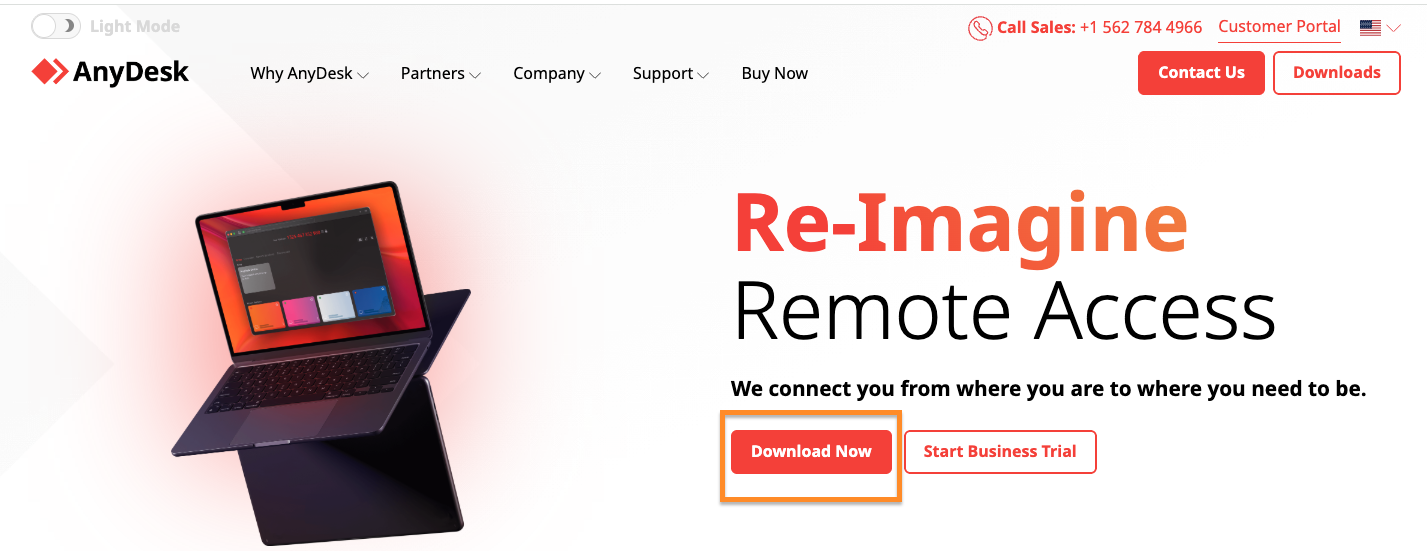
- AnyDesk will automatically provide the version suitable for the computer's operating system.
2. Windows
2.1. Download AnyDesk
- On the AnyDesk download page, select Download Now.
- The AnyDesk installation file will download to the computer.
- Once the download has completed, open the downloaded file.
- The file will usually be located in the Downloads folder.
- It may be named something similar to
AnyDesk.exe.
2.2. Open AnyDesk
- Double-click the downloaded AnyDesk.exe file.
- AnyDesk will open.
- If prompted by Windows with a User Account Control message asking whether the application can make changes to the device, select Yes.
2.3. Installing AnyDesk
If the option is available:
- Select Install AnyDesk.
- Follow the prompts displayed on screen.
- Once the installation is complete, AnyDesk can be opened from the Start Menu or desktop shortcut.
3. Mac
3.1. Download AnyDesk
- On the AnyDesk download page, select Download Now.
- The AnyDesk installation file will download to the Mac.
- Once the download has completed, open the downloaded file.
- The file will usually be located in the Downloads folder.
- It will generally be a
.dmgfile.
3.2. Installing AnyDesk
- Double-click the downloaded AnyDesk.dmg file.
- An AnyDesk window will open.
- Follow the on-screen instructions to install AnyDesk.
- If prompted, move AnyDesk to the Applications folder.
- Open AnyDesk from the Applications folder.
3.3. Allowing Permissions on Mac
Depending on the version of macOS, AnyDesk may request additional permissions before a remote support session can be started.
If prompted:
- Open System Settings.
- Select Privacy & Security.
- Look for the permissions requested by AnyDesk, such as:
- Screen Recording
- Accessibility
- Enable the required permissions for AnyDesk.
- You may need to close and reopen AnyDesk for the changes to take effect.
4. Provide the AnyDesk Address to Support
Once AnyDesk is open:
- Locate the This Desk or Your Address section.
- The computer will have a unique AnyDesk Address or ID.
- Provide this number to the support consultant assisting you.
Security reminder: Only provide your AnyDesk Address to a trusted support consultant. Never give remote access to someone you do not know or trust. |
Troubleshooting
If AnyDesk does not open or download:
- Check that the internet connection is working.
- Try downloading AnyDesk using a different browser.
- Check the computer's Downloads folder.
- Restart the computer and try again.
- If the computer is managed by an organisation, administrator permissions may be required to install the application.
Tip: Keep AnyDesk open while the support consultant is assisting you. You can close the application once the remote support session is finished. |
Was this article helpful?
That’s Great!
Thank you for your feedback
Sorry! We couldn't be helpful
Thank you for your feedback
Feedback sent
We appreciate your effort and will try to fix the article