Step 1: Export the Unit Details
Navigation: Community Overview > Unit - Unit Details
Click Export Units on the far right of the screen.

The Excel file will download to the computer.
Step 2: Amend the Required Information
Open the downloaded Excel file.
Update only the relevant information that needs to be amended, such as section, unit, or door number, or owner details (e.g., adding postal addresses in bulk).
| Important: DO NOT change the structure of the Excel file.
The Solution will automatically arrange the units in the correct numerical order once the file has been uploaded. Critical Warning: Only upload the necessary changes. Altering the structure of the Excel file or making unintended changes may result in the building data becoming unrecoverable, and the building may need to be suspended. |
Step 3: Save the Excel File
Once the unit numbers have been updated, save the Excel file on the computer.
Before proceeding, ensure that:
Only the necessary information have been amended.
All rows and columns remain in their original positions.
No additional changes have been made to the file.
Step 4: Upload the Updated File
Return to the Unit Details page in the Solution, and click Bulk Edit Units, located on the left-hand side of the screen.

Upload the saved Excel file containing the updated information.
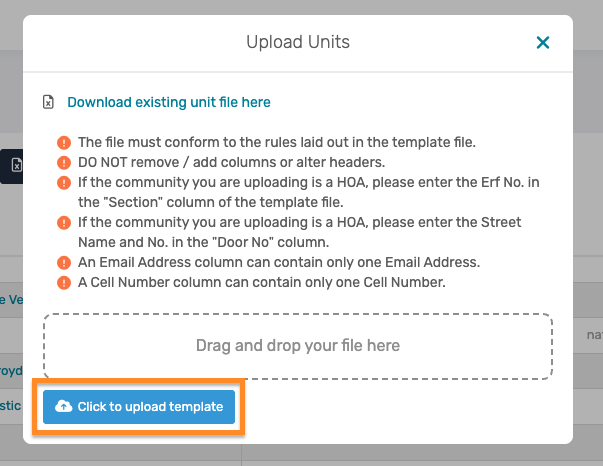
Once the upload is complete, review the Unit Details page to confirm that the information has been updated correctly.
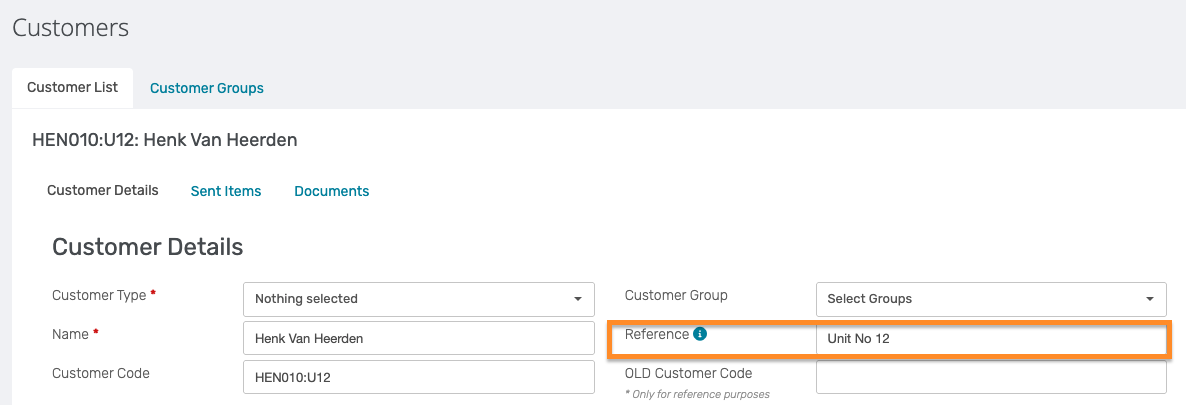
Note: If the section, unit or door number has been amended, navigate to Finance > Manage Customers and select the relevant customer.
In the Reference field, ensure that the correct section, unit or door number is displayed so that the updated reference reflects correctly on the customer’s statements.
|

Was this article helpful?
That’s Great!
Thank you for your feedback
Sorry! We couldn't be helpful
Thank you for your feedback
Feedback sent
We appreciate your effort and will try to fix the article