Reopening a Closed AGM Meeting Card
Once a meeting card has been closed, it cannot be reopened. If an AGM/ SGM or Trustee meeting card was closed in error, a new AGM meeting card will need to be created.
The steps below outline this process.
Creating a new AGM Meeting Card
Navigation: Community > + Add Item
1. Add a new Meeting item
On the Community planner dashboard, click the 'Add Item' button at the top of the screen.

2. Select the Meeting type
From the list of options, select Special General Meeting.
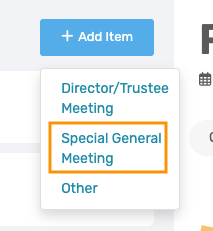
3. Update the Meeting Detail
Once the SGM has been created, a new meeting card will open.
On this meeting card, navigate to the Details tab and update the Meeting Title from Special General Meeting to Annual General Meeting.
The meeting details can then be configured, and the AGM can be managed as required.
| Resources: | ||
CMS - Meetings: In-Meeting | ||
CMS - Meetings: Pre-Meeting | ||
CMS - Meetings: Post Meeting |
Was this article helpful?
That’s Great!
Thank you for your feedback
Sorry! We couldn't be helpful
Thank you for your feedback
Feedback sent
We appreciate your effort and will try to fix the article