The Community Notes module provides a simple way to capture and manage important information specific to a community. Whether it's a once-off note, an important reminder, or useful operational context. Community Notes ensure that key information is easily accessible when it's needed. Notes can be shared with internal Business Users and, where required, made visible to external stakeholders such as owners and trustees.
1. Setup Categories
Navigation: Global Overview > Settings > Community Notes
On the Setup page, a pre-populated list of categories is displayed. Select the Category to configure.
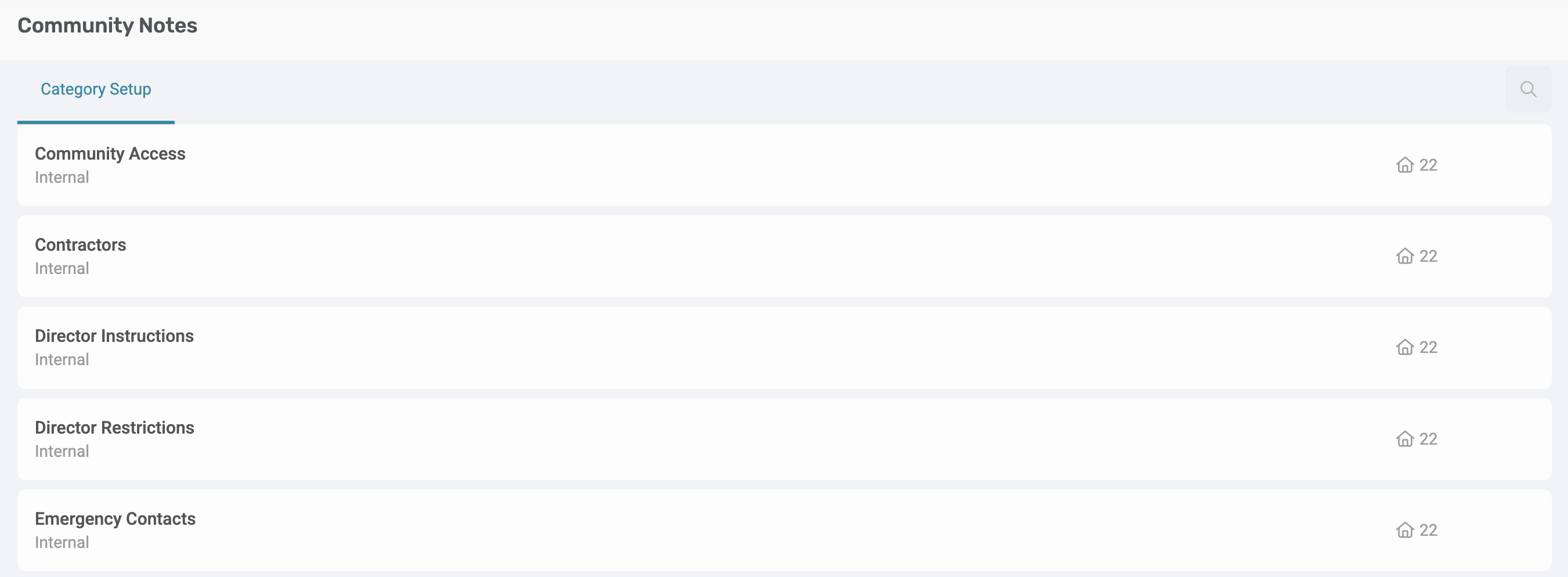
Important: Categories are pre-populated. New categories cannot be added, and existing category names cannot be changed. |
On the pop-up window, select the Communities to which the Category should apply.
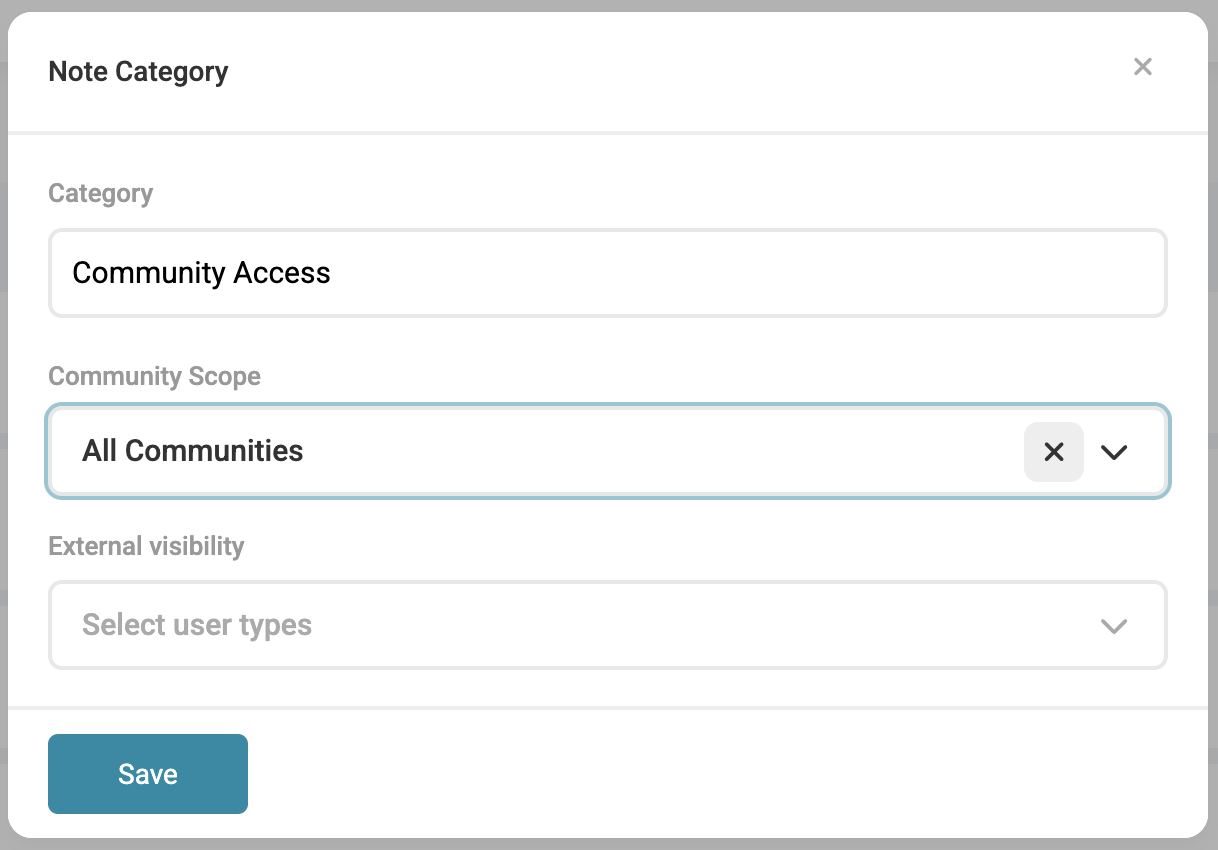
Categories are by default allocated in all Communities. However, there is the option available to only allocate the Categories to certain types of Communities.
The Community Scope drop-down has the following options available:
- All Communities (selected by default)
- Select Communities (to only select specific communities)
- Body Corporate
- Company
- Full Title
- Home Owners Association
- Property Owners Association
Note: If a Community allocated to a category is Suspended, then:
|
By default, notes are visible to the following Business Users:
- Community Manager
- Finance
- Management
- Business Owner/ Director
- Operations
- Auditors
- Attorneys
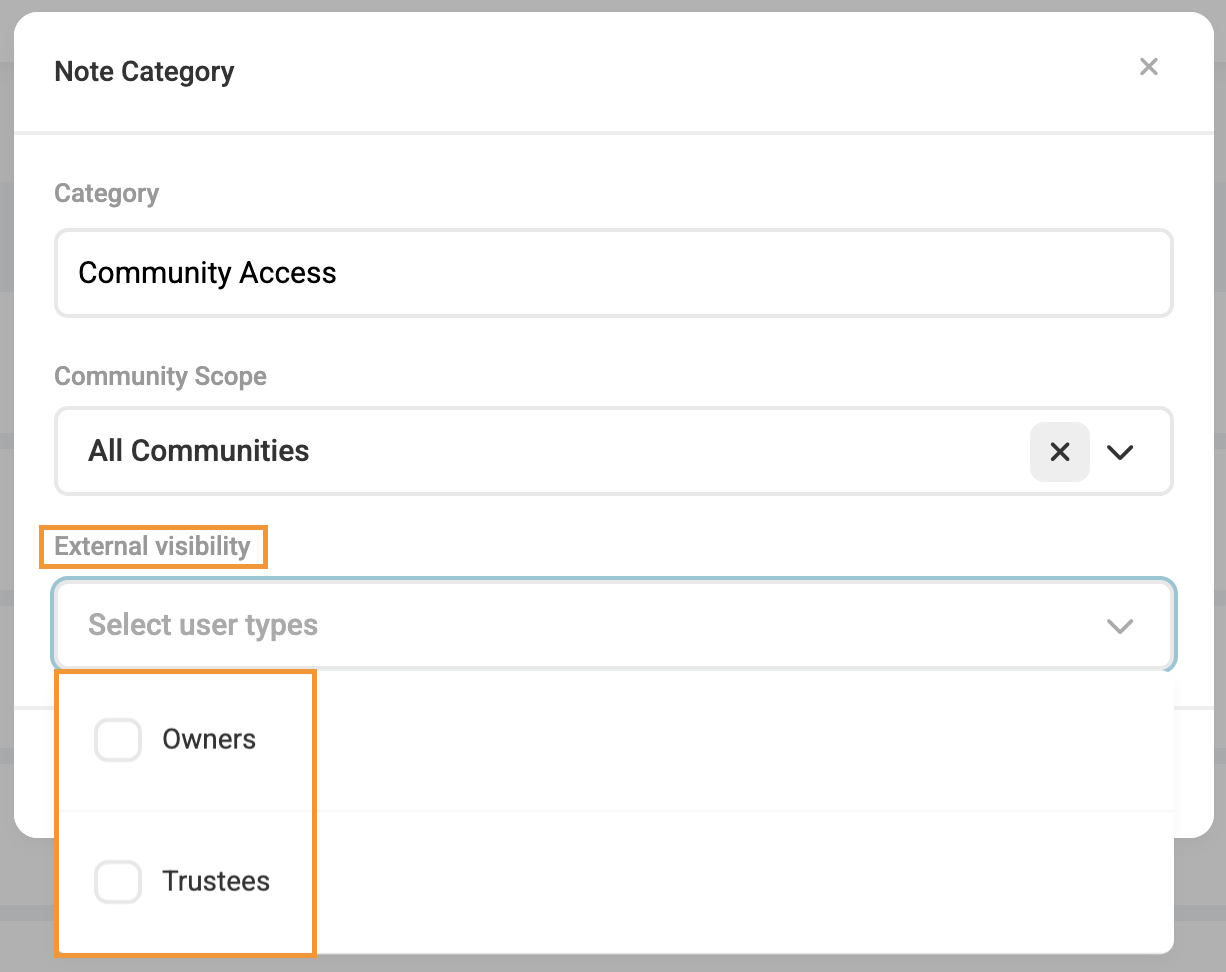
Optionally choose the external user types who can view the notes:
- Trustees
- Owners
2. Create Community Notes
Navigation: Community Level > Manage > Documents
On the Documents page, select the Notes tab at the top of the page. To create a new note, click on the plus (+) icon in the top-right corner.

In the pop-up window, complete the following fields:
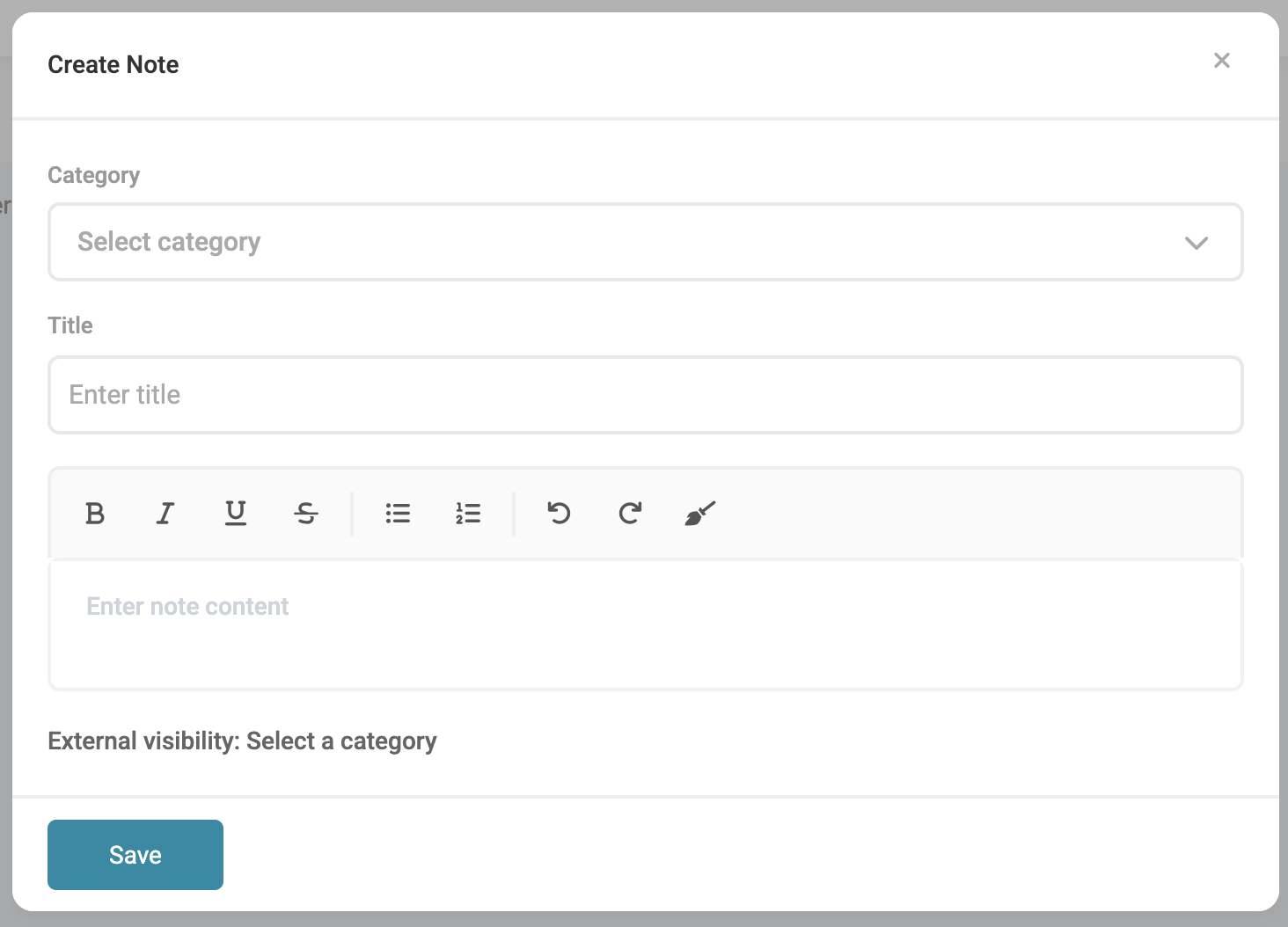
- Category: Select the Category to which the note belongs
- Title: Enter a title for the note
- Text Box: Enter the content of the note
Note: By default, all notes are visible to all Business Users. Visibility for external users, such as Owners and Trustees, is determined by the settings configured for each category at the Global Level. When creating a note in the Community, these external visibility settings can be overridden if required. 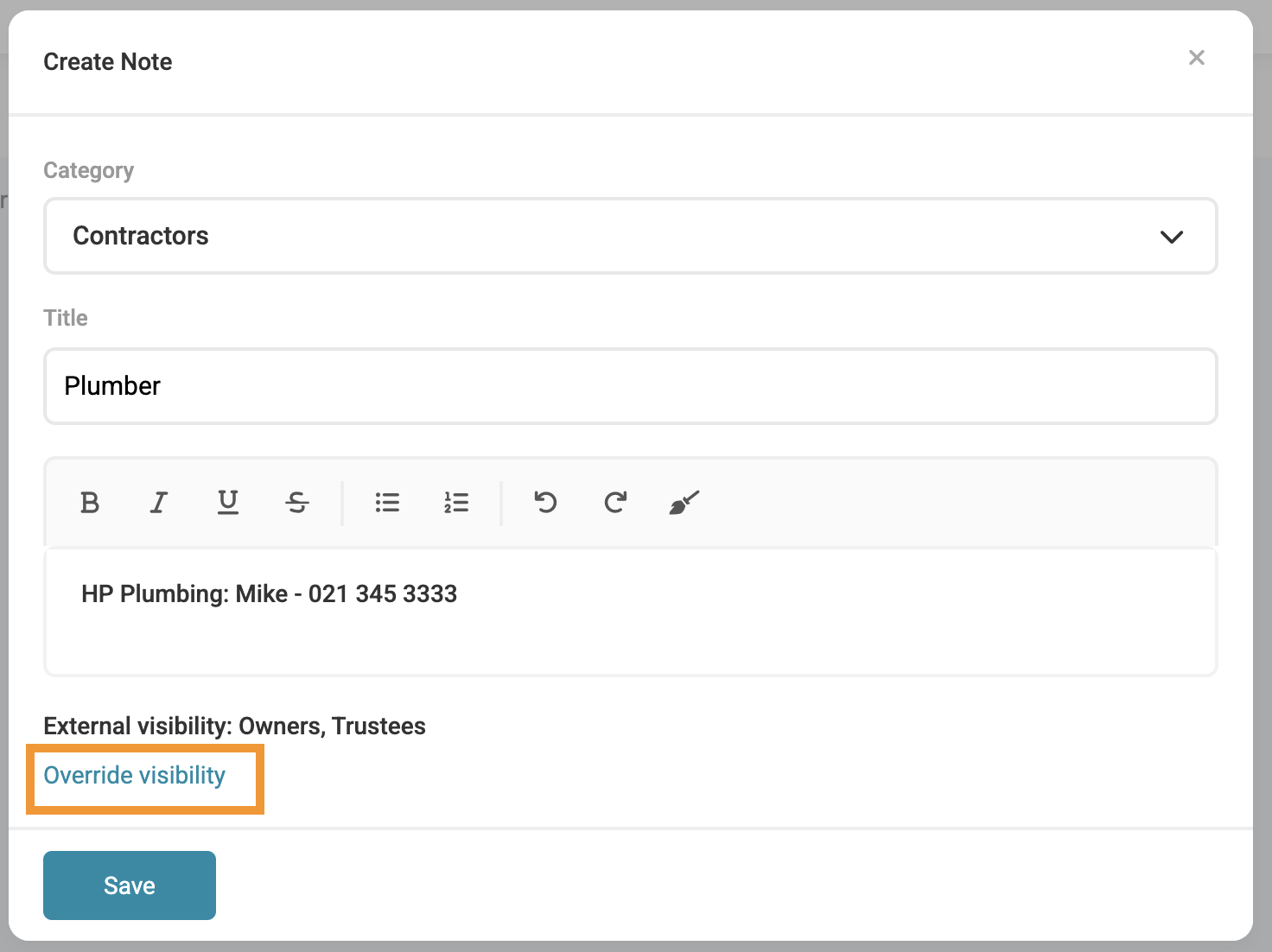 Changing the visibility on a new note does not change the category default, it only applies to that note. |
Community Notes Tab
Navigation: Community Level > Manage > Documents > Notes
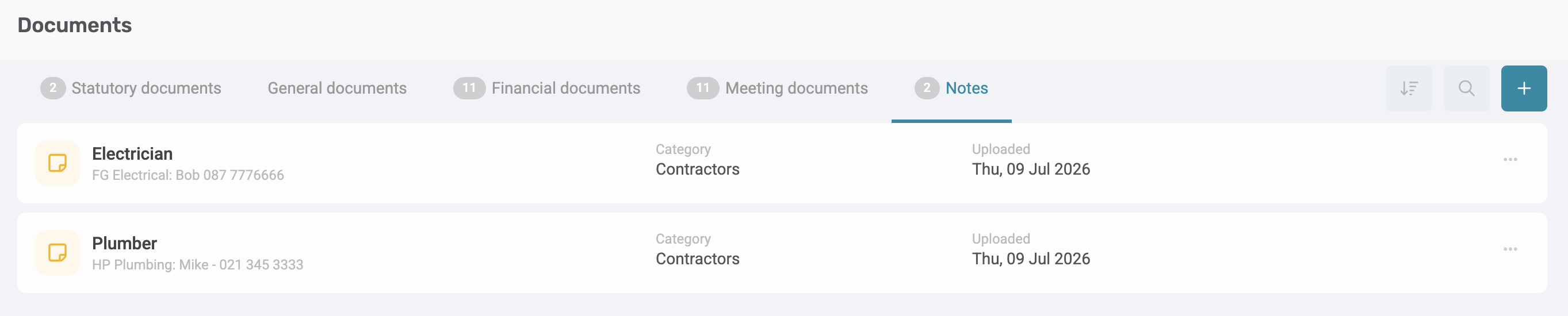
Each Community note will display the following details:
- Note Title
- Note preview
- Category selected
- Upload date
Search and Sort options
Search
To find a specific note, click the magnifying glass icon in the top-right corner. Notes can be searched by their title or content.

Sort
Notes can be sorted by:
- Date (ascending and descending)
- Category (ascending and descending)
Editing and deleting Community Notes
To edit or delete a note, click the menu option next to the note and select the required option.

Note: Creating, editing and deleting Community Notes are permissions based. |
Was this article helpful?
That’s Great!
Thank you for your feedback
Sorry! We couldn't be helpful
Thank you for your feedback
Feedback sent
We appreciate your effort and will try to fix the article