Welcome to the Next Generation Tasks & Compliance. Before using the new Tasks & Compliance experience, existing Tasks and Compliance setup first need to be migrated to the Next Generation Tasks & Compliance experience.
This migration can be thought of as moving and recategorising documents from one folder into a new, more organised folder. The purpose is to ensure that all existing Tasks and Compliance information is carried over from the previous, separate Task and Compliance modules into the new Tasks & Compliance experience.
Only Superuser can action the Migration process.
Once the migration is complete, users can continue working with their existing information within the new experience, without having to recreate their existing Tasks or Compliance Setup.
1. Before Migration
Navigation: Global Overview > Settings > Task Setup
It is recommended to review existing Compliance Setups on the Task Setup page. There is no need to recreate the Compliance Setups from scratch. All existing setups will remain available and can be reviewed and updated for the next-generation Tasks & Compliance.
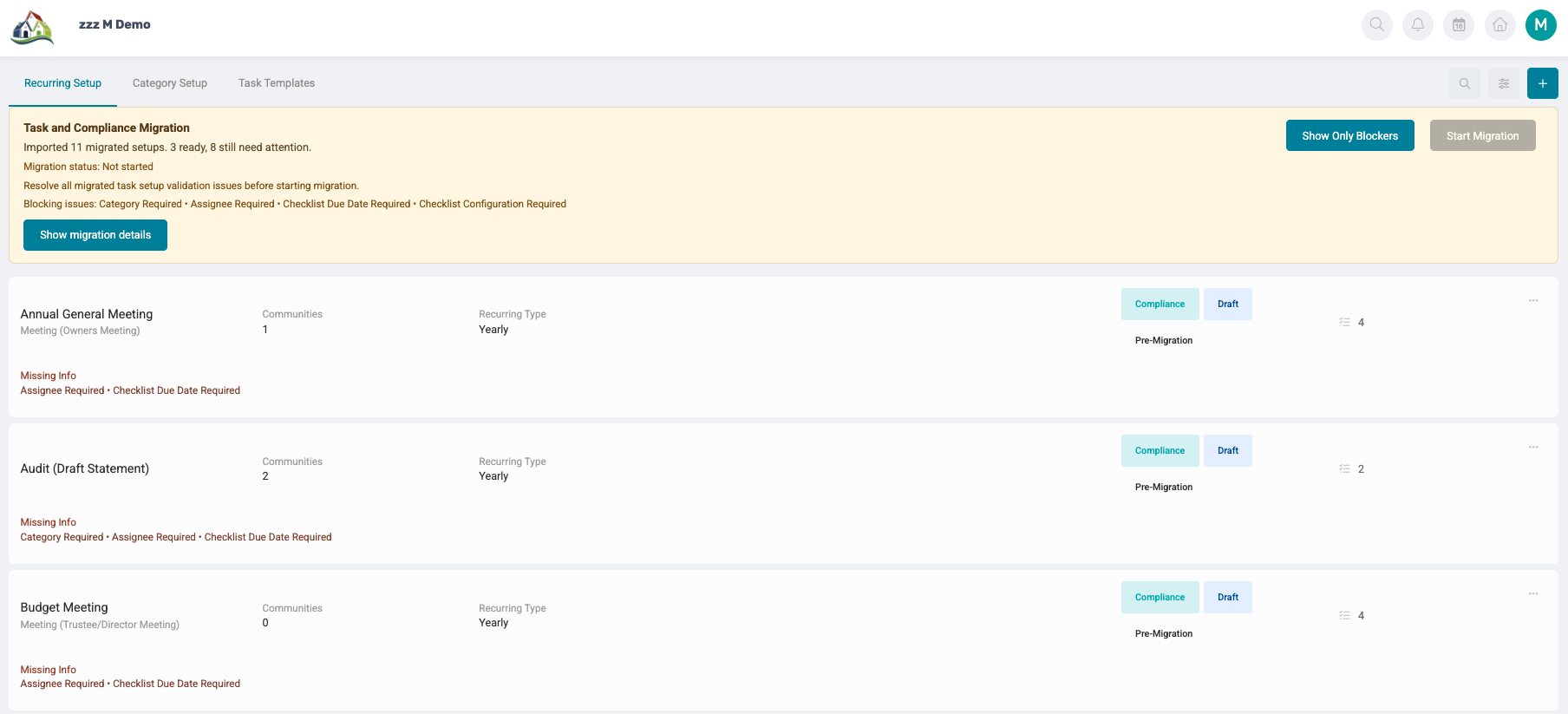
This provides an opportunity to review the existing setups and ensure that Compliance items are accurate and aligned with how Compliance should function going forward.
When making any changes to a setup, users should select Save to ensure that the updates are retained.
Note: If any required information is still missing, the Start Migration option will remain unavailable. The outstanding Tasks and Compliance items must first be setup before the migration can begin. |
Before starting the migration, the team should ensure that all Communities, Roles, Tasks, and Compliance Items are correctly set up and ready for migration. This practical checklist guides the team through the key preparation steps, helping ensure that everything is in place for a smooth and successful transition to the new Task & Compliance functionality. Prepare for Compliance Migration |
Steps to Complete the Migration
To ensure a smooth and successful Migration process, all existing Compliance Items should be reviewed and updated where necessary before proceeding with the Migration.
For each individual Compliance Task Setup, review the following:
1. Assignees for each Compliance Item: Review who is responsible for completing, or the driver for each Compliance Item. Ensure the correct role is assigned to each item.
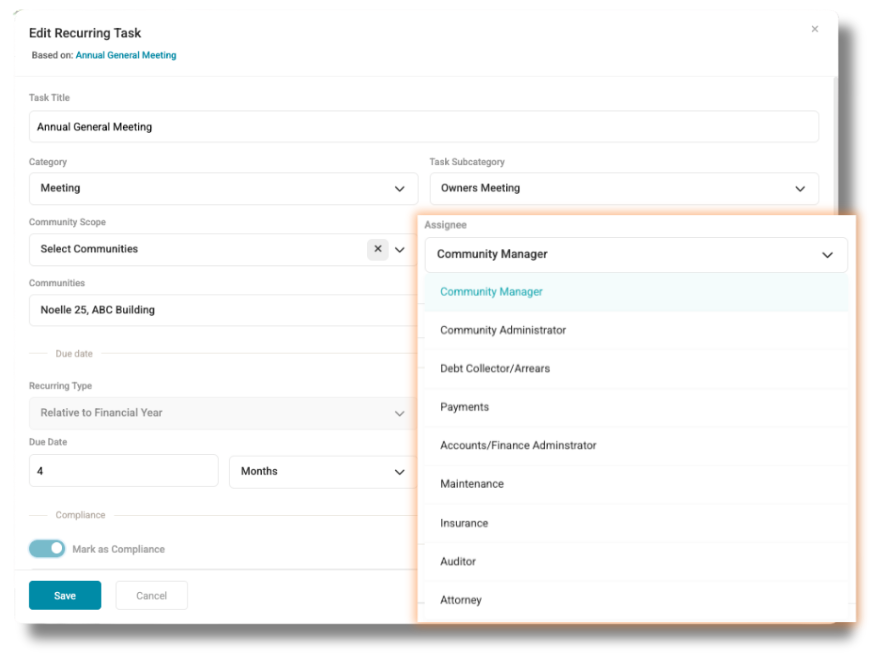
2. Due Dates: Ensure the due date for each Compliance Item is correct. The Next-Generation Tasks & Compliance module provides greater flexibility when setting due dates, allowing them to be configured independently of the financial year-end.

When setting up a Recurring Task, it is important to specify both the Due Date and the End Date.
- Due Date: The date by which the task must be completed.
- End Date: The date on which the recurring task should stop generating new tasks.
Ensure that both dates are correctly configured to ensure the recurring task runs for the required period.
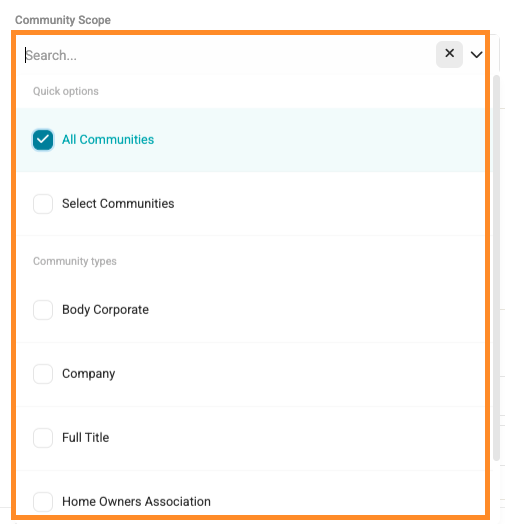
3. Community Selection: Ensure the Compliance item is setup to apply to the correct set of Communities (All/ Specific/ Body Corporates/ Homeowners Association).
4. Checklists: Review the checklist items associated with each Compliance Setup to ensure they are accurate, relevant, and complete.
- Ensure that all required checklist items are included.
- Confirm that the wording of each checklist is clear and easy to understand.
- Remove any outdated, or no longer relevant checklist items.
- Add any new checklist items that should form part of the Compliance process.
- Where applicable, assign the appropriate roles to each checklist item to ensure that responsibilities are clearly defined.
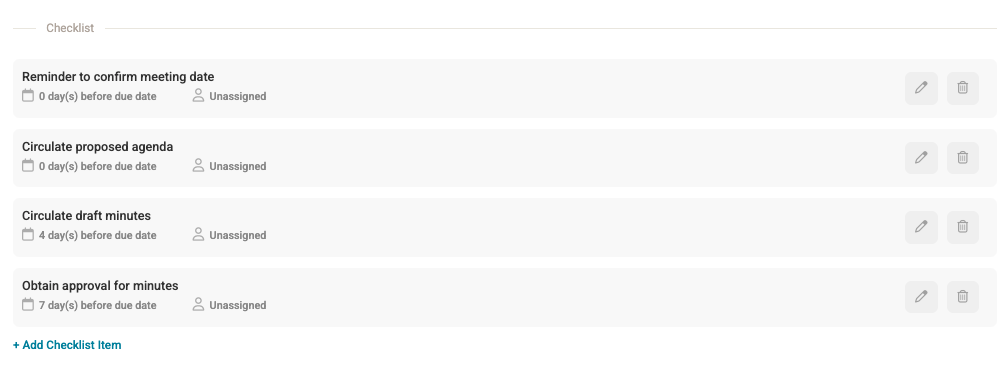
Note: A Checklist Item is a smaller step or action that needs to be completed as part of the overall task or Compliance Item. Checklist Items help break the required actions into clear, manageable steps and ensure that all necessary actions are completed. |
Tip: If a Compliance item for one Community, such as an AGM, requires a different checklist item from other Communities, it is recommended to log into the relevant Community, navigate the Manage Task, and add the checklist item directly to that task. |
5. Compliance Criteria & Document Upload:
- Ensure the Compliance criteria is setup correctly, including whether the requirement is fulfilled by Uploading a document and/ or Marking the task as complete.
- Where a document upload is required, ensure that the correct Document folder is selected.

2. Ready to Migrate
Once all Compliance Setups have been reviewed and are ready for migration, the Start Migration button on the far right of the page will become active and can be selected to begin the migration process.

Important: We recommend scheduling the migration overnight, or outside of business hours to minimise any disruption to the team's work. 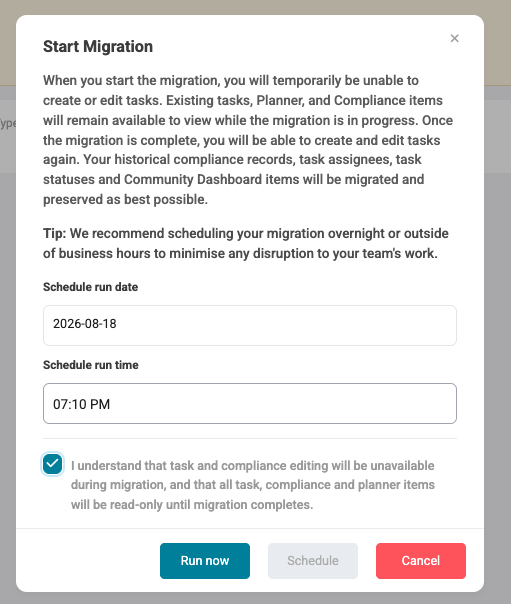 When the migration is started, users will temporarily be unable to create, or edit tasks. Existing Tasks, Planner, and Compliance items will remain unavailable for viewing while the migration is in progress. Once the migration has been completed, users will be able to create and edit tasks again. Historical Compliance records, task assignees, task statuses, and Community Dashboard Items will be migrated and preserved as far as possible. |
Note: All current documents on existing Compliance items will be migrated and remain on Compliance Items. |
3. After to Migrate
Navigation: Community > Manage > Tasks > Overdue
Congratulations! The Compliance Setup has been successfully migrated.
The next step is to begin managing the migrated Compliance Items. A cleanup process is required, starting with a review of all Overdue Tasks to ensure that the information is accurate and up to date.
Consider the following questions:
- Is a compliance document required?
Confirm whether any supporting compliance documentation is still outstanding. - Does the due date need to be amended?
If the task is still valid but requires additional time, consider whether the due date should be updated. - Is payment still outstanding?
Check whether the task is dependent on payment that has not yet been made.
Keeping Tasks, due dates, documents, and statuses up to date will help ensure that Compliance remains accurate and effectively managed within the new Tasks and Compliance experience.
| Resources | ||
| CMS - Task & Compliance Migration | ||
| CMS - Task & Compliance Setup Guide | ||
| CMS - Community Roles Guide |
Was this article helpful?
That’s Great!
Thank you for your feedback
Sorry! We couldn't be helpful
Thank you for your feedback
Feedback sent
We appreciate your effort and will try to fix the article