The Compliance Score provides a quick overview of compliance performance across communities. It makes it easy for users to track progress, review Compliance Categories, and drill down into specific Compliance items for a closer look.
Viewing the Compliance Score
Navigation: Global Overview > Compliance Score (far-right pie chart)
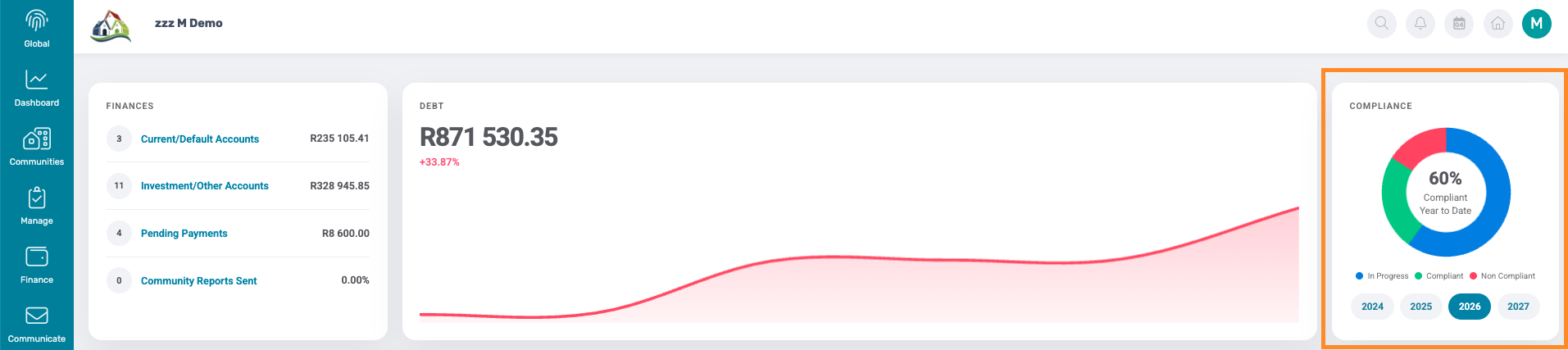
All recurring Compliance Tasks contribute towards the overall Compliance Score.
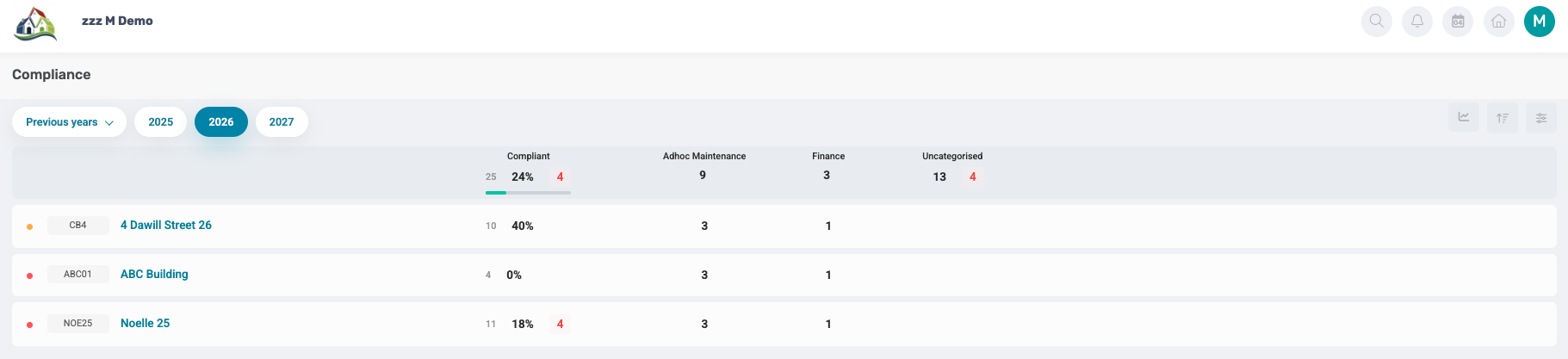
The Compliance Score can be reviewed by year and community, allowing users to monitor progress across different periods and communities.
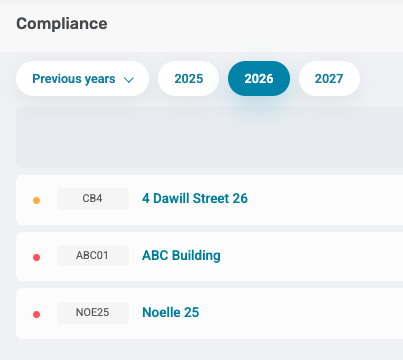
Each Compliance Category is displayed in its own column, making it easy to review and monitor compliance performance.

To view more detail, users can select the number displayed under the relevant Compliance Category.
This opens the Manage Tasks page, with the selected Community and Compliance Category automatically filtered.
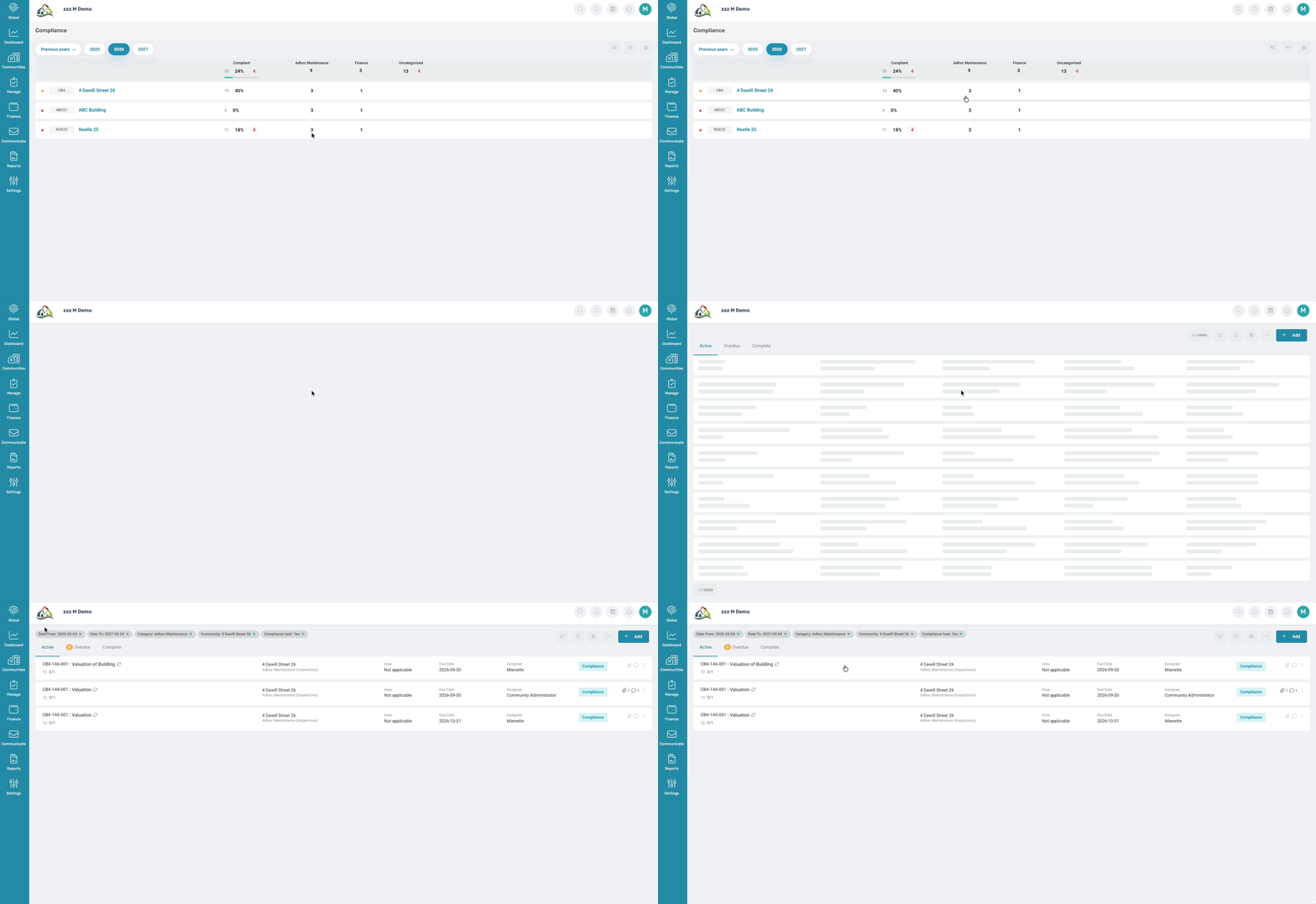
From here, users can further manage any overdue or upcoming Tasks.
Compliance Summary
Navigation: Global Overview > Compliance Score (far-right corner)
To view a graphical summary of the Compliance items for the selected year, select the graph icon on the far right of the page.
The graph uses different colours to indicate the status of Compliance items:
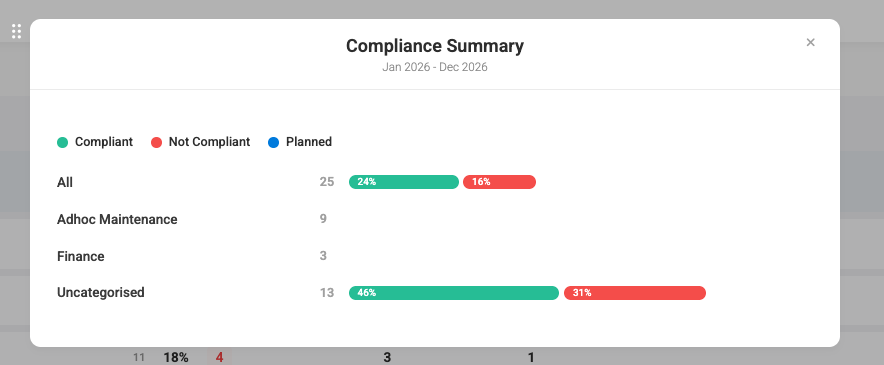
- Green indicates items that are Completed and Compliant.
- Red indicates items that are Not Compliant. This may be due to the Compliance Criteria not being met, such as a required document not being uploaded, or the Task being overdue.
- Blue indicates Planned and Upcoming Compliance Tasks.
Sorting & Filtering Compliance items
Sorting
To sort Compliance items, select the sort icon on the far right of the page.
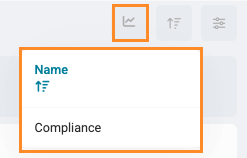
Compliance items can be sorted by:
- Name
- Compliance
Filtering
To filter Compliance items, select the filter icon on the far right of the page.
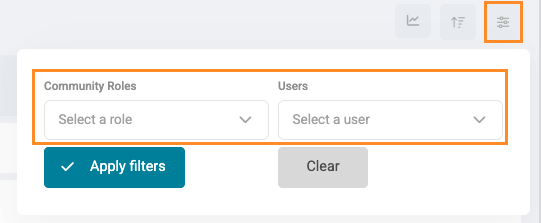
Compliance items can be filtered by:
- Community Role to view Tasks assigned to a specific role
- Specific Users, making it easier to identify and manage Tasks assigned to individual users.
Was this article helpful?
That’s Great!
Thank you for your feedback
Sorry! We couldn't be helpful
Thank you for your feedback
Feedback sent
We appreciate your effort and will try to fix the article