The My Action List allows users to add additional meetings when required, whether it is an ad hoc Special General Meeting (SGM) or an additional Director or Trustee meeting.
The steps below outline this process.
Creating a new Meeting Card
Navigation: Global/ Community Overview > Calendar Icon (top right corner) > Meetings Tab

This will open My Action List.
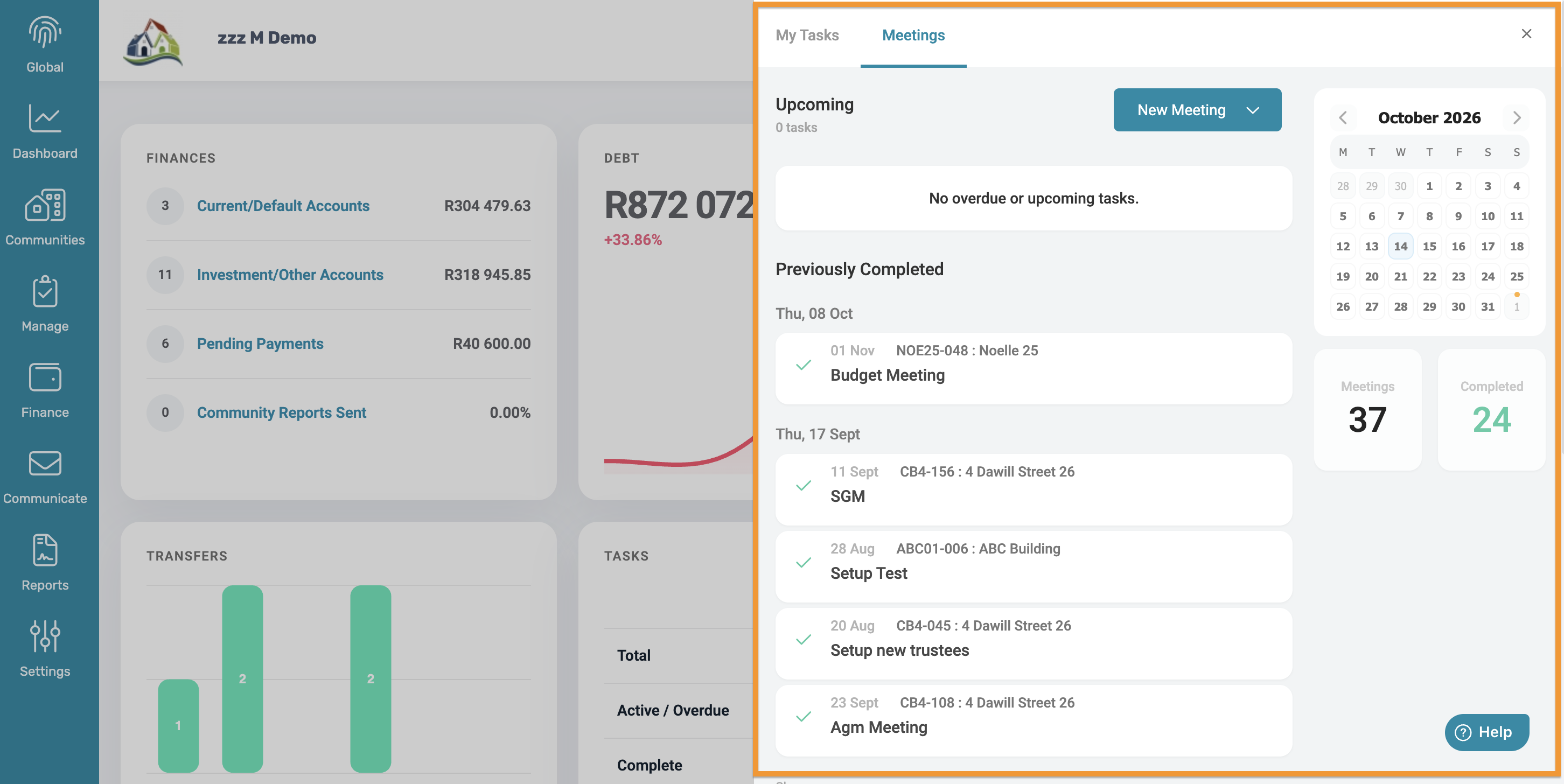
On the pop-up, select the Meetings tab and click New Meeting. From the drop-down menu, select the relevant meeting type: Owner Meeting or Trustee Meeting.
Note: The selected meeting type determines which participants will be included in the meeting card. |
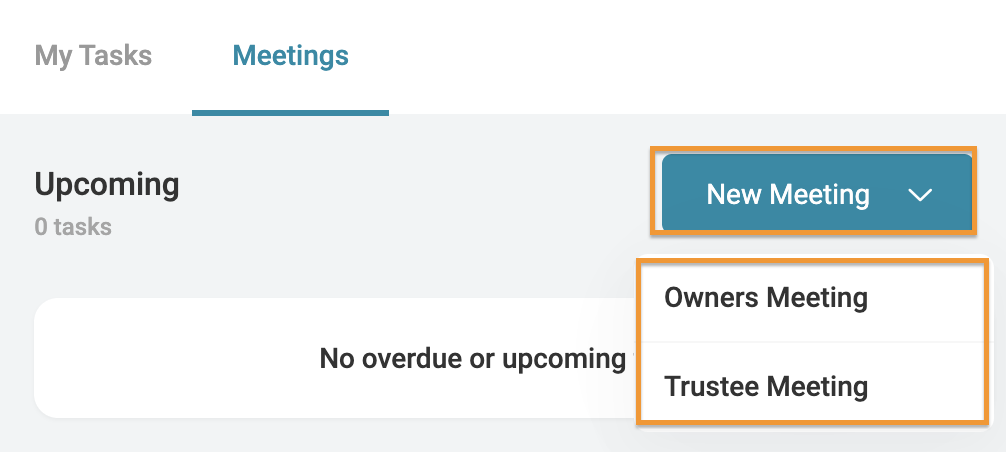
Once the meeting type has been selected, the Task card will appear for completion. The relevant Meetings categories will already be applied.
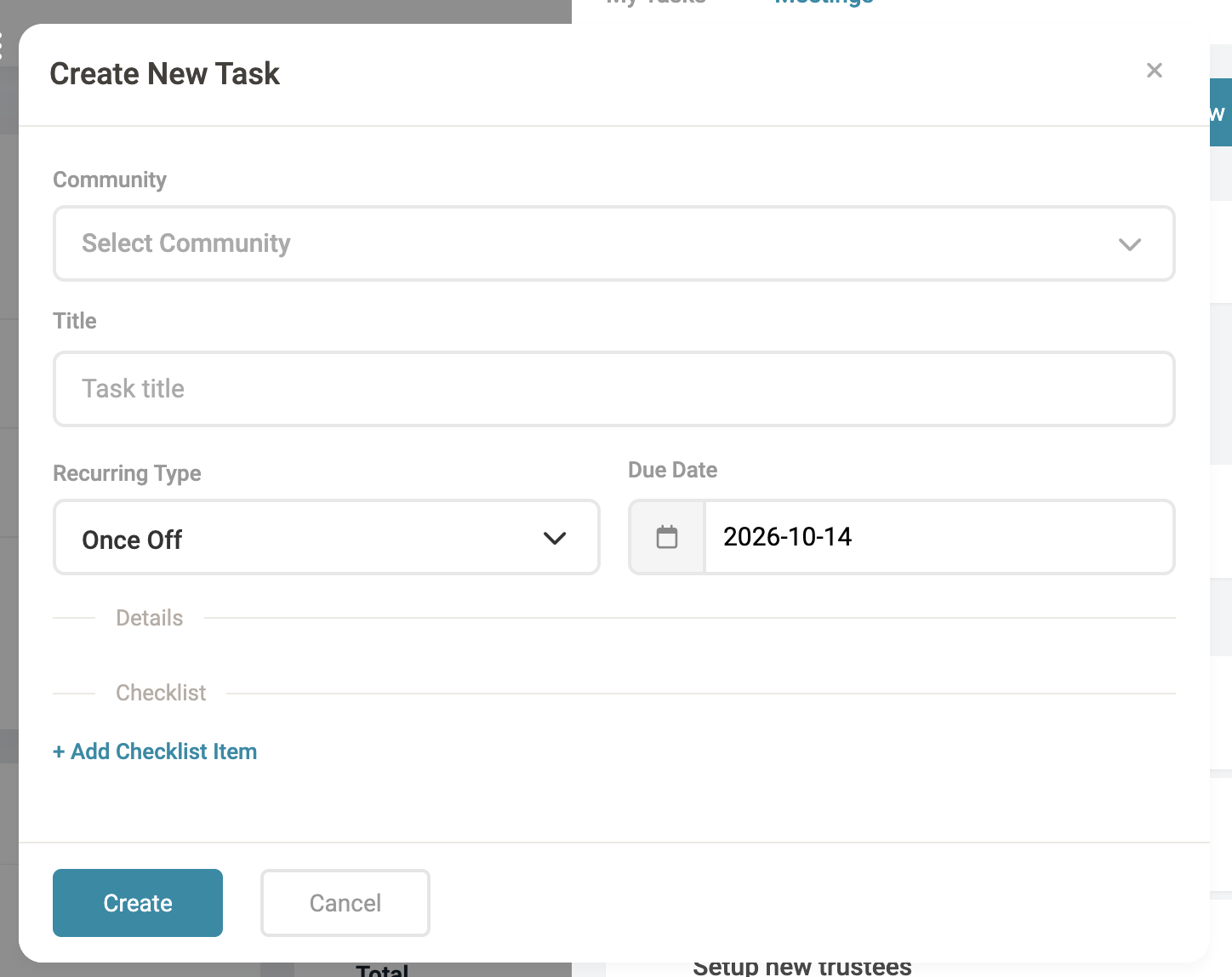
The following fields must be completed:
Community: Select the Community to which the meeting applies.
Title: Enter a descriptive title for the meeting, for example, Special General Meeting (SGM).
Recurring Type: Select Once Off if the meeting only needs to take place once.
Due Date: Select the date on which the meeting will take place.
Checklist Items: Add the individual actions or steps that need to be completed as part of the task. Multiple checklist items can be added, with each item assigned to a specific team member and given its own due date.
|
Was this article helpful?
That’s Great!
Thank you for your feedback
Sorry! We couldn't be helpful
Thank you for your feedback
Feedback sent
We appreciate your effort and will try to fix the article