Managing Supplier invoices can be time consuming, especially when capturing them manually. The AI Invoice Assistant helps streamline this process by creating draft invoices from uploaded documents, allowing users to focus on reviewing rather than capturing.
Add Supplier Invoices
Navigation: Global Level > Finances > Supplier > Invoice > '+' (Add)

There are two options available to create Supplier invoices:
- Standard Supplier Invoicing
- Ad-hoc Invoice - Manually capture and create a new supplier invoice.
- Import Bulk Invoices - Upload multiple invoices at once using the Excel Bulk Invoice template.
- AI Assistant Invoicing
- Upload Files - Using the AI Invoice Assistant to process PDF and Word Document containing invoices. This can only be done for Bulk upload invoices.
1. AI Assistant Invoicing
The AI Invoice Assistant is designed to simplify and automate the supplier invoicing process by scanning uploaded documents then generating draft invoices based on the extracted information. This can be done for bulk invoice uploads.
How to make use of the AI Invoice Assistant: On the right-hand side is a '+' button > once this button is clicked > a pop-up screen will appear > drag and drop or browse to upload an entire folder of invoices.
1.1 Bulk Supplier Invoice Upload.
On the right-hand side is a '+' button > once this button is clicked > a pop-up screen will appear > drag and drop or browse to upload > Selected multiple invoices.
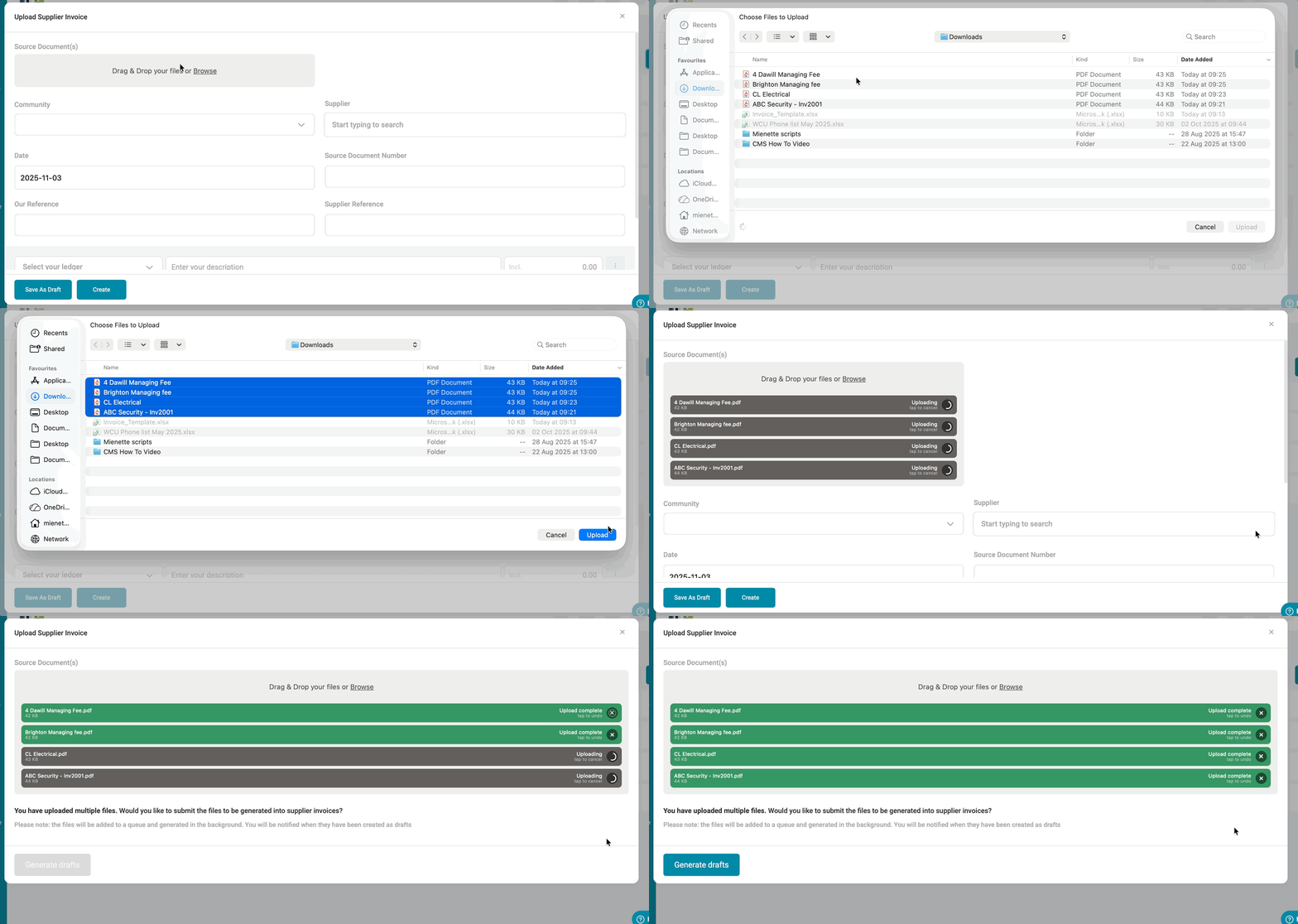
| Important: Excel files CANNOT be uploaded to the AI Invoice Assistant. |
Click on Generate Draft and the Solution will automatically recognise that the AI Invoice Assistant is going to be utilised
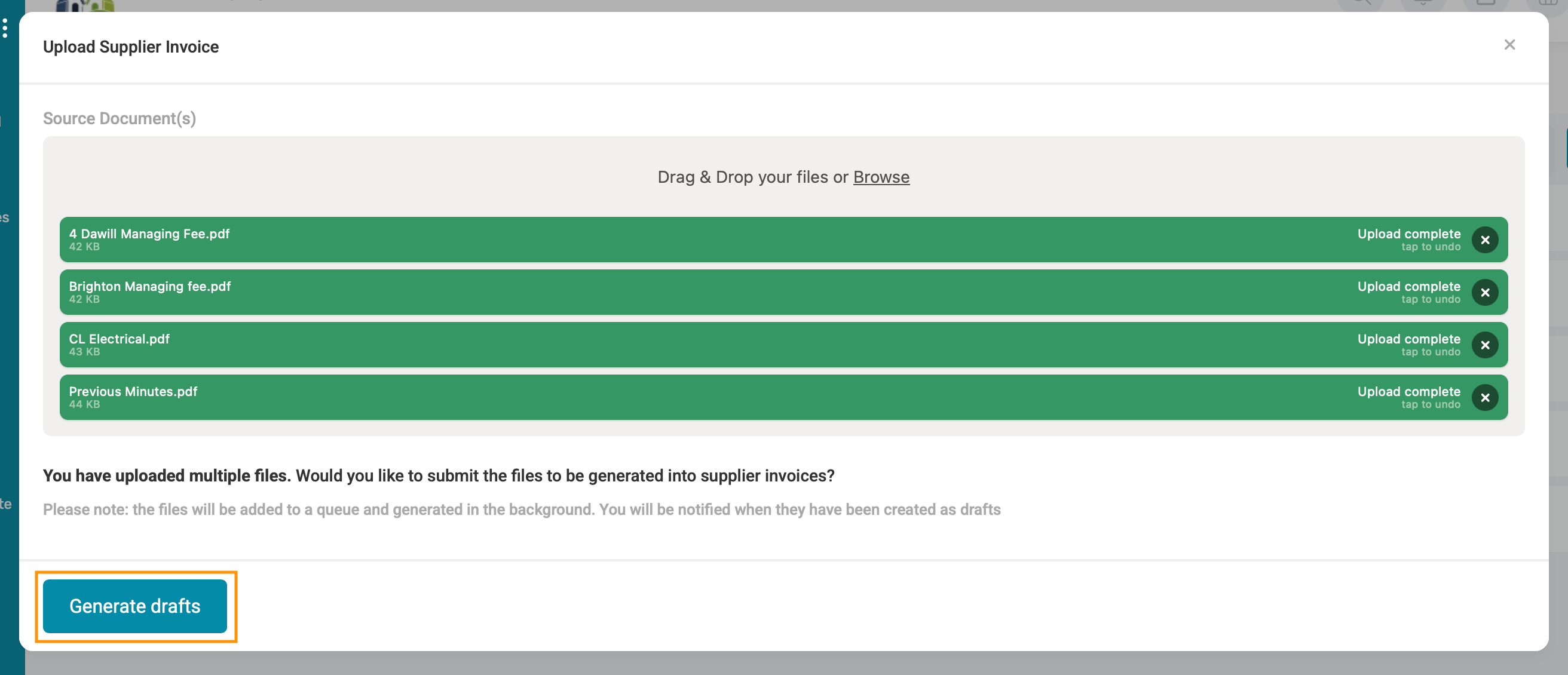
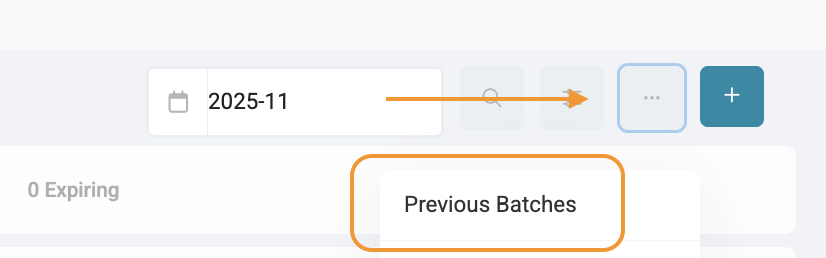
After the Generate Drafts option was selected the AI Invoice Assistant will start processing the draft supplier invoices into a batch. To view the batch, click on the menu options button and select Previous Batches
Notice how the status bar keeps moving, this is to indicate that the AI Invoice Assistant is still processing. On the far right in the blue it will also indicate how many of the invoice has already been processed.

| Note: You are able to navigate away from the invoice page while the AI Invoice Assistant is busy processing the payment batch. Files are queued for processing, and draft invoices will be automatically be created once the queue is complete. Draft invoices captured by the AI Assistant are not automatically processed. They will:
until they have been reviewed and created. |
1.2 Preview Batch
Navigation: Global Level > Finance > Suppliers > Invoice > Menu Option > Previous Batches

A list of previously uploaded batches will display. Each batch will show:
- Date of batch loaded
- Community Name
- Uploaded by
- Batch amount
- The number of invoices included in that batch.
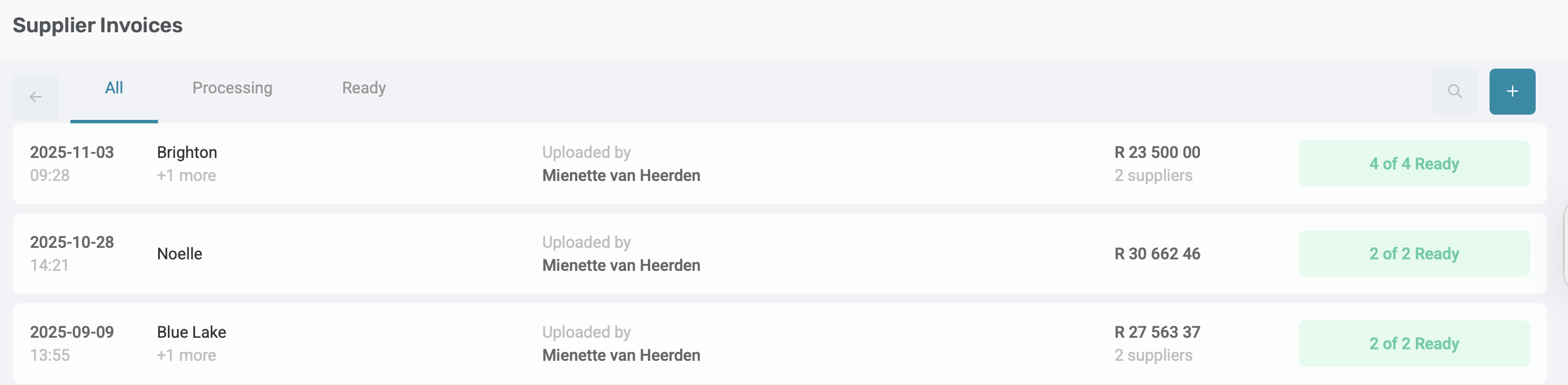
Once a batch is opened by clicking on a batch card, navigate through the draft invoices to review all draft invoices which has been created. The batch may contain unmatched items (invoices that could not be automatically matched), or draft Invoices.
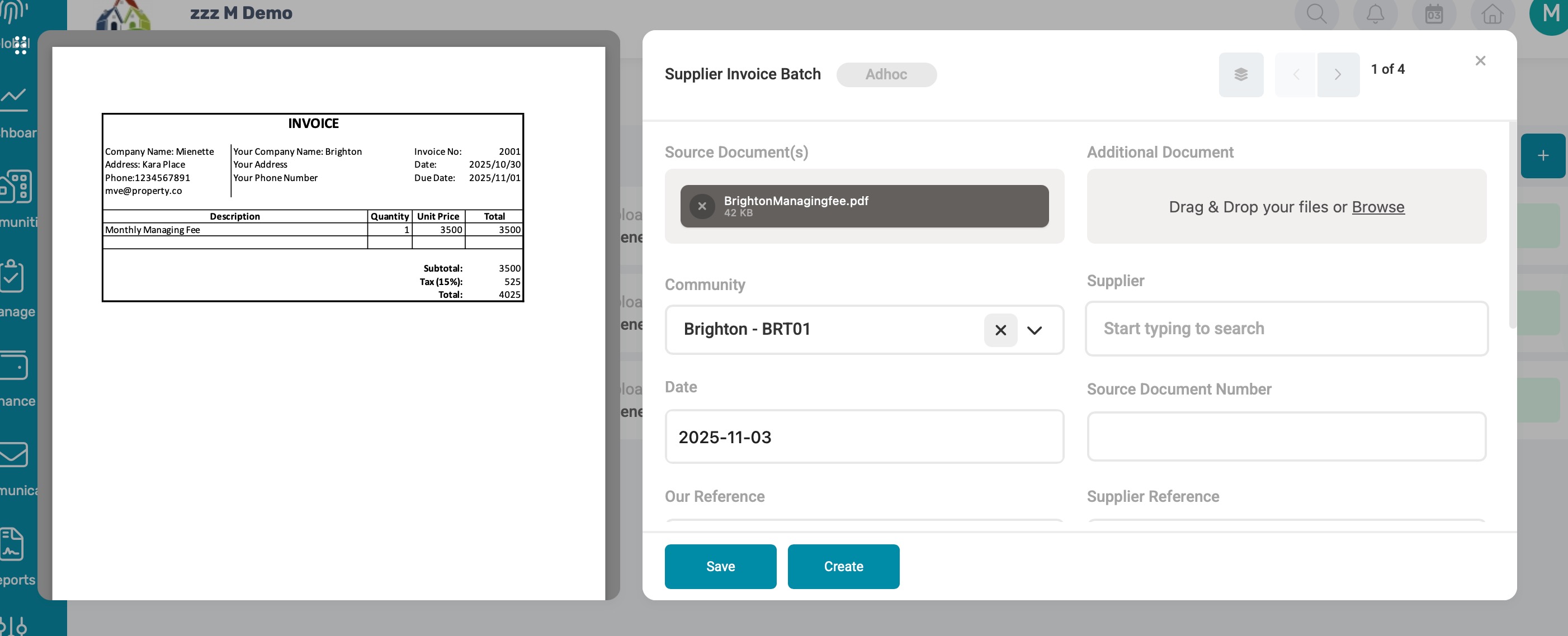
For each supplier invoice file within the batch, the Solution will display all input fields that could be identified from the uploaded document.
- Our Reference is automatically populated with the Supplier Code.
- Source Document Number is extracted directly from the invoice number displayed on the document.
- Supporting Document: The uploaded file will automatically be attached as the Source Document to the generated draft invoice for ease of reference.
Before proceeding, review and edit these fields to ensure the information is correct.

Note: If an invoice from the batch has already been created, the Solution will automatically display the GRV number.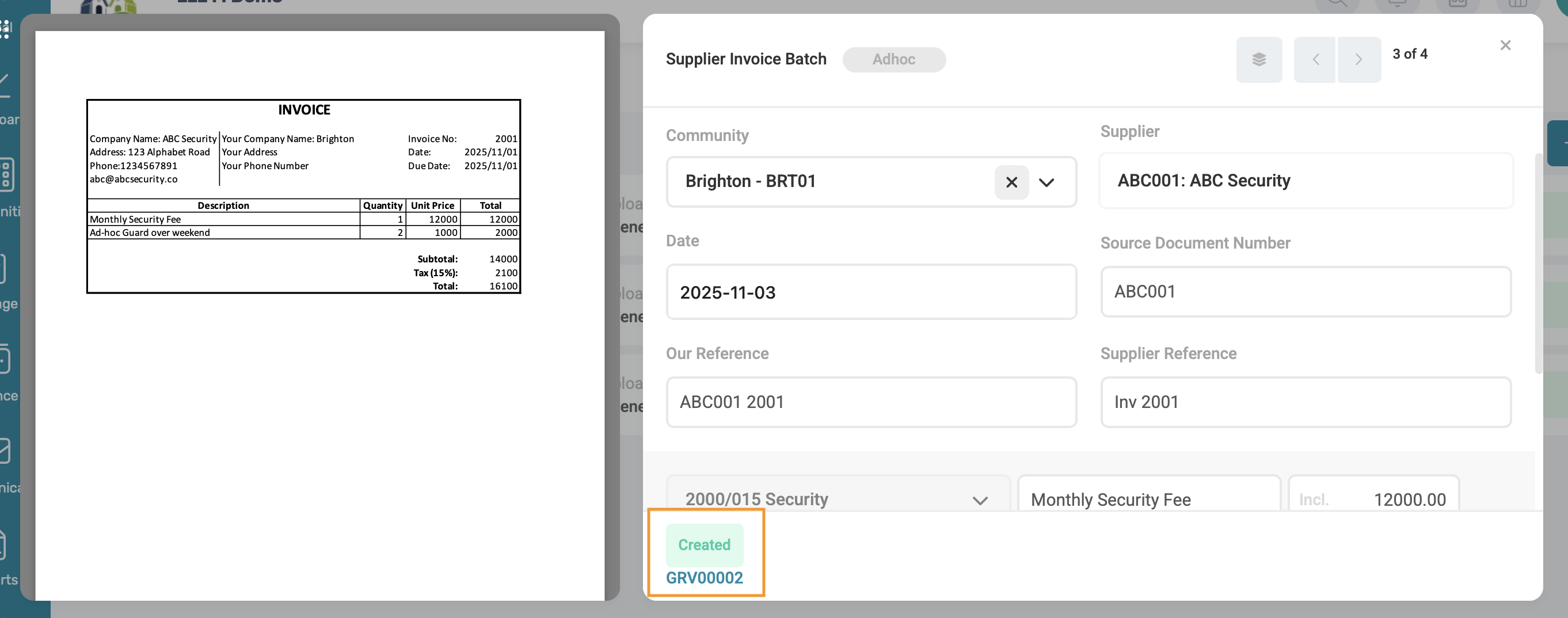 Duplicates: When saving a draft from a previous batch, the Solution automatically detects if a recurring invoice template has been set up for that supplier. If a template is found, you will have the option to apply the recurring template to the current file.
|
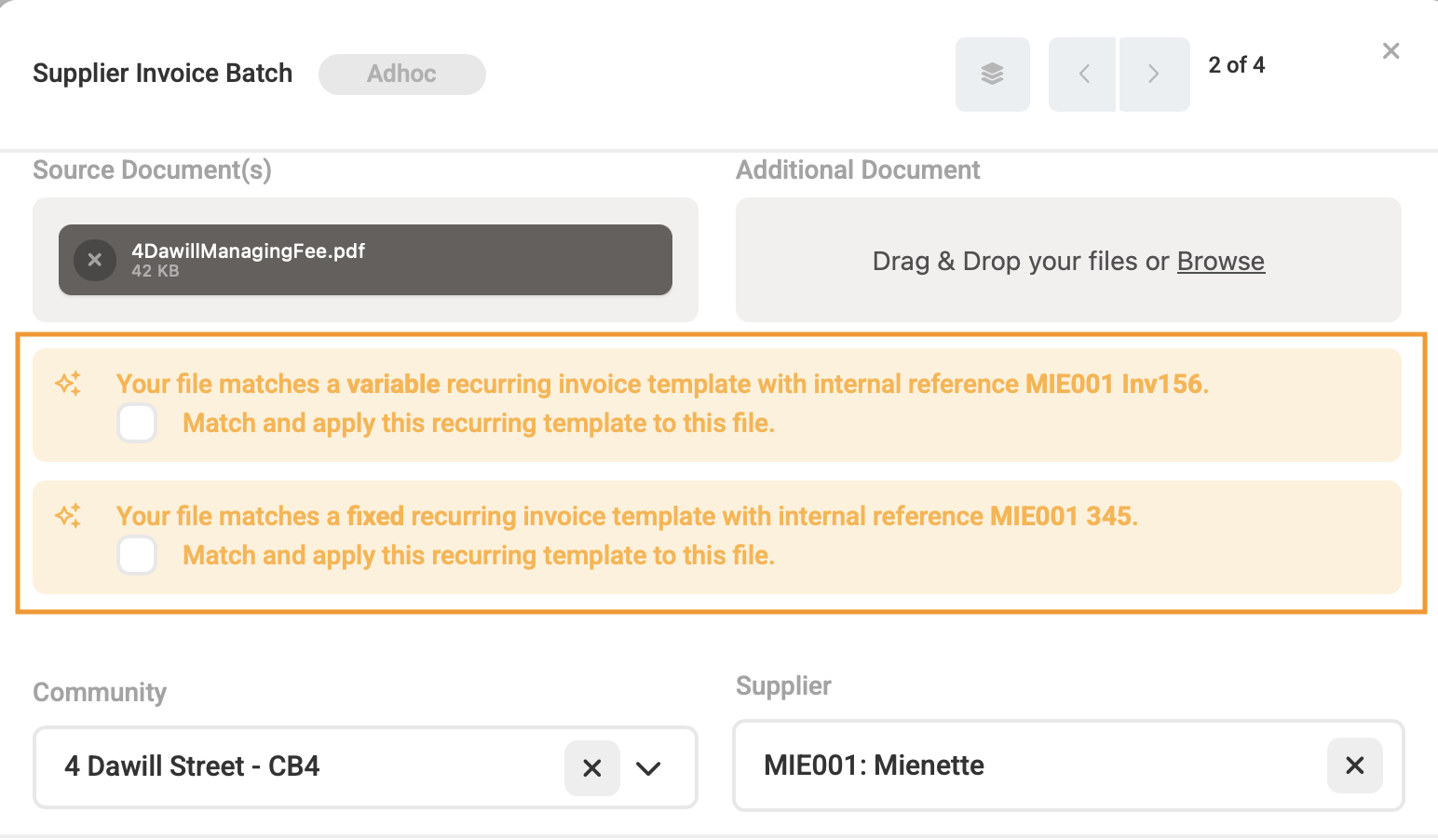
Tips for best results:
|
Was this article helpful?
That’s Great!
Thank you for your feedback
Sorry! We couldn't be helpful
Thank you for your feedback
Feedback sent
We appreciate your effort and will try to fix the article