Creation of Invoices
Navigation: Global Level > Finance > Suppliers > Invoice
A Draft Invoice can either be created individually or in bulk. The Bulk Creation function creates multiple invoices at once. Before invoices can be created in bulk, it must be in "Ready" status.
| Note: Only invoices that meet all the required criteria for readiness will be available for selection. Invoices not meeting the criteria will remain in Pending status and cannot be selected for creation. |
1. Ready Invoices
Navigation: Global Level > Finance > Suppliers > Invoice > Draft tab
Next to each draft invoice card, there will be a tickbox. Only if the invoice is in a Ready status, the tickbox will be clickable. If there are still required actions the tickbox will not be able to be selected to be created.
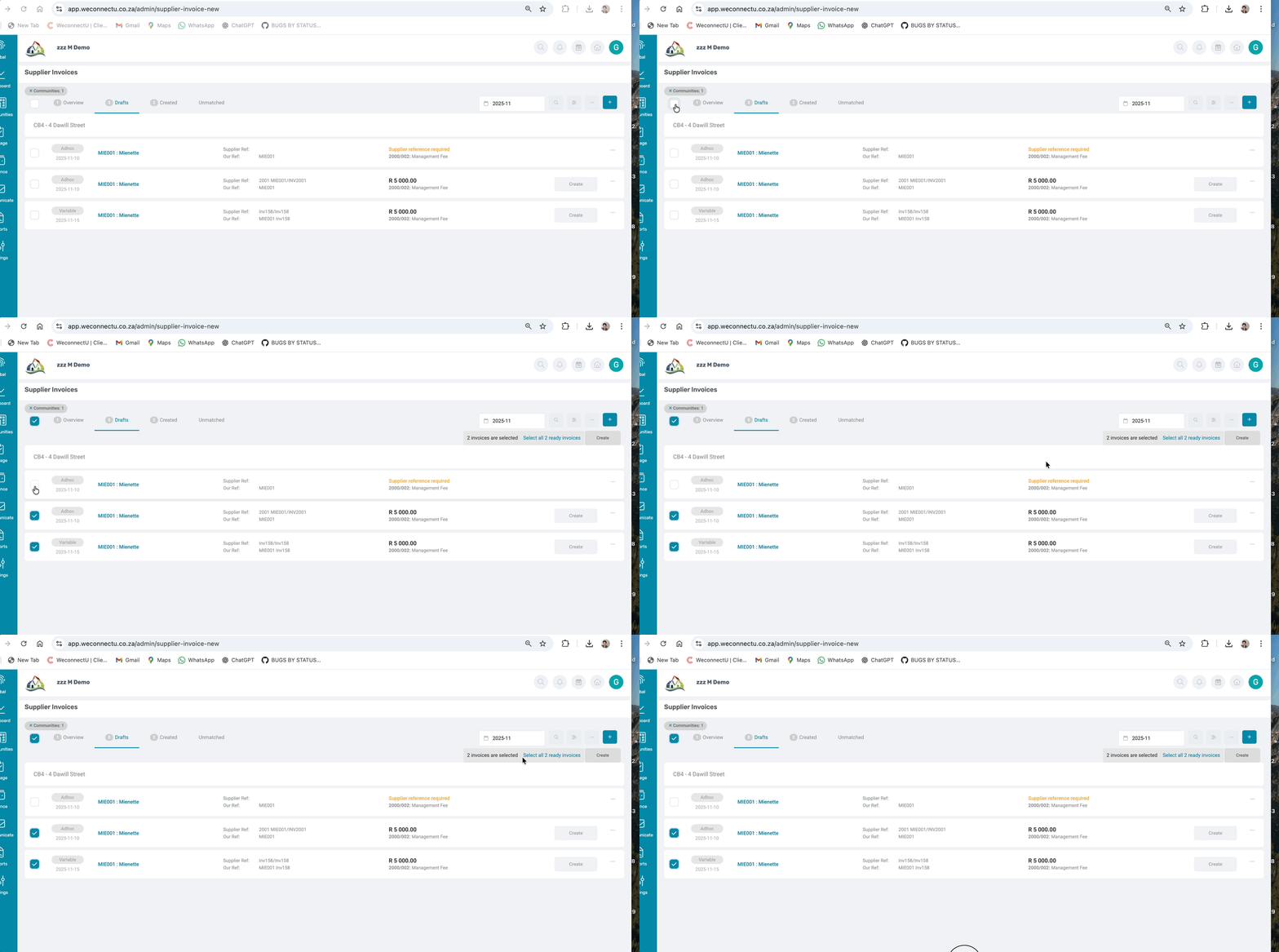
Once selected, a Create button will appear on the Draft page. There will be an option to Select All Ready Invoices for bulk creation.
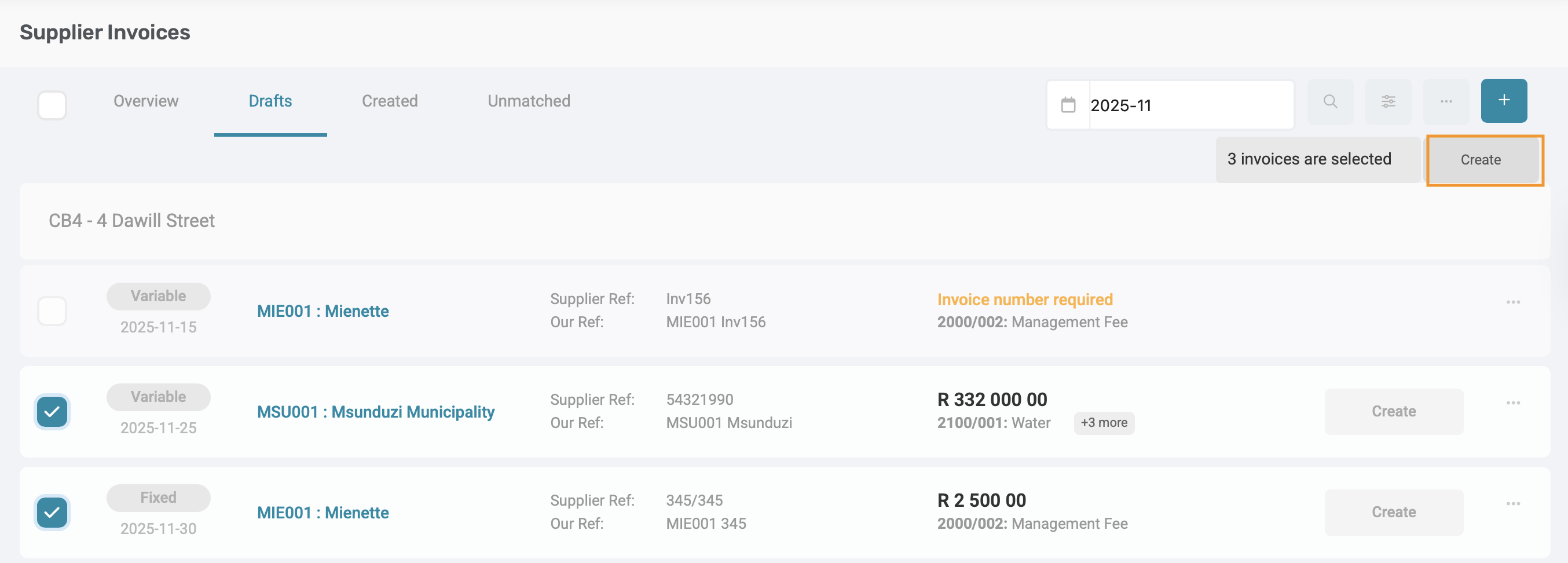
Once the Create button is clicked, a success message or loading indicator will display while invoices are being processed.
| Note: The display and timing of this process may depend on the Volume capabilities. |
Once the draft invoices have been created, they will automatically move from the Draft section to the Created section
| Important: Duplicate Checks: No duplicate validation is performed during bulk creation. Duplicate checks occur only when saving a draft. Always review the draft invoices before bulk creation to ensure no duplicates or errors exist. |
2. Delete Draft Invoices
Navigation: Global Level > Finance > Suppliers > Invoice > Draft tab
Next to each draft invoice card, on the far right on the menu options button, the option for Edit or Delete the draft will appear. Only draft invoice cards which is marked as Ad-Hoc can be deleted.
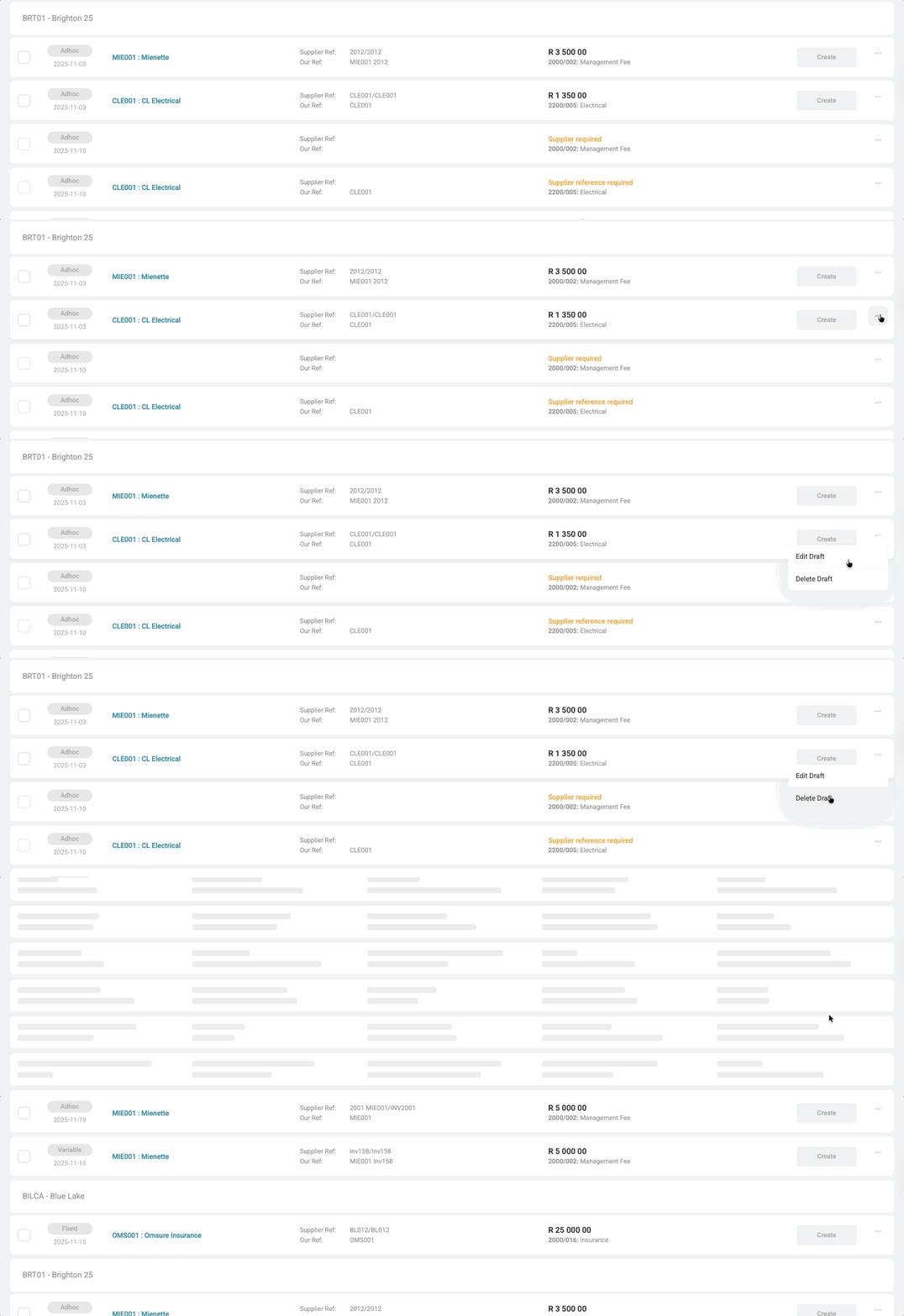
If a draft invoice card is a Fixed or Variable the recurring supplier invoice template will need to be adjusted.
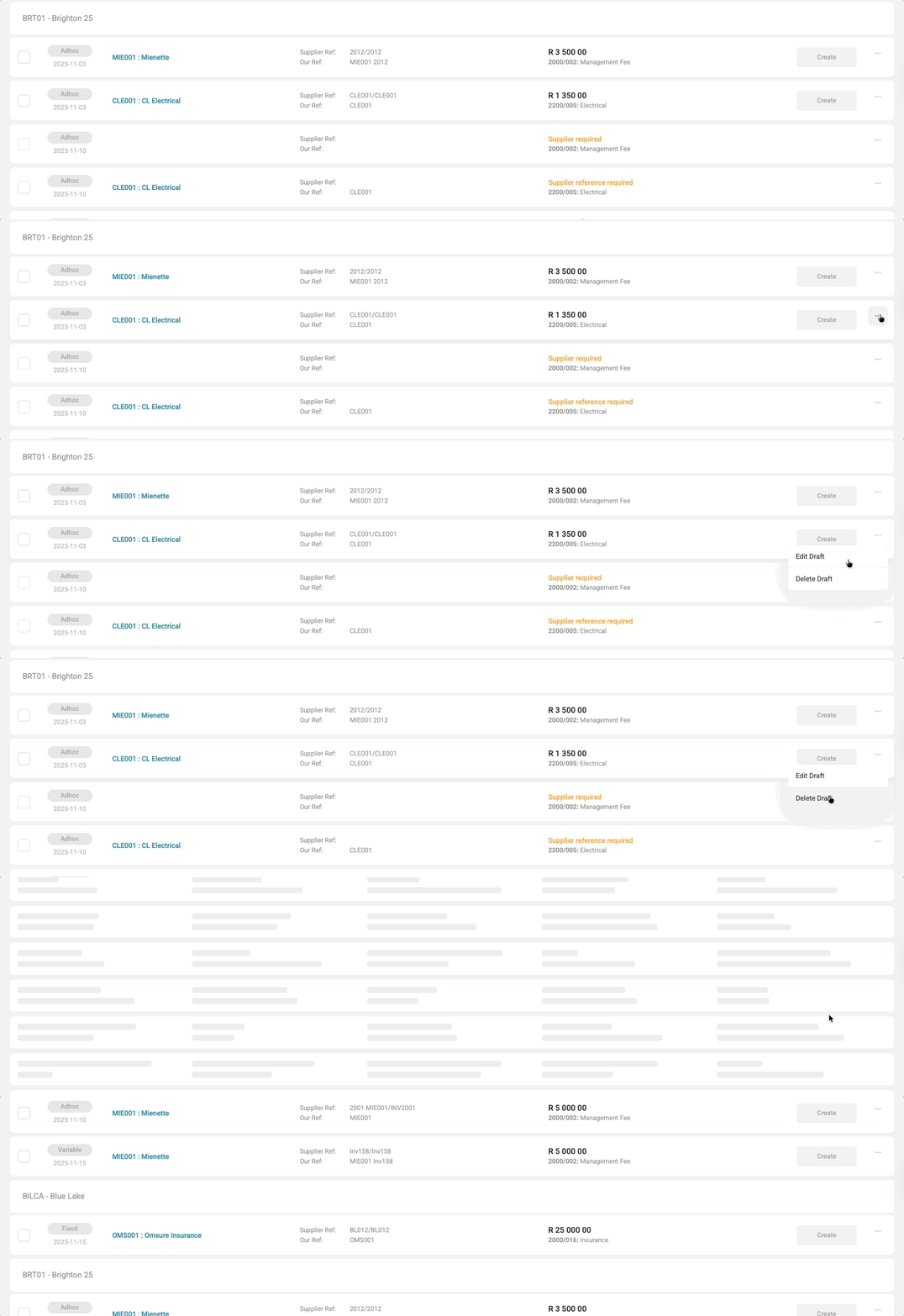
| Note: To be able to delete a draft, the necessary permissions needs to granted. |
3. Additional notes when the using AI Invoice Assistant
3.1.1. References
If no supplier reference is available, but the Community Code Reference appears, that will be used. If neither is found, the Source Document Number will be used instead.
3.1.2. VAT implications
If the Community is VAT registered, the AI Invoice Assistant will calculate and populate:
- VAT Amount
- VAT Type/ Percentage
- VAT Exclusive and Inclusive amounts
If the Community is NOT VAT registered:
- All VAT-related values will be ignored
- Only VAT-inclusive amounts will be used for line items
| Important: If a draft invoice is generated and the selected Community is later changed on the draft page, the Solution will respond as follows: 1. Supplier and Ledger Reset
|
Was this article helpful?
That’s Great!
Thank you for your feedback
Sorry! We couldn't be helpful
Thank you for your feedback
Feedback sent
We appreciate your effort and will try to fix the article