1. Prepping for Meeting
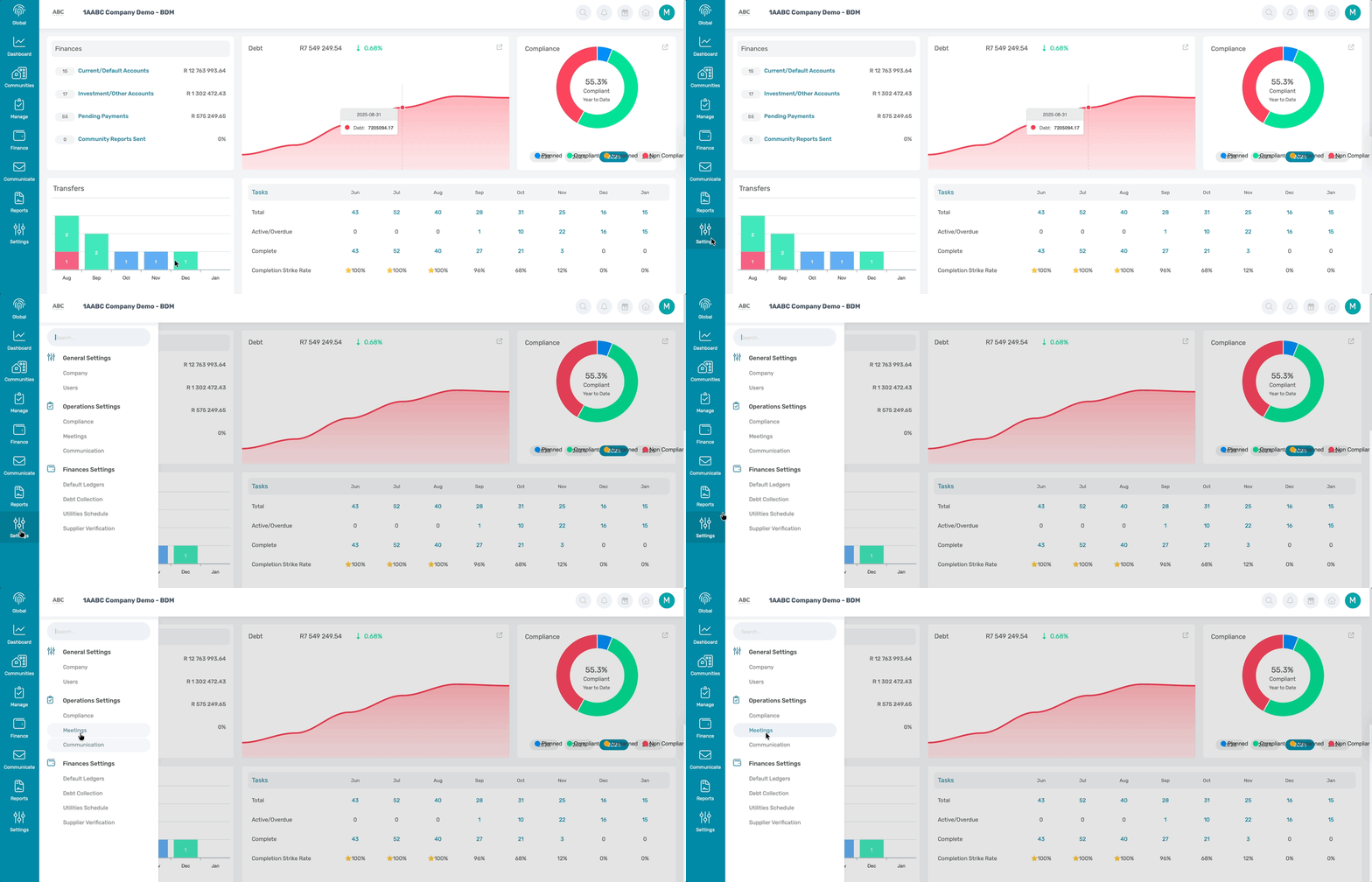
Navigation: Global Overview > Settings > Meetings
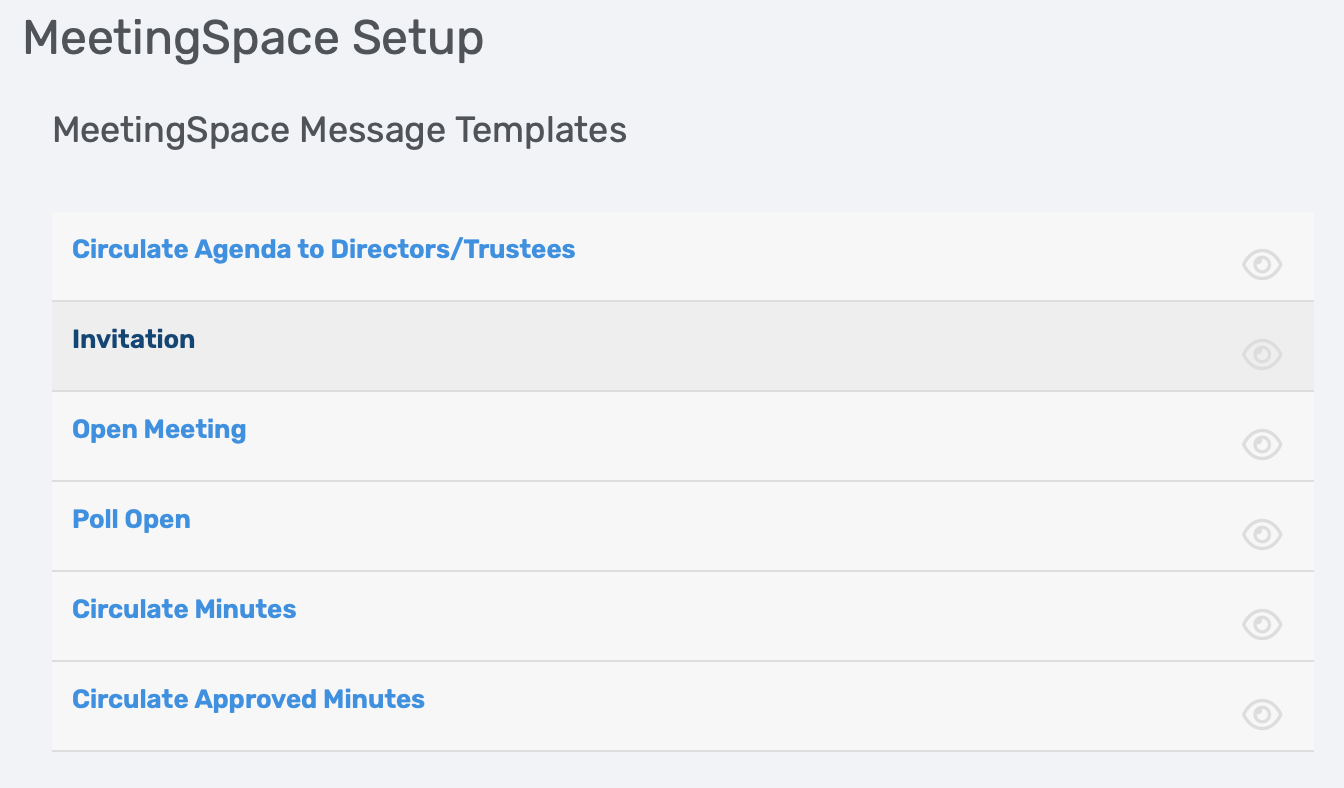
Note: There are pre-populated Meetings message templates that can be viewed by clicking on the View icon.
|
1.1. Add Agenda Template
Any Agenda templates created on the Global overview will pull through to your Meeting for all the communities.
Note: Global templates can be modified per community on the Meetings card. |
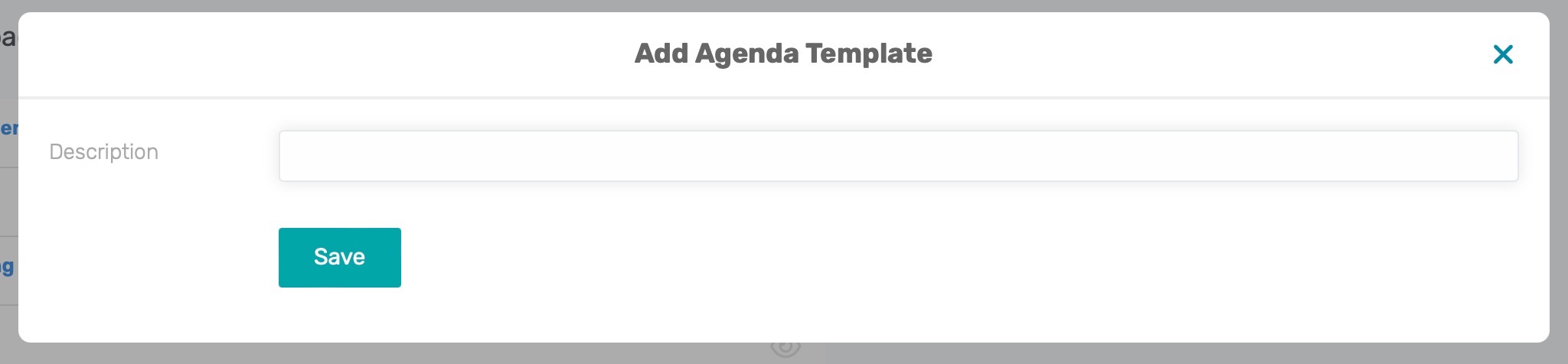
Click on the Add Agenda Template.

A pop-up window will appear where the Agenda description/ name, e.g. BC AGM Template can be entered
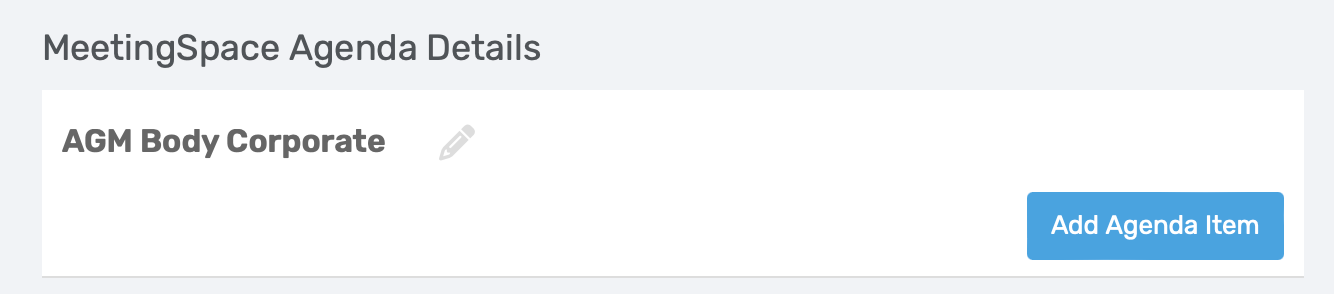
On the right side of the screen, now add the agenda items for the template by clicking on Add Agenda Item
When adding an item, a pop-up window will appear where you will enter the agenda item title and if applicable a description.

Important: DO NOT number the agenda items. When the agenda pulls through on the Meeting, the solution will automatically number each item. |
Example: 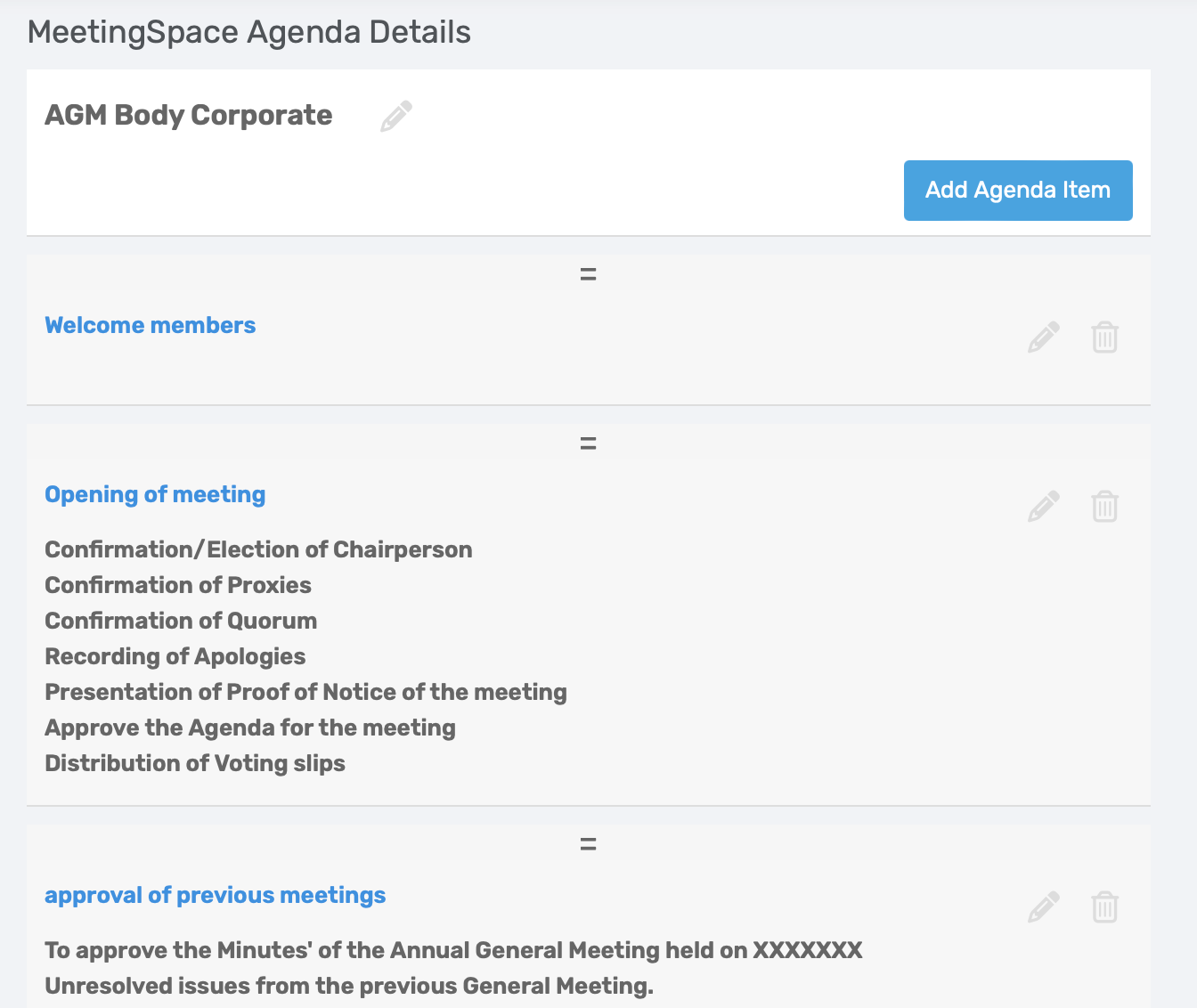 |
2. Manage Meeting
Navigation: Community > Planner and Compliance Dashboard
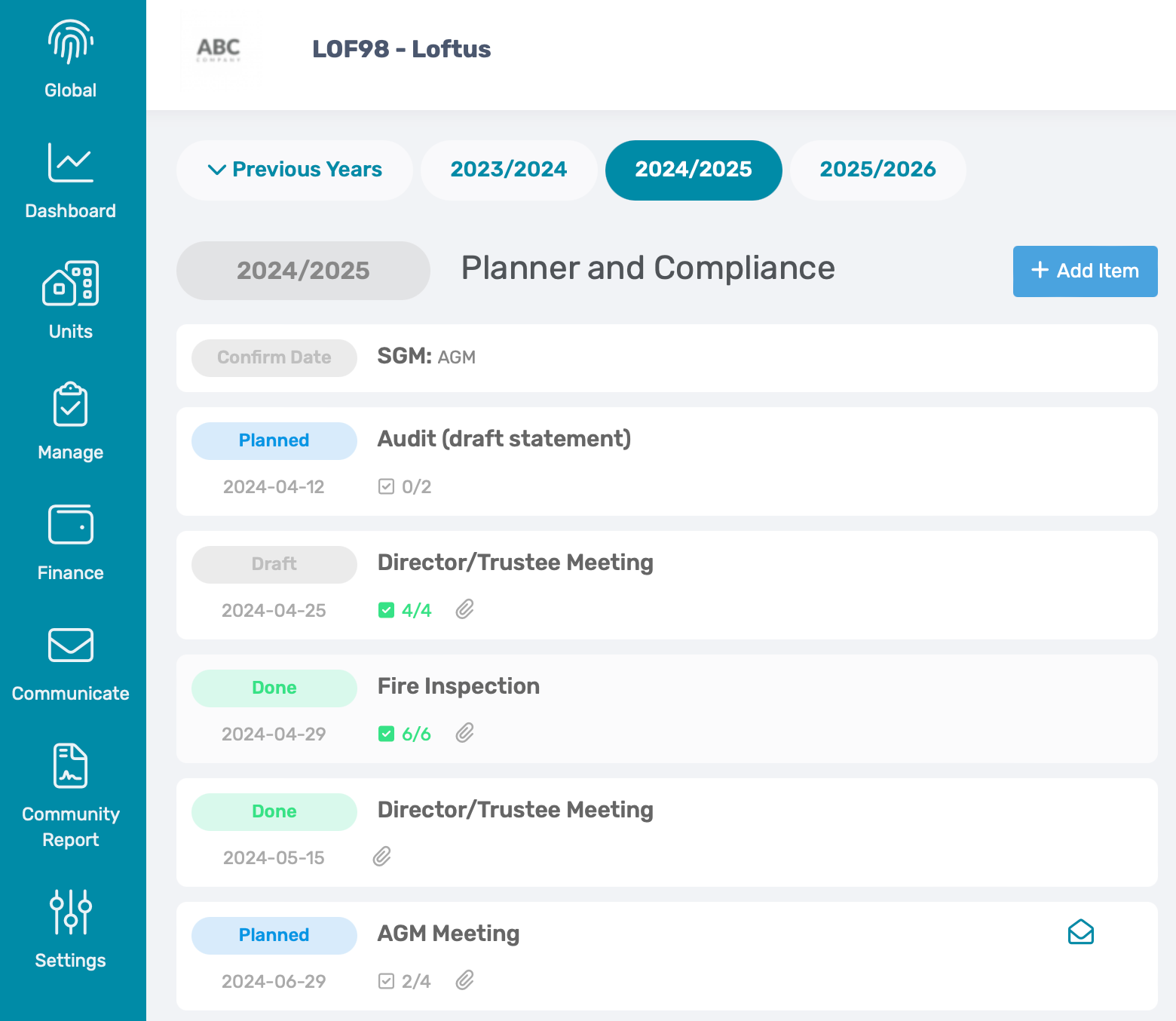
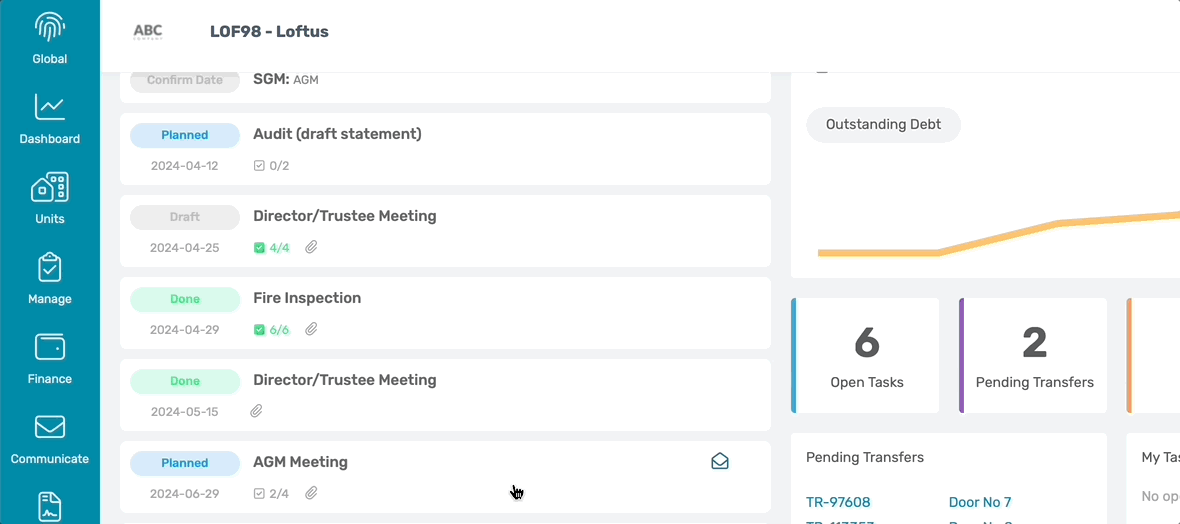
Select the specific meeting compliance item.
2.1. Edit Meeting Details
To edit the meeting details, fill in the description and select the date.
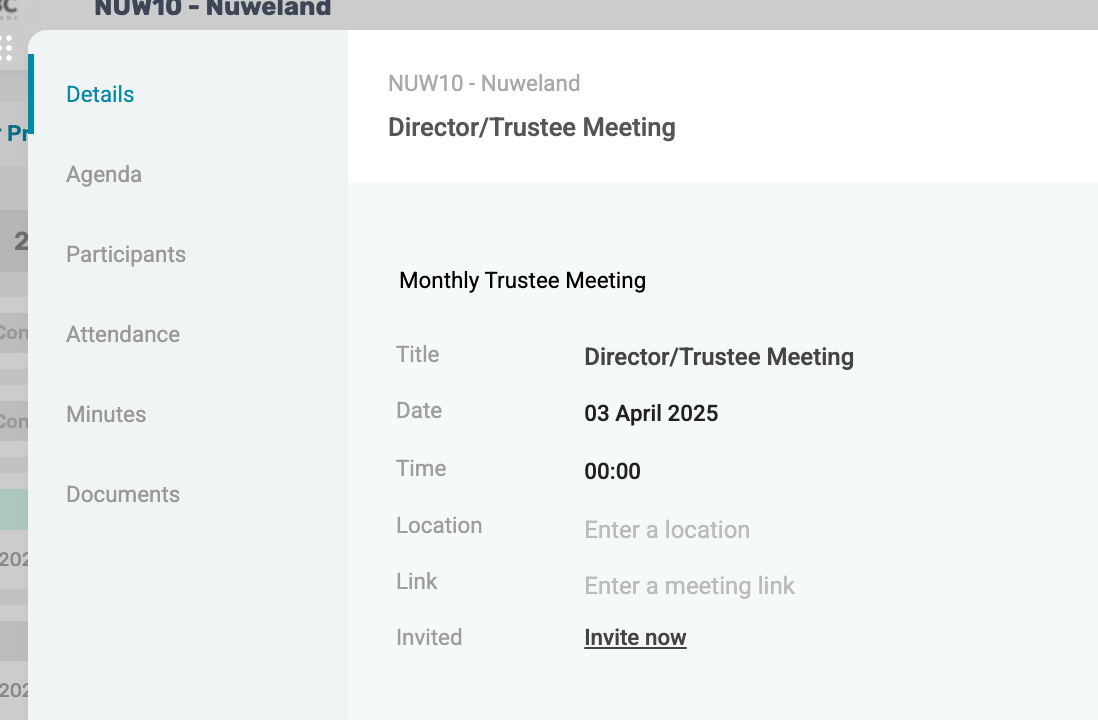
- Title: Meeting name
- Description box: Insert the Meeting description
- Date & Time: Confirmed meeting date and time
- Location: Add the GPS coordinates or Location Pin
- Link to Online meeting: Add the Zoom or Teams Link
2.2. Add Agenda Template
Navigation > Meetings > Agenda
Either add a Single Agenda item or the Agenda template that was created on the Global Overview by clicking on + Add Agenda Item

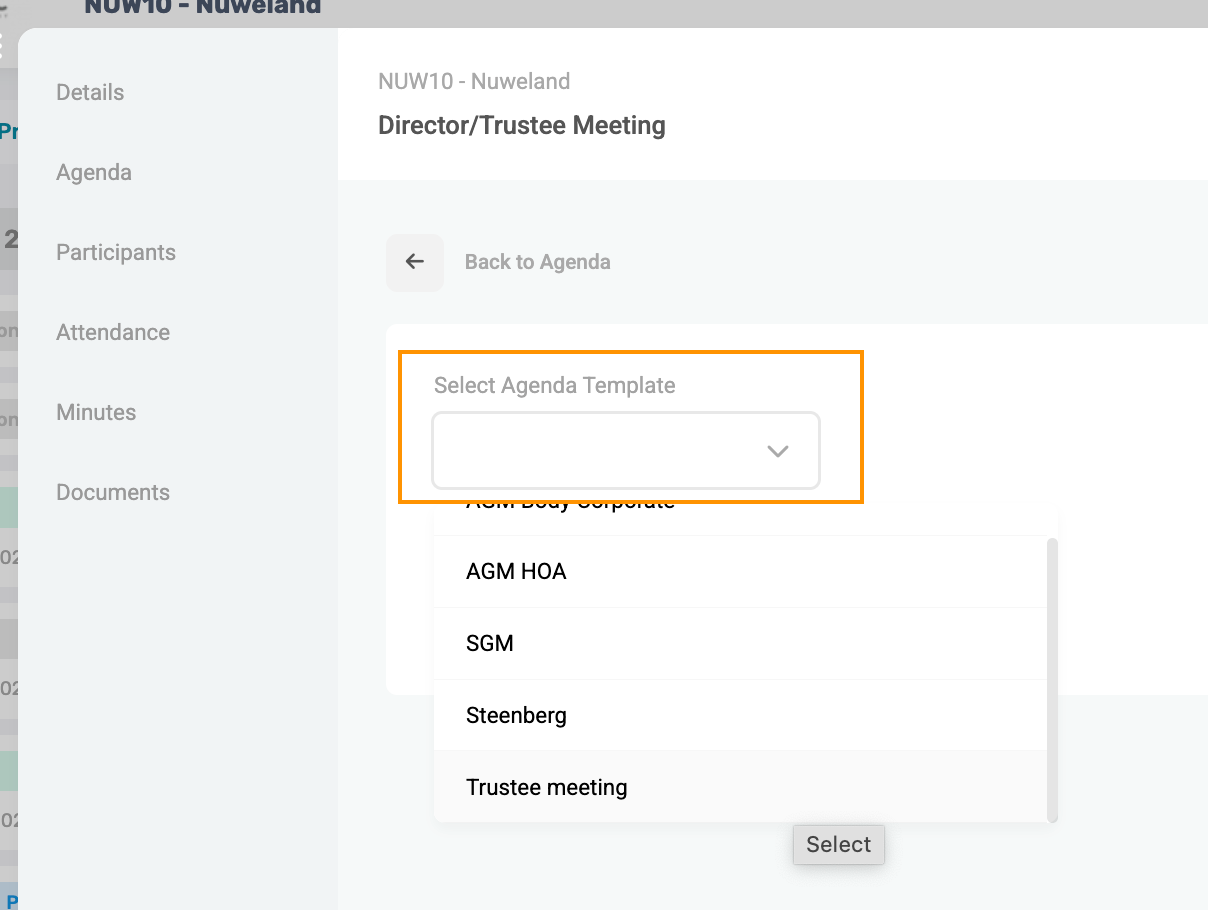
Note: Any Agenda Item can be modified/ removed, based on the community by selecting the item to edit or selecting delete in the menu options
|
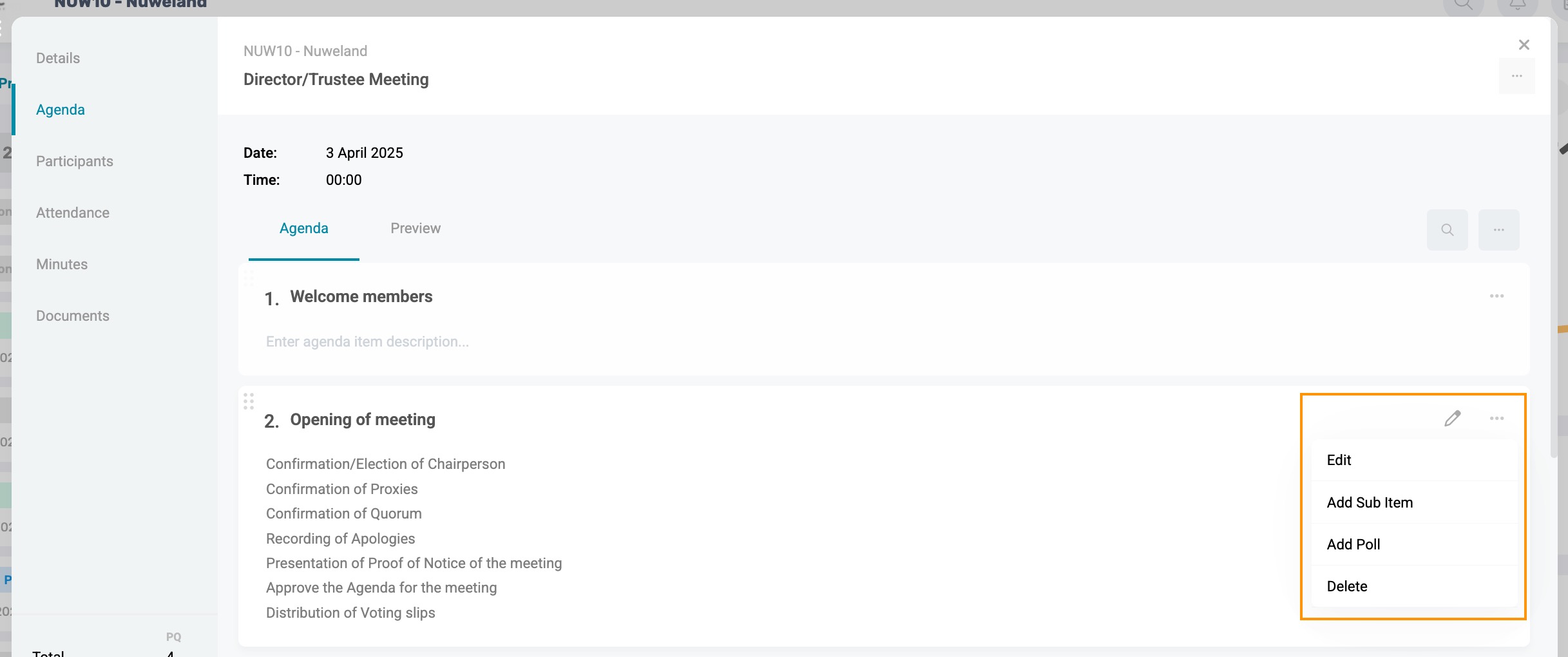
2.2.1. Uploading Supporting Documents on Agenda points
(Supporting documents such as previous meeting minutes or budgets)
Click on the agenda item, on the pop-up window, scroll down to drag and drop the document to upload, or click on Browse to select the file.
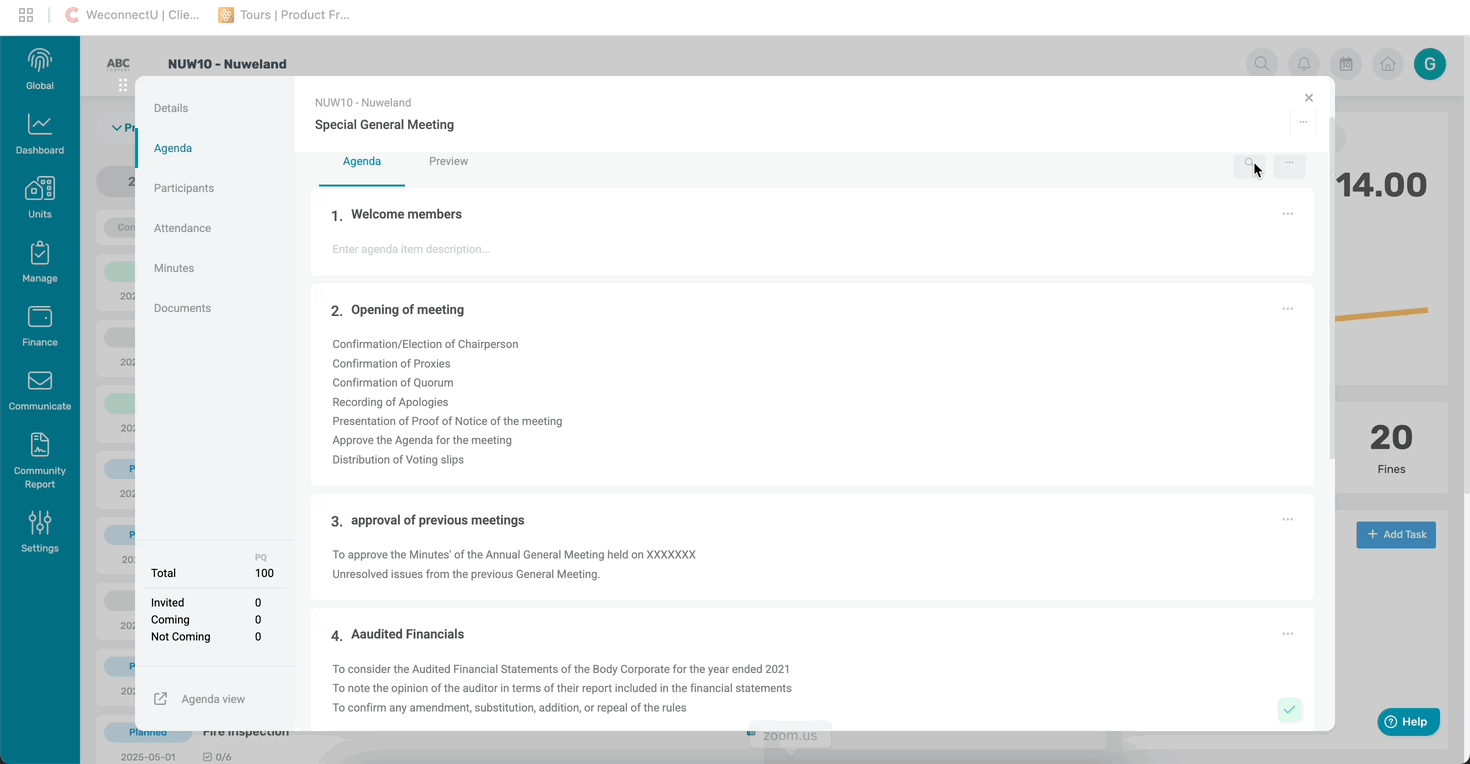
If the wrong document was uploaded, simply click on the trash can next to the document or preview and or download the document.
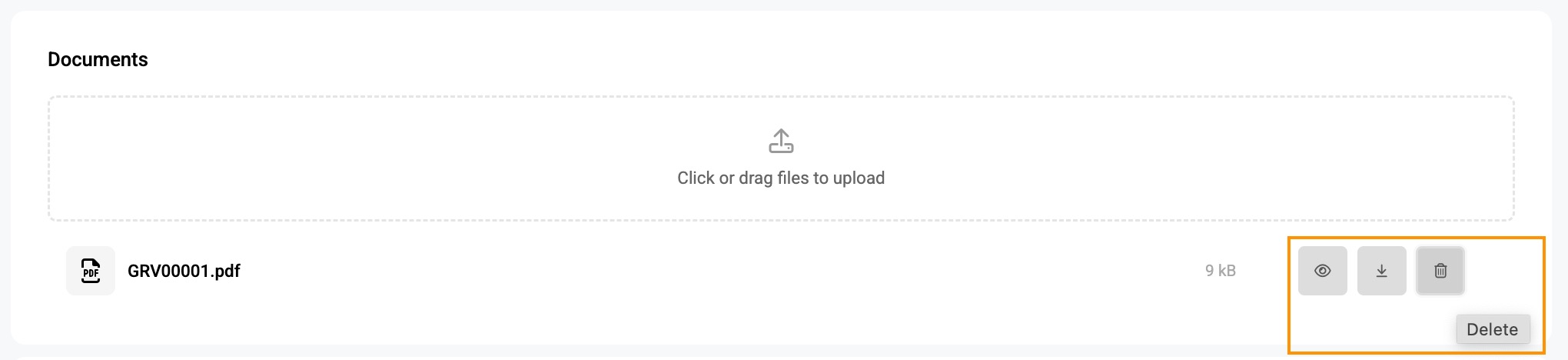
Note: Once a document has been uploaded, this will be indicated with the following icon.  |
2.2.2. Set up a poll for voting
To add a poll, simply click on the menu options button and select Add Poll

A pop-up window will appear to enter the criteria and details of the voting poll.
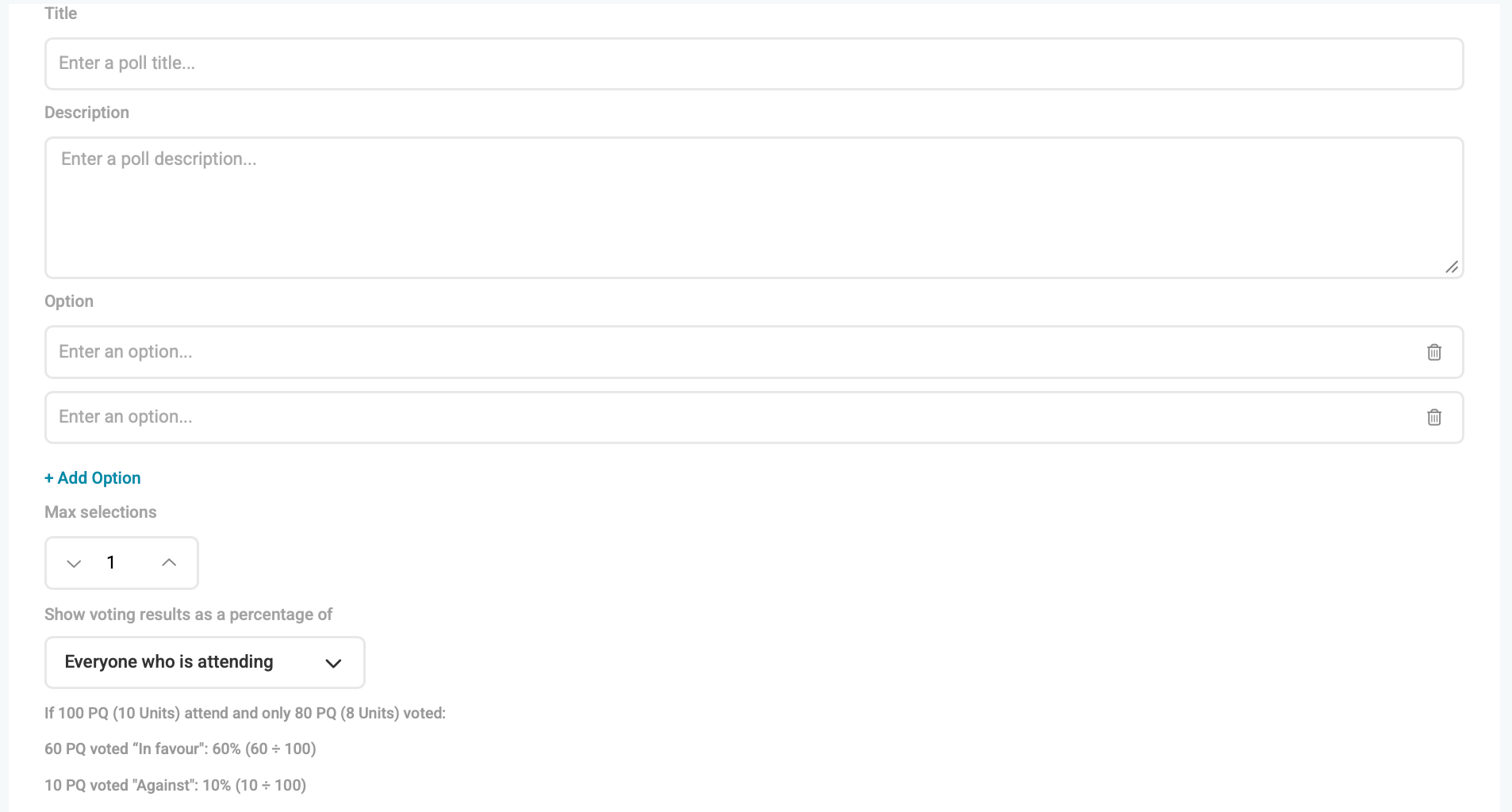
- Poll Title: Name of Voting Poll
- Poll Description: Description of what is being voted on
- Poll Options: The options the owner/ trustees need to vote on
- Max Selection: How many options may be chosen
- Voting Percentage: By default, percentages are calculated as follows:
- By Attendance. (Sum of PQs or unique owners cast for an option)/ (Total PQs/unique owners attending).
- You can now toggle an additional setting on each poll: Calculate percentage by Total Votes Cast. (Sum of votes for an option) / (Total votes actually cast).
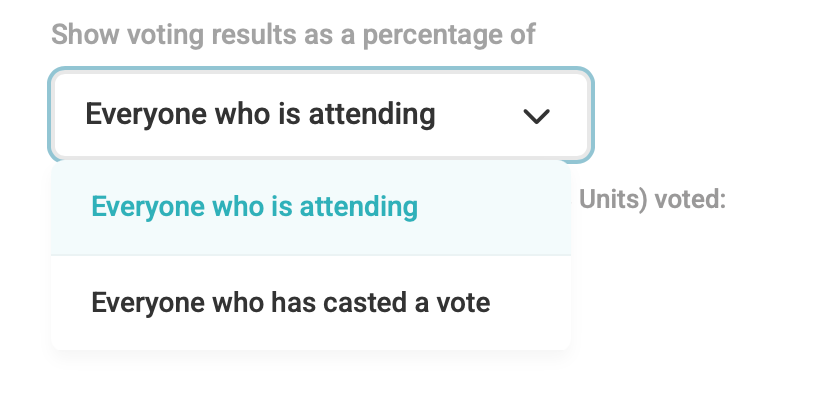
Example: Let's say:
Here's how the percentage differs based on your selected method
|
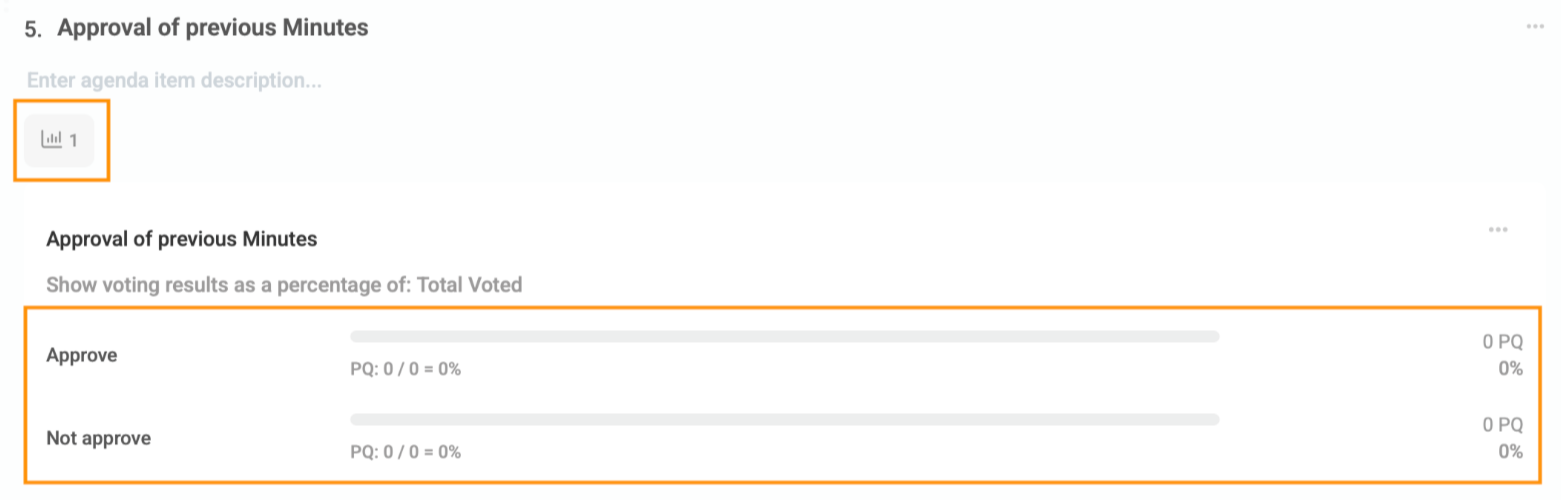
Note: Once a poll has been set up, the following icon will indicate this, and the poll results will display on the card.
Multiple polls can be created on an agenda item. |
3. Uploading Supporting Documents for the Meeting
(Documents such as Nomination & Proxy forms)
On the far right of the screen, click on Documents or click on Browse to select the file to upload
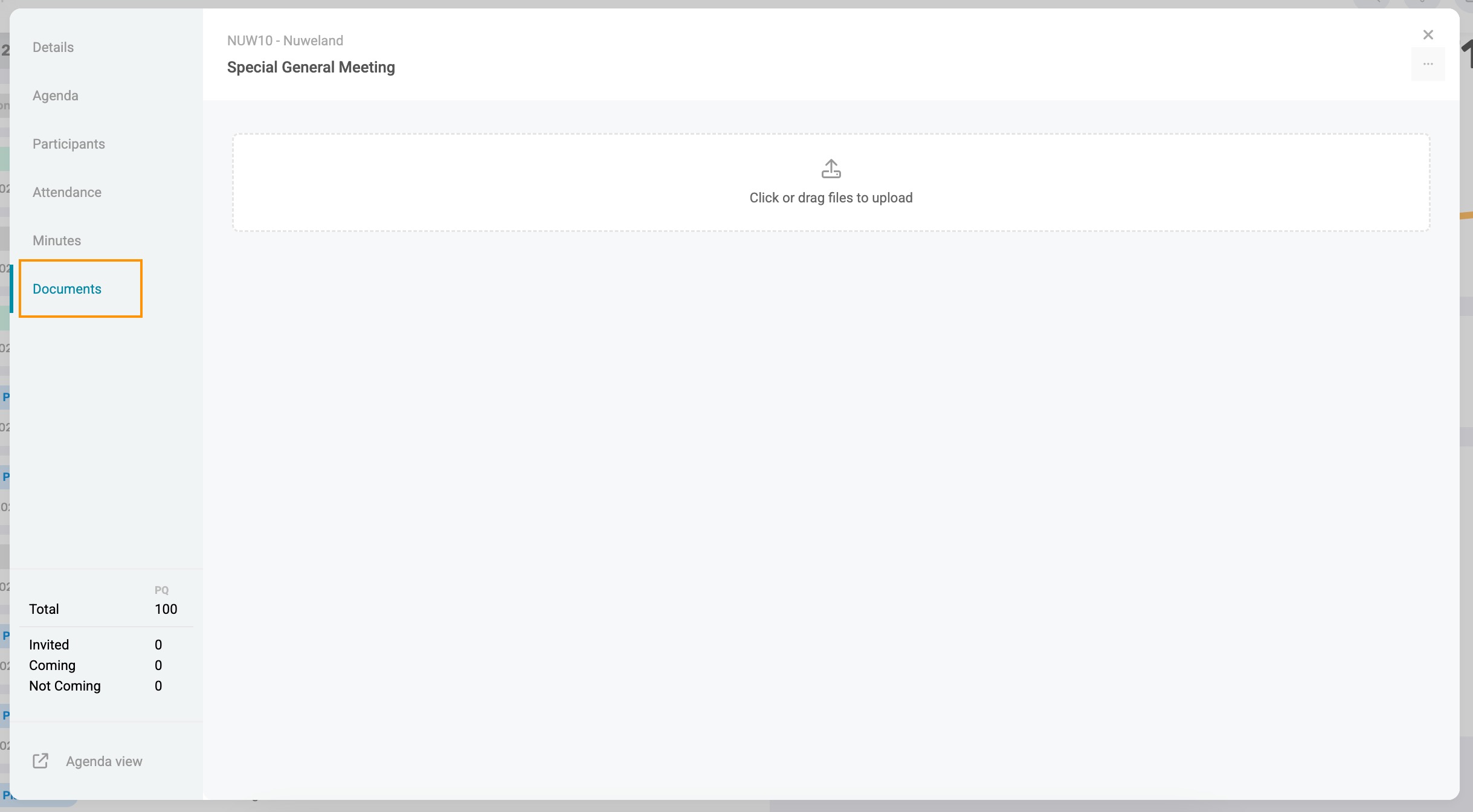
These documents will be added to the invitation as additional documents. These documents will be available to select as attachments when invitations are sent.
| Resources: | ||
| CMS - Meetings: How to Setup Details & Agenda |
Was this article helpful?
That’s Great!
Thank you for your feedback
Sorry! We couldn't be helpful
Thank you for your feedback
Feedback sent
We appreciate your effort and will try to fix the article