This guide outlines the steps required to set up a new Community on the Solution. It covers adding the Community, completing essential details, and finalising the take-on process to ensure a smooth and efficient setup.
TABLE OF CONTENTS
|
1. Add Community
Navigation: Global Overview > Communities > Add New
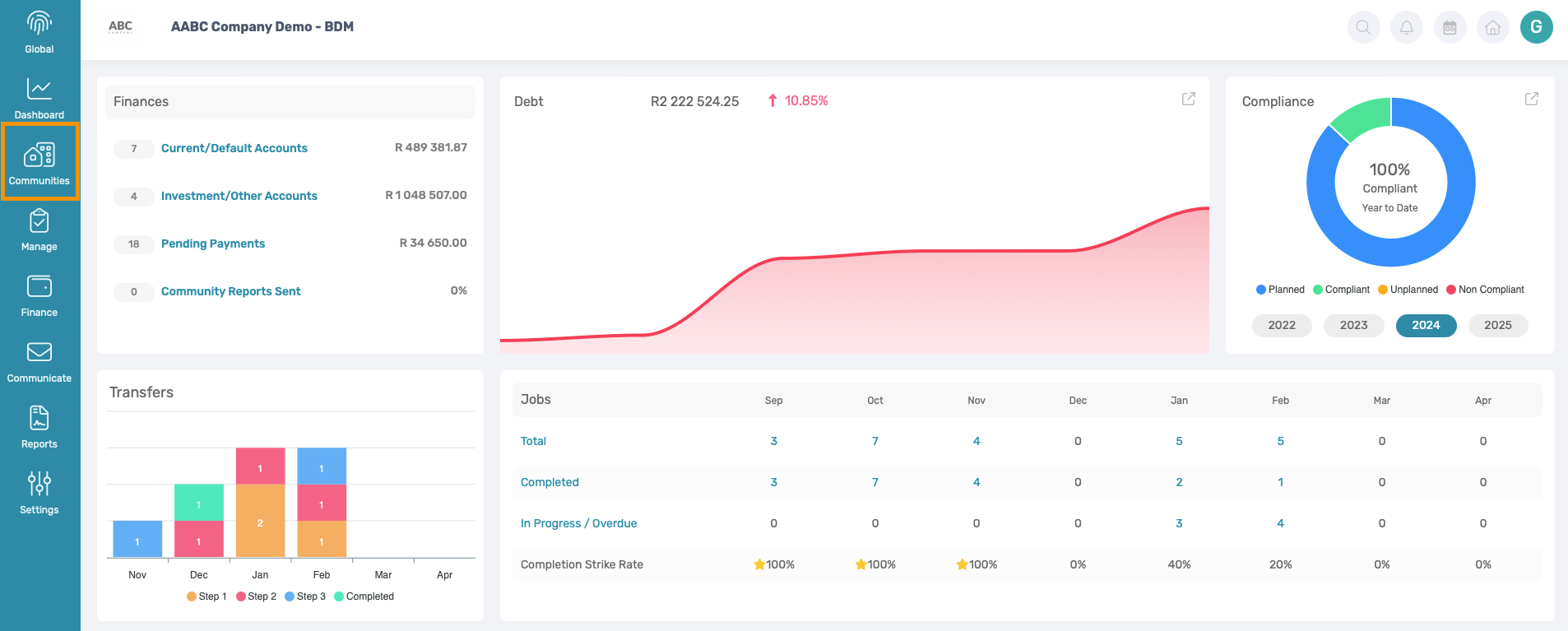
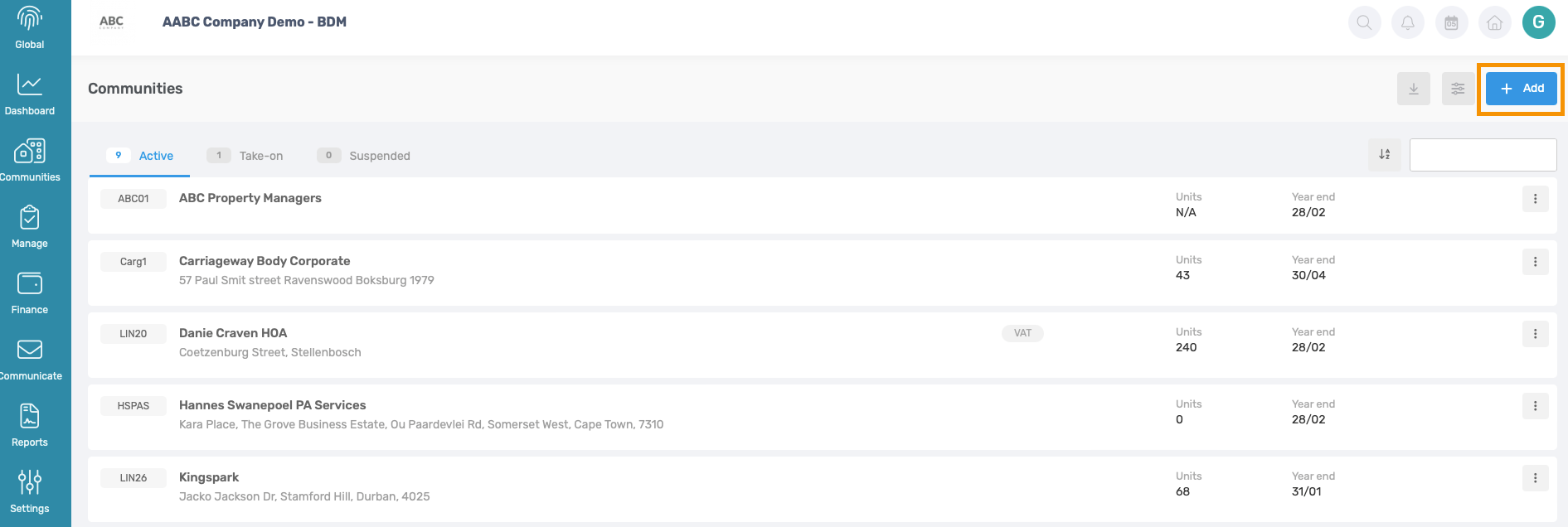
To add a new community to the Property Managing Agency click on Add New
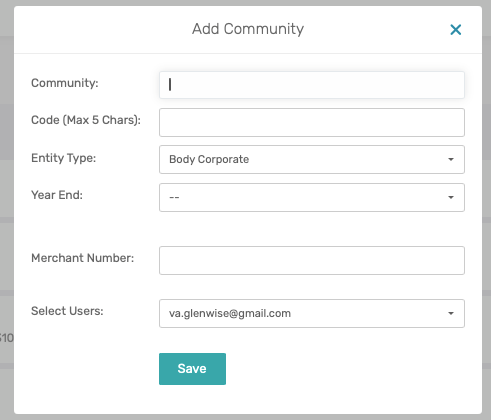
- Add Community Name.
- Add the Community Code - this code should be unique and will be used to differentiate communities.
- Add Year End.
- Tick all applicable users that should have access to the Scheme under the ‘Select Users’ dropdown menu.
- Click on Save .
All of these fields can be edited afterwards.
2. Complete Community Details
Navigation: You will automatically be redirected to this page.
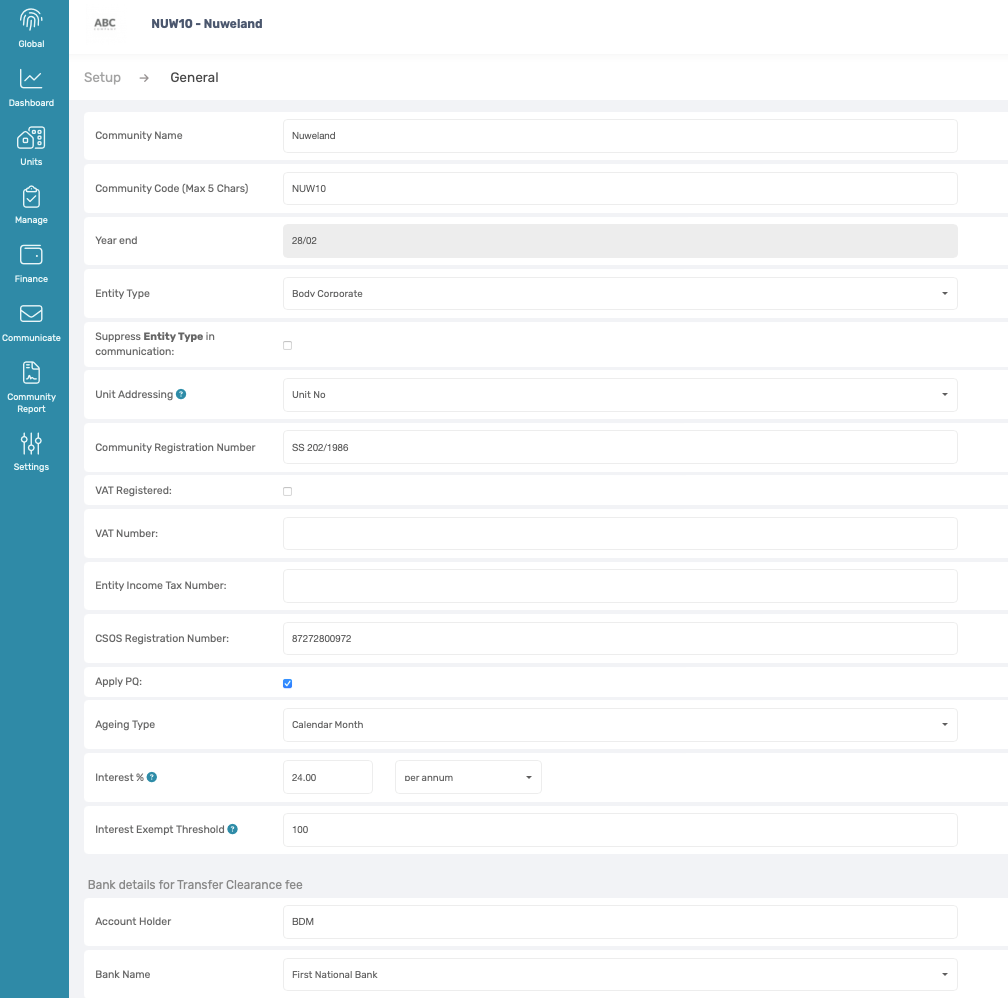
- Complete as many of the fields as possible – All of these fields can be edited afterwards.
- Select the Unit Addressing: How does the Community address units when sending communication/ fines?
- Complete Community registration details:
- Community Registration Number
- CSOS Registration Number
- Income Tax Number
- If the community is VAT registered, tick the box and please fill in the VAT number.
- Tick ‘Apply PQ’ if the community is a Body Corporate and if HOA or any other type of entity leave it blank.
- Insert Interest %
- Insert Interest Exemption Threshold (the interest exemption threshold indicates the amount on which interest will not be charged)
- Amend banking details should the levy clearance bank account differ from the banking details on the Global Management Dashboard under company details.
- Click on Save.
3. Default Billing Set Up
Navigation: Community Overview > Settings > Default Billing > Scroll down
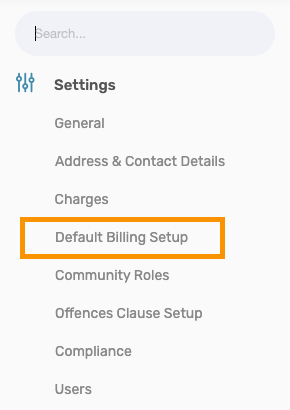
- Select which utilities are applicable (if any) – Water and/or Electricity.
- If CSOS needs to be applied make sure the box has been ticked.
- Click Save
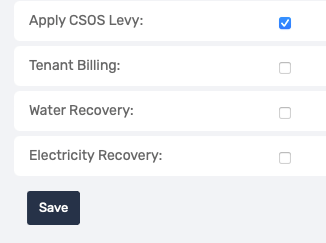
Note: That the default billing setup section above - WeconnectU will do this during the Take-On process and this section does not need to be completed. |
4. Community General Ledger
Navigation: Community Level > Finance > Setup > Financial > General Ledger
The following options are available:
1. Add General Ledger Account: A new ledger can be created when there is a need to record or track processing separately.
2. Editing General Ledger: Where possible, avoid adding or deleting a ledger. Rather, rename the existing ledgers.
When the pop-up appears, amend the fields that are not greyed out and select Update Account to apply the changes.
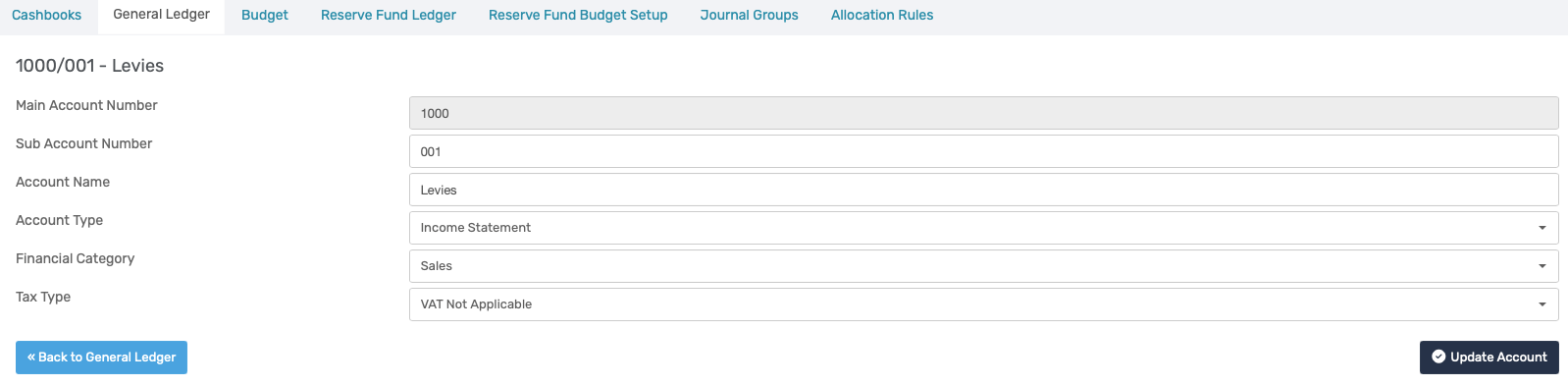
3. Delete General Ledger: This will remove the ledger and sequence from the Solution and can not be reverted.
| Important: If there is any processing done in the General Ledger Account it cannot be deleted. When deleting a General Ledger the GL account number which was allocated to that ledger will be removed and the next GL added will have the sequential GL account number. That deleted account number will no longer be available for future use and cannot be reinstated. |
5. Take-On Page
Navigation: Click on the Orange Take-on Page button top right

Here the following documents can be uploaded, to ensure the migration team will be able to complete the take-on:
- Owner Info sheet (In required format)
- Budget (in Excel)
- Trial Balance (in Excel)
- Customer Age Analysis (in Excel)
- Supplier Age Analysis (in Excel)
- Previous Billing Run (in Excel)
- Under Community Details, complete the interest rate applicable to the community.
- Under Cashbook, complete the banking details applicable to this community.

Once the above-mentioned documents have been uploaded, the screen should be refreshed. The tab should turn GREEN to indicate that the documents have been successfully uploaded.
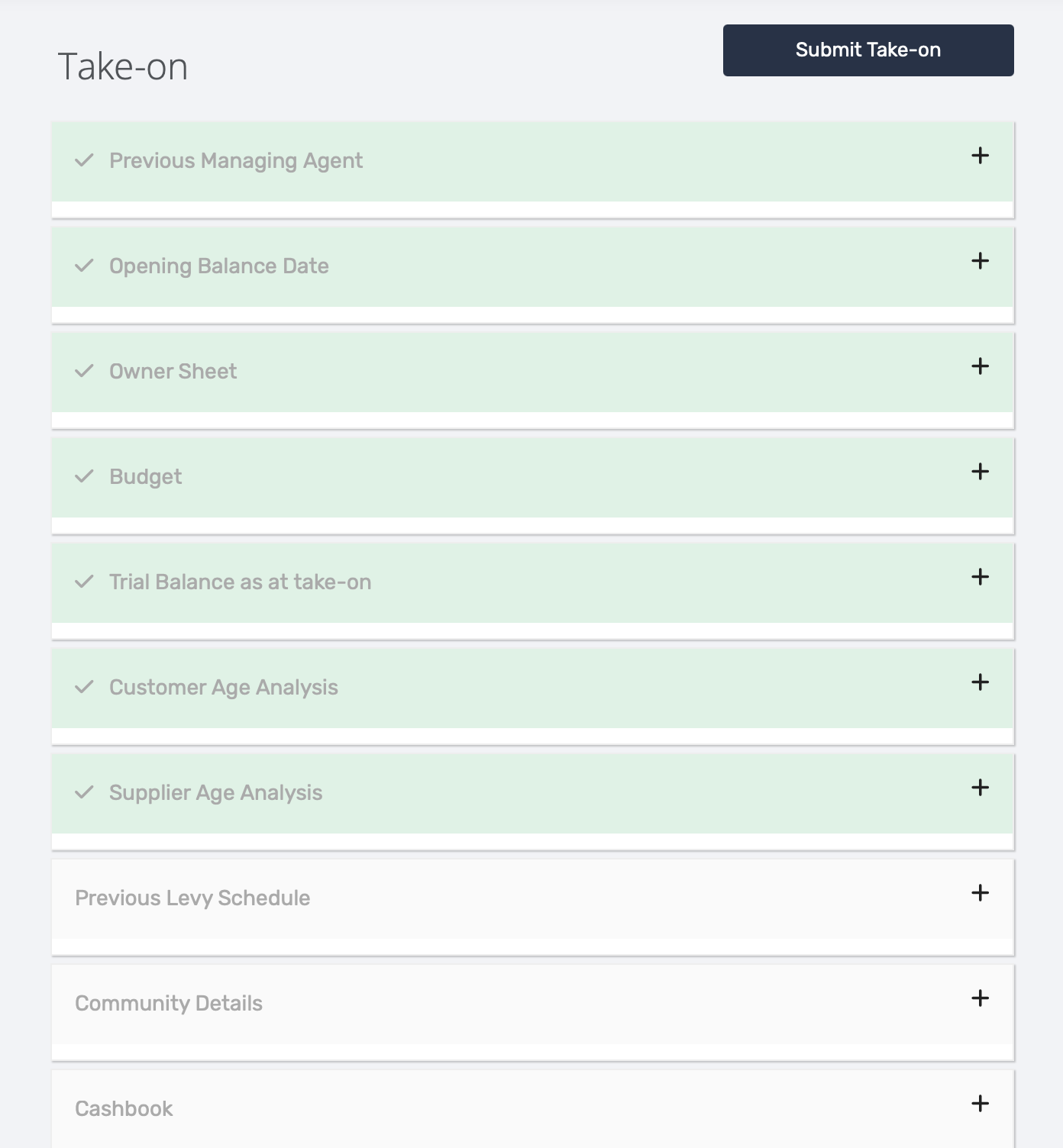
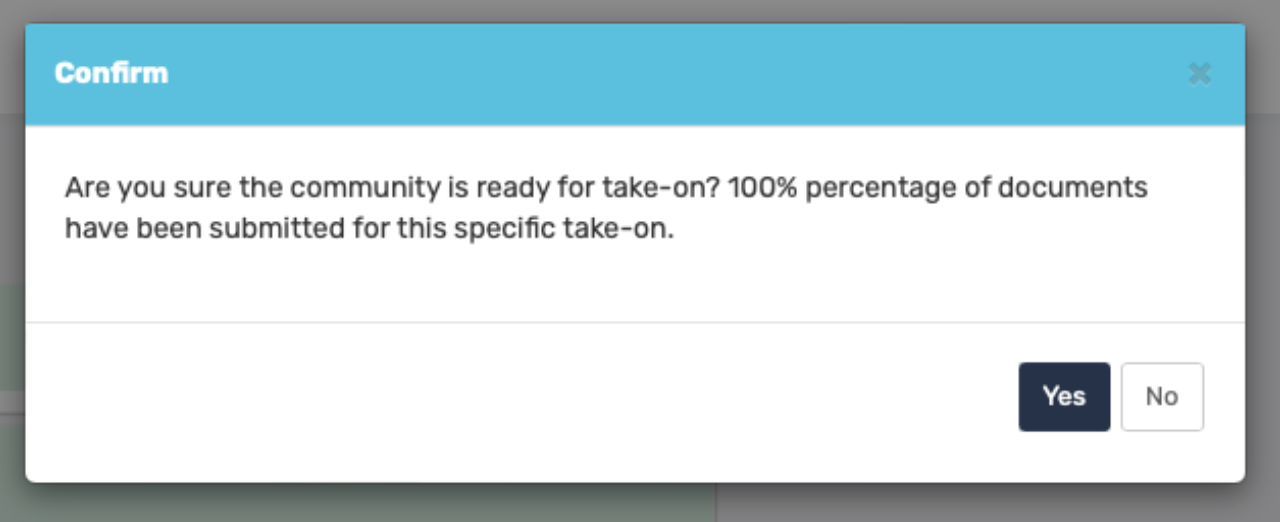
Note: That you do not need to have ALL documents ready to begin the Take-On process but all documents are required to complete the process. Please ensure that all documents are in Excel for WeconnectU to complete the Take-On. Click Submit Take-on |
- Remember to click on Submit Take-on once all documents have been uploaded, for the migration team to be notified to start the take-on.
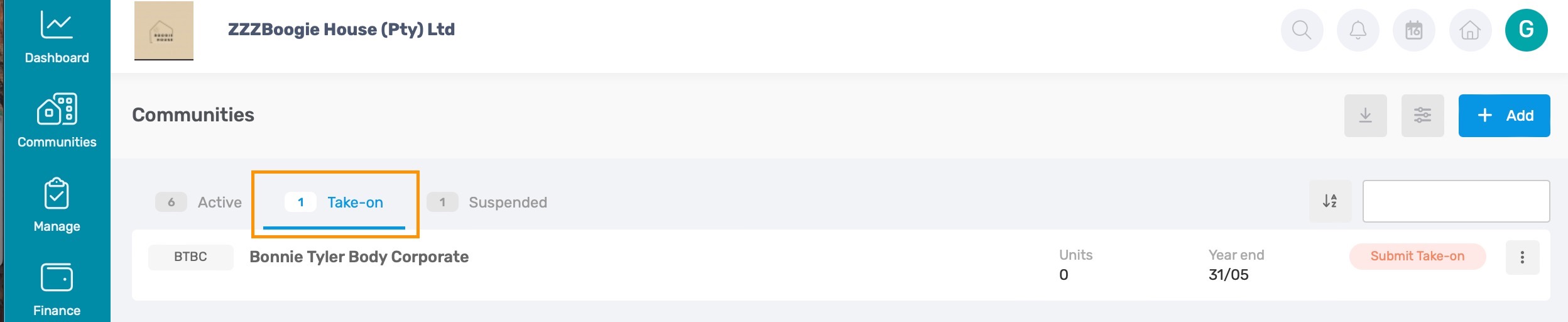
Note: If a part Take-On was submitted, please navigate back to the Global Overview and click on the Communities Icon in the blue navigation bar. To locate the community, click on the Take-On Tab for a list view of all active Take-Ons. |
| Resources: | ||
CMS - How to add a Community | ||
CMS - Take-on Process | ||
CMS - How to Add a Demo Community |
Was this article helpful?
That’s Great!
Thank you for your feedback
Sorry! We couldn't be helpful
Thank you for your feedback
Feedback sent
We appreciate your effort and will try to fix the article