Allocating Transactions
There are three methods of allocation available for allocation cashbook transactions: allocation rules, manual allocation, and split allocations.
1. Allocation Rules
Navigation: Community Level > Finances > General > Cashbook
Instead of manually allocating every single transaction, create allocation rules and run these rules to allocate cashbook transactions. To create a rule, click on any description of any transaction.

The following screen will pop up to complete.
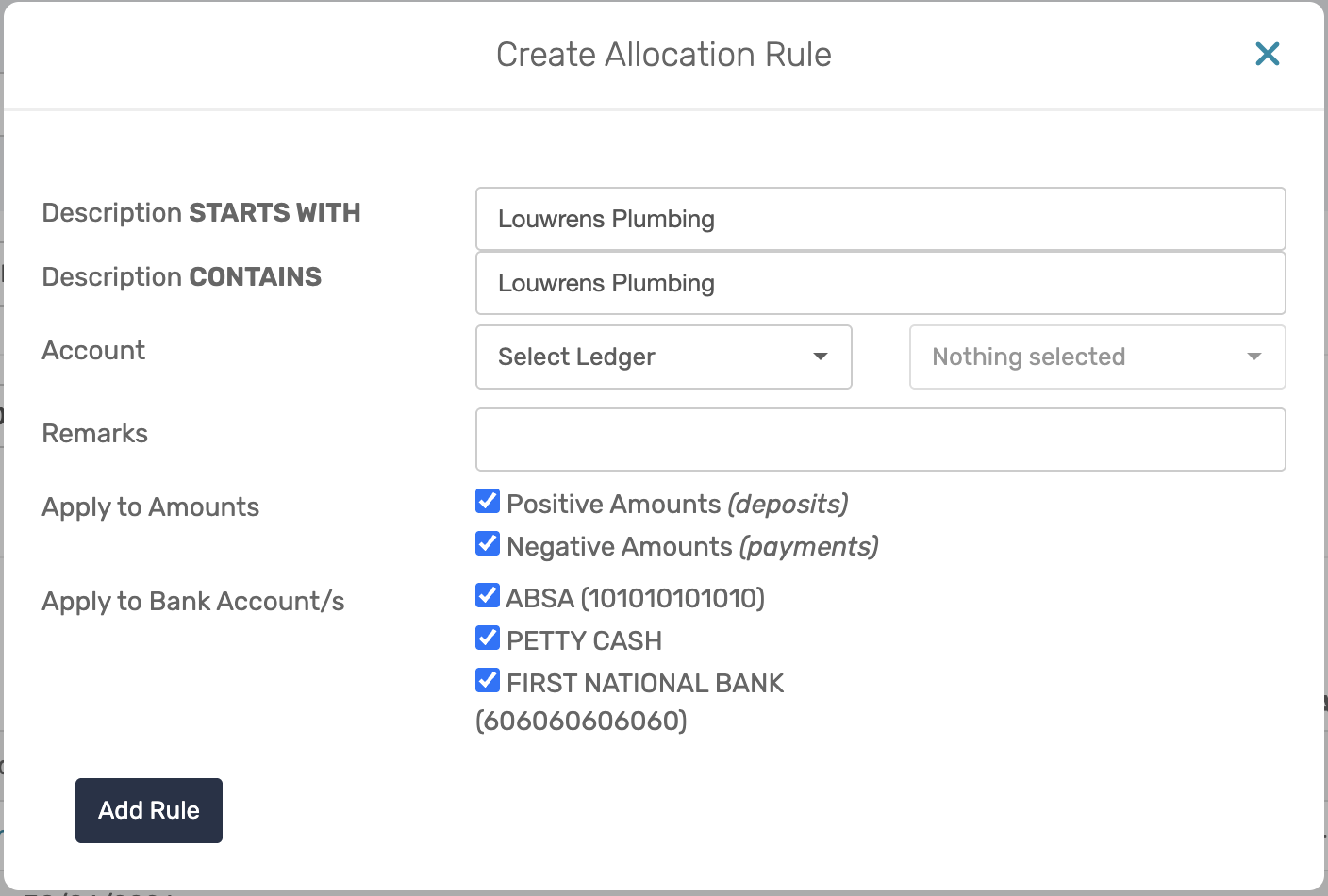
- Description: Specify the criteria that the transaction description must meet for the allocation rule to apply. The description can be set to start with and/or contain a specific word or phrase. When these criteria are met, the transaction will automatically be allocated to the selected ledger account.

- Account: Choose the ledger that this transaction should be posted to.

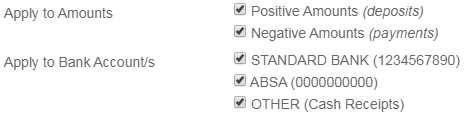
- Apply to amounts/Apply to Bank accounts: Select the transaction amounts and bank accounts to which this allocation rule should apply.
As soon as the rule is added it will appear in grey under the transaction description.
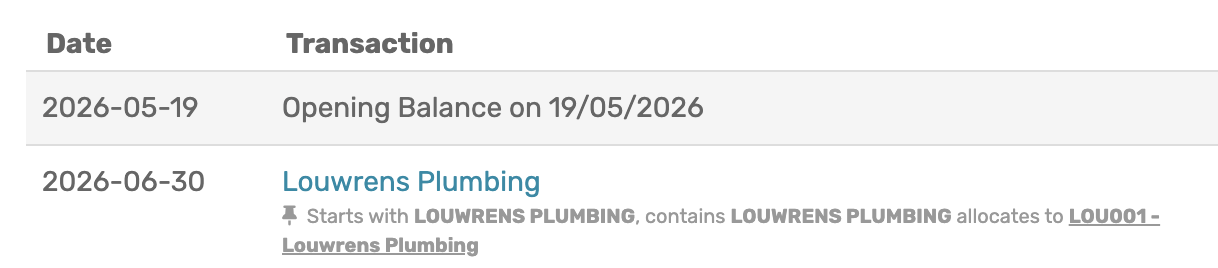
Note: This does not mean that the transaction has been allocated yet. This is to indicate where the transaction will be allocated once the rules have been run. |
1.1 Run allocation rules
Navigation: Community Level > Finances > General > Cashbook > Cashbook Options > Run Rules
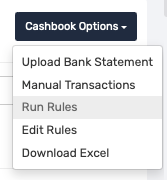
2 Manual Allocation
Navigation: Community Level > Finances > General > Cashbook
To manually allocate a transaction, click on [Allocate]

Choose between General/Customer/Supplier/Reserve Fund Ledger and then select the specific ledger it relates to.
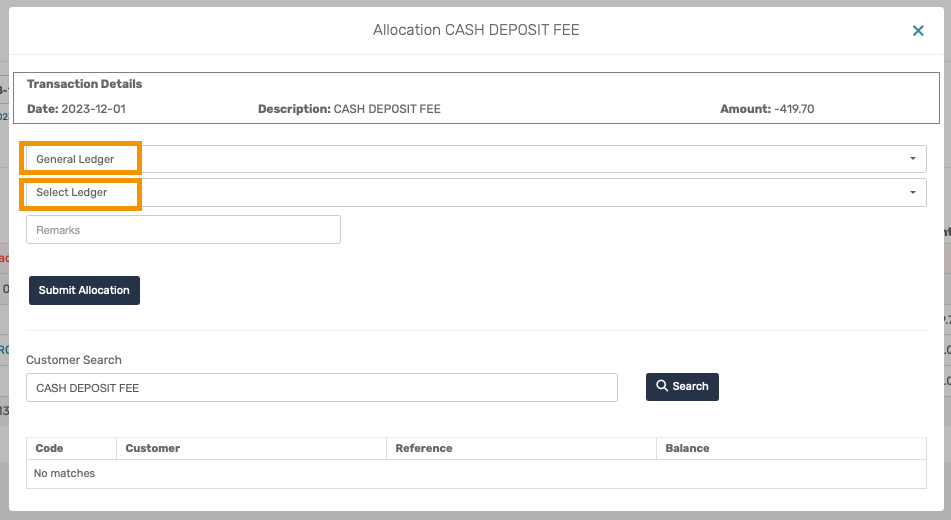
From the same screen, use the search bar at the bottom to find the correct customer if applicable. This will display the customer's balance as well.
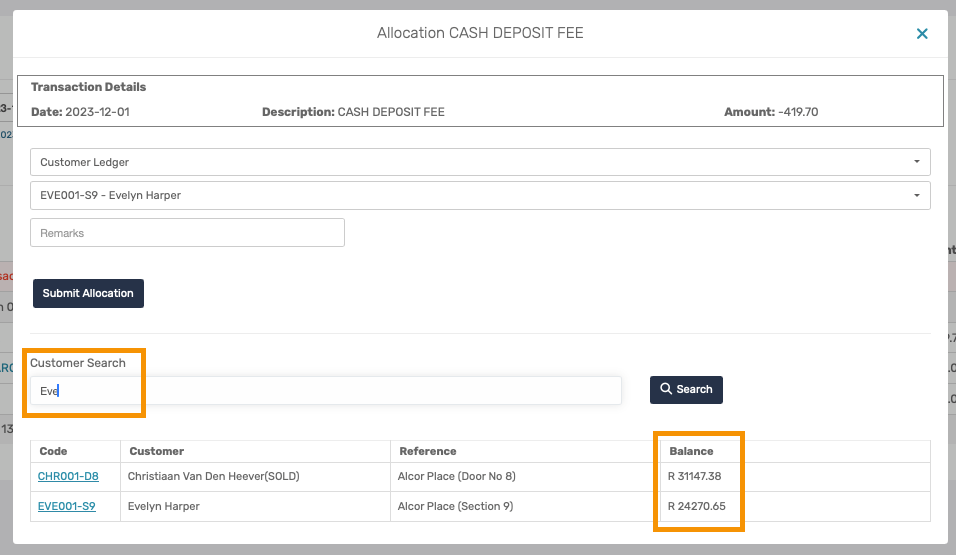
Click on submit allocation when done with allocating the transaction.
3 Split Allocations
3.1 Manual Split Allocation
To split a transaction click on the three grey lines on the right-hand side of the page (i.e. menu options).
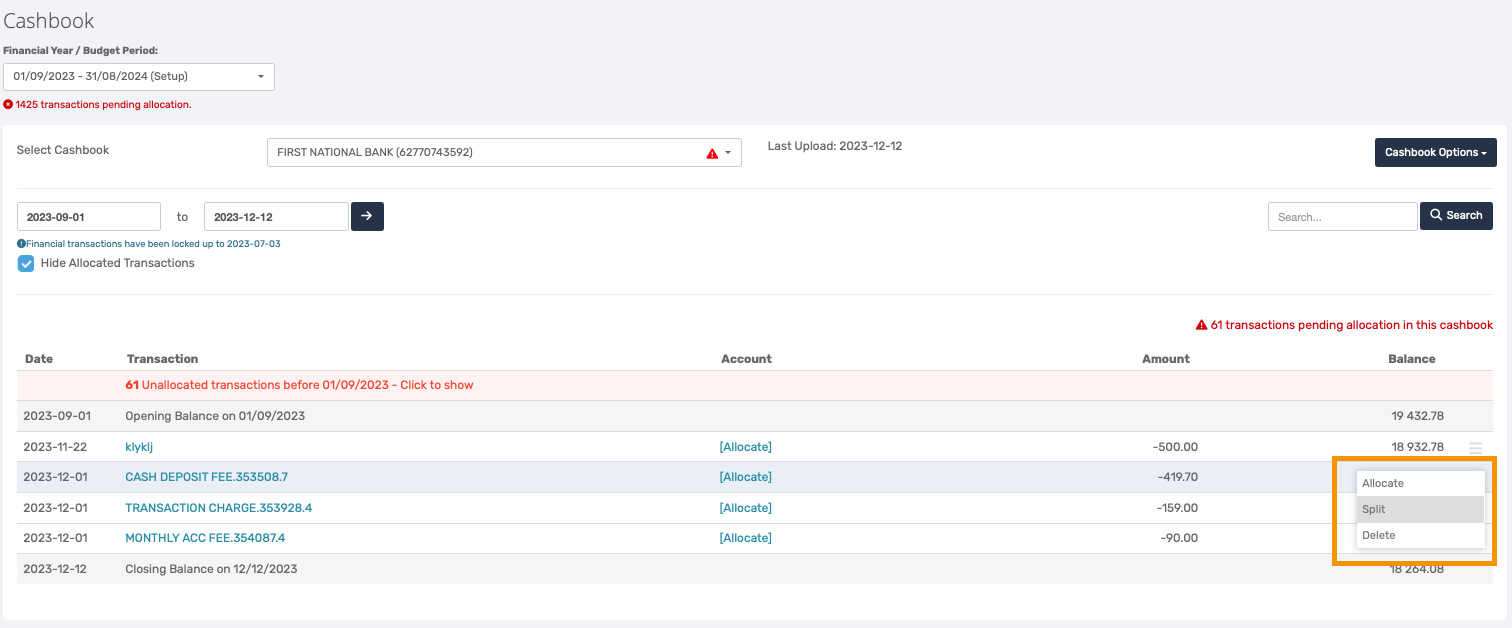
The following screen will pop up to complete.
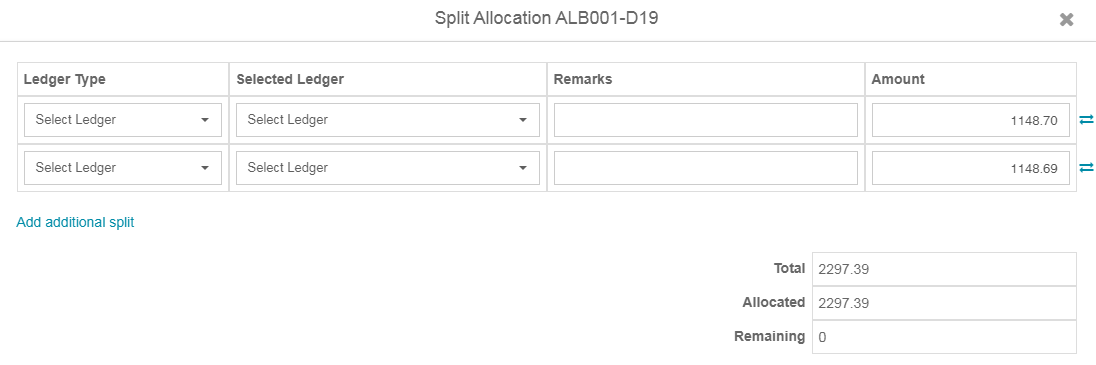
Select the Ledger Type and the relevant ledger account. Add a remark, if applicable, and enter the amount. If the transaction requires more than a two-way split, click on Add Additional Split.
Note: That no split allocation will be completed should the remaining amount not be zero. |
3.2 Bulk Split Allocation
In the case of a large split transaction that occurs every month/regularly, it is recommended to use a bulk split file. Click on the three grey lines on the right-hand side of the page and select Split.

Download the template file, detail the split transition in Excel and re-upload it to the system.
The template file has the same fields as a journal batch file.
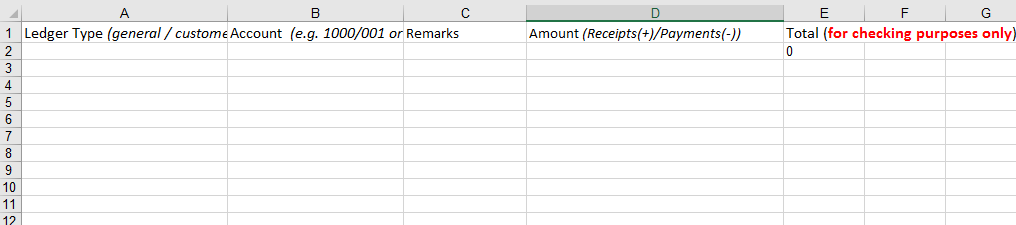
Complete the template as follow:
- Column A: Enter the account type (General, Customer, Supplier, or Reserve).
- Column B: Enter the relevant account number, such as the General ledger, Customer, or Supplier code.
- Column C: Enter any remarks or a description for the transaction.
- Column D: Enter the transaction amount.
- Column E: Displays the remaining balance after the allocation..
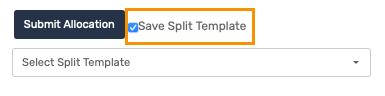
To save a split for future use, tick the save Split Template option upon upload, before submitting.
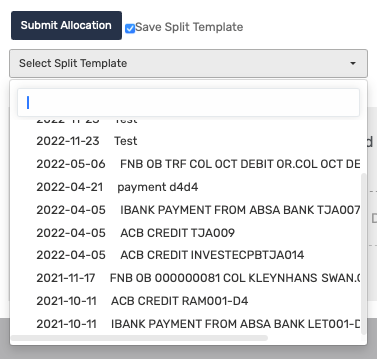
In future select the name of the split saved previously from the dropdown list. The Solution will automatically populate the fields as applied before.
Resources: | ||
CMS - How To: Allocate Transactions |
Was this article helpful?
That’s Great!
Thank you for your feedback
Sorry! We couldn't be helpful
Thank you for your feedback
Feedback sent
We appreciate your effort and will try to fix the article