We're excited to announce the first phase of a new feature called Community Roles. Many teams keep spreadsheets to record & track responsibilities and roles for a community, such as which Community Asset Manager is assigned to a specific community. Community Roles brings for what in every community, without affecting user types, permission groups or system / community access.
This release sets the groundwork for what comes next and forms part of a broader version. As Community Roles evolve, they will help simplify and coordinate work across your profile and ease management. Upcoming phases will enable you to:
- Assign tasks in bulk to everyone holding a specific role (e.g., Tasks for all Community Asset Managers for their specific communities)
- Filter and analyses workflows based on community roles
- Use roles dynamically in communication templates, such as inserting the correct Debtor Clerk Name and Email in Debt status es or messages.
1. Community Roles Setup
Navigation: Global Overview > Settings > Community Roles Setup
There are nine configurable roles, all of which can be renamed to match the organisation's language and workflow.
Note: Ensure you have the Global Community Roles Setup Permission to view and edit this page. |
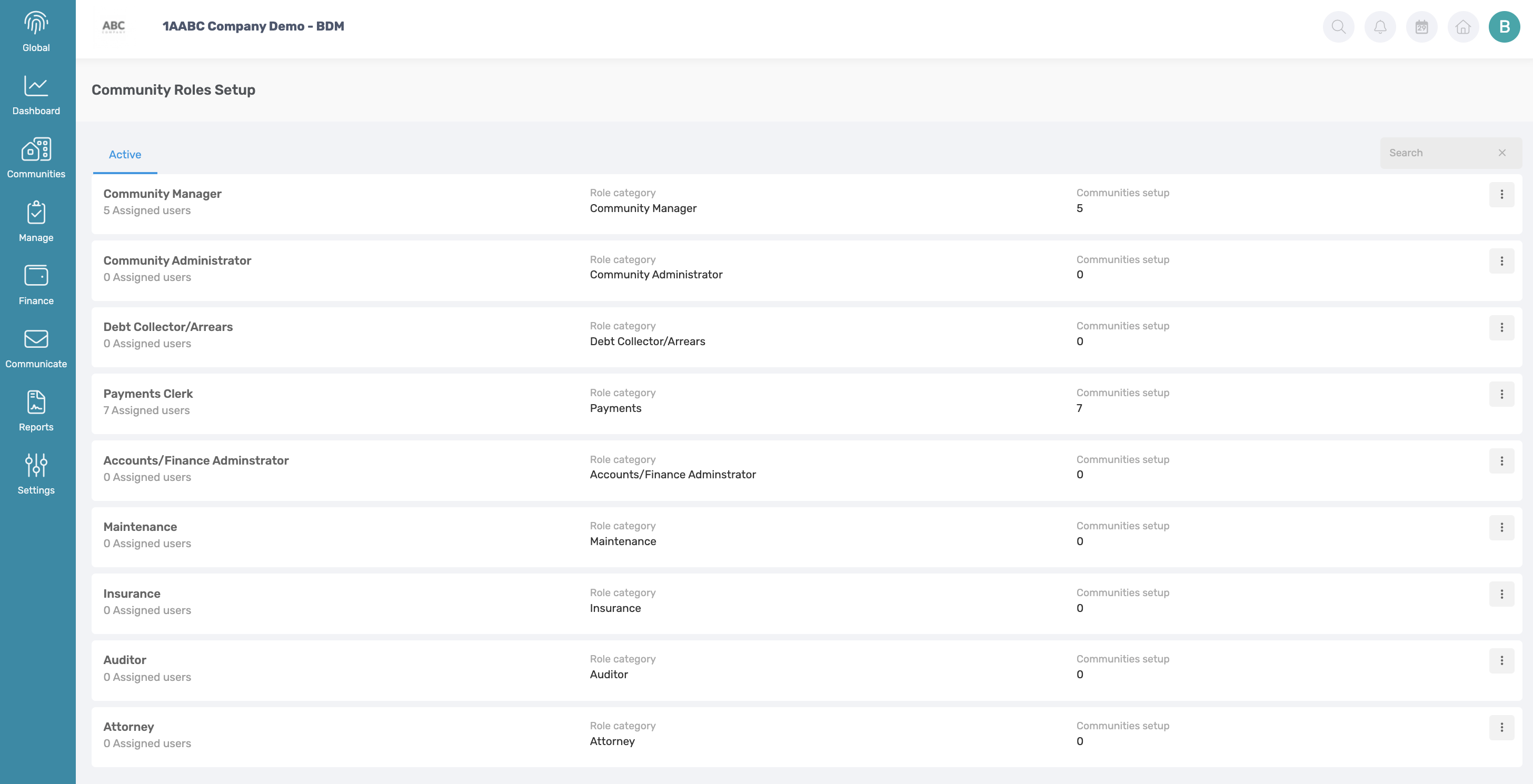
This can be managed from the Global Community Role Setup page, which provides and overview of all available roles and allows to configure the display names used across the organisation by clicking on the menu option and edit the Role Display Name.
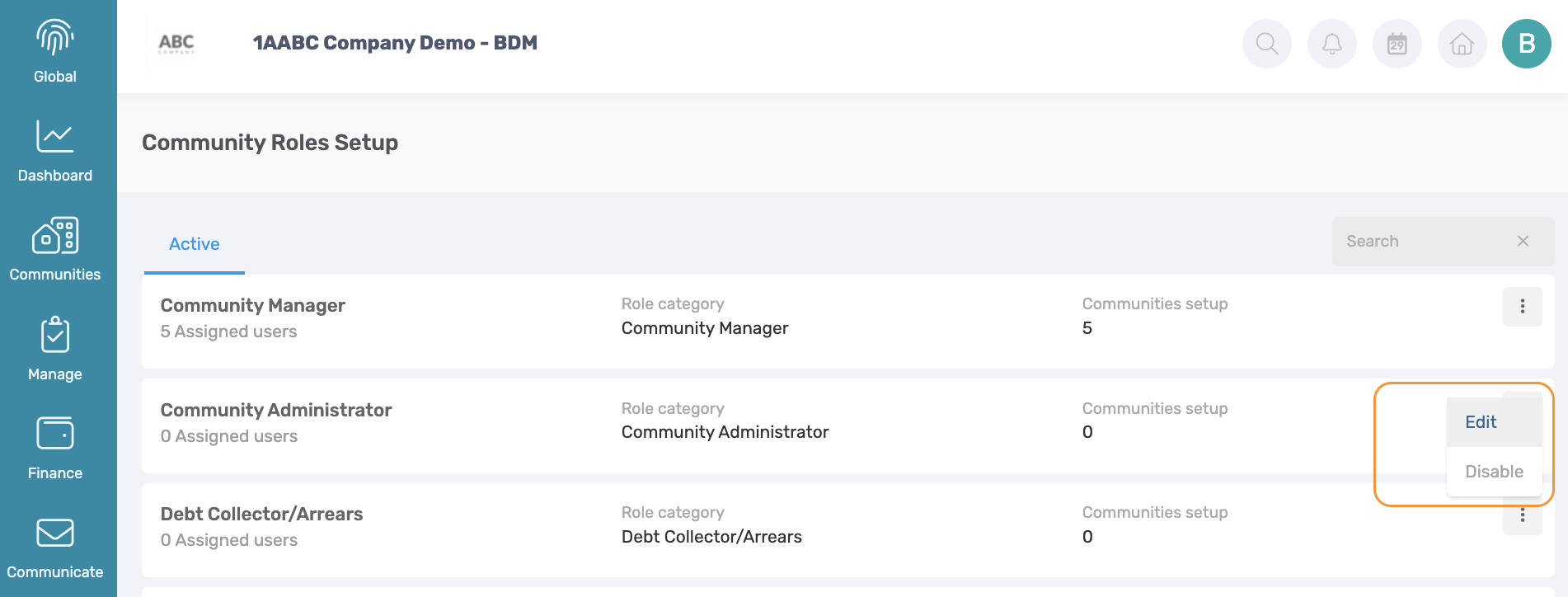
2. Applying Bulk Communities Edits
Navigation: Global Overview > Communities Page
To streamline setup and reduce repetitive work the batch edit option is introduced. This will enable to following:
- Configure a role for multiple communities at the same time
- Edit certain community settings at the same time
2.1 Applying Community Roles Global
Navigation: Global Overview > Communities Page
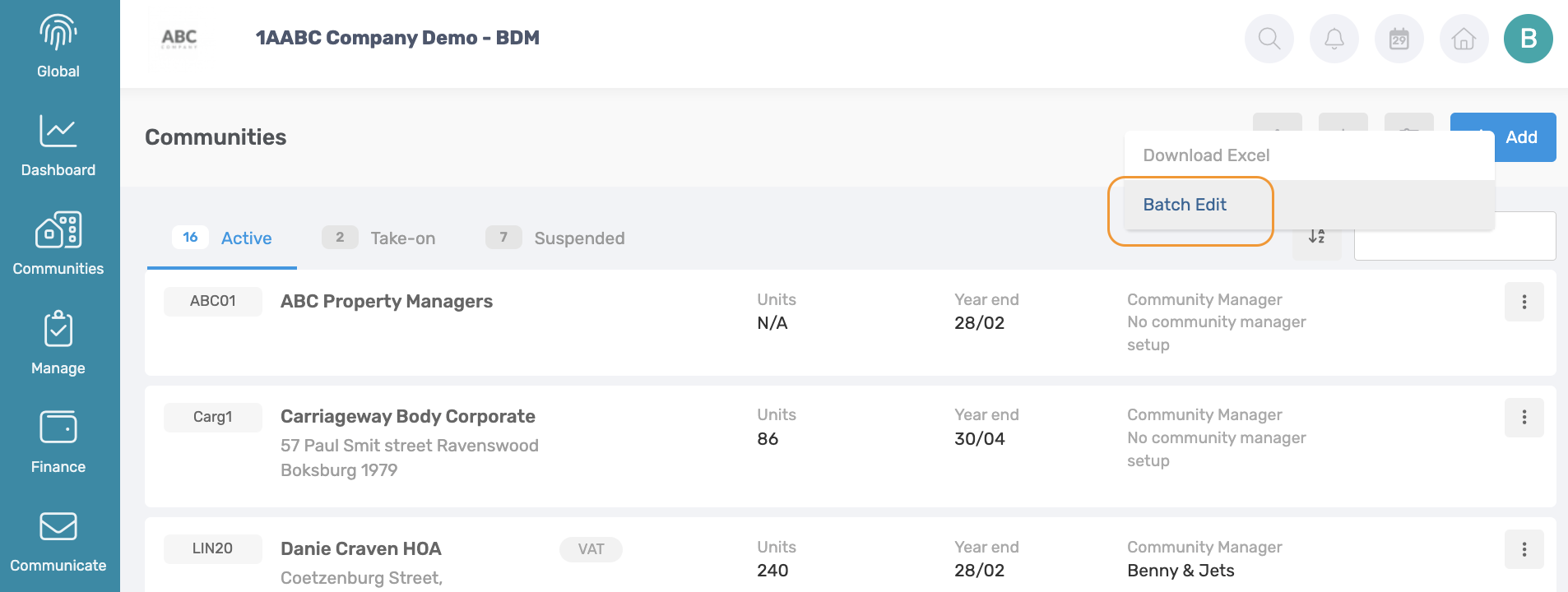
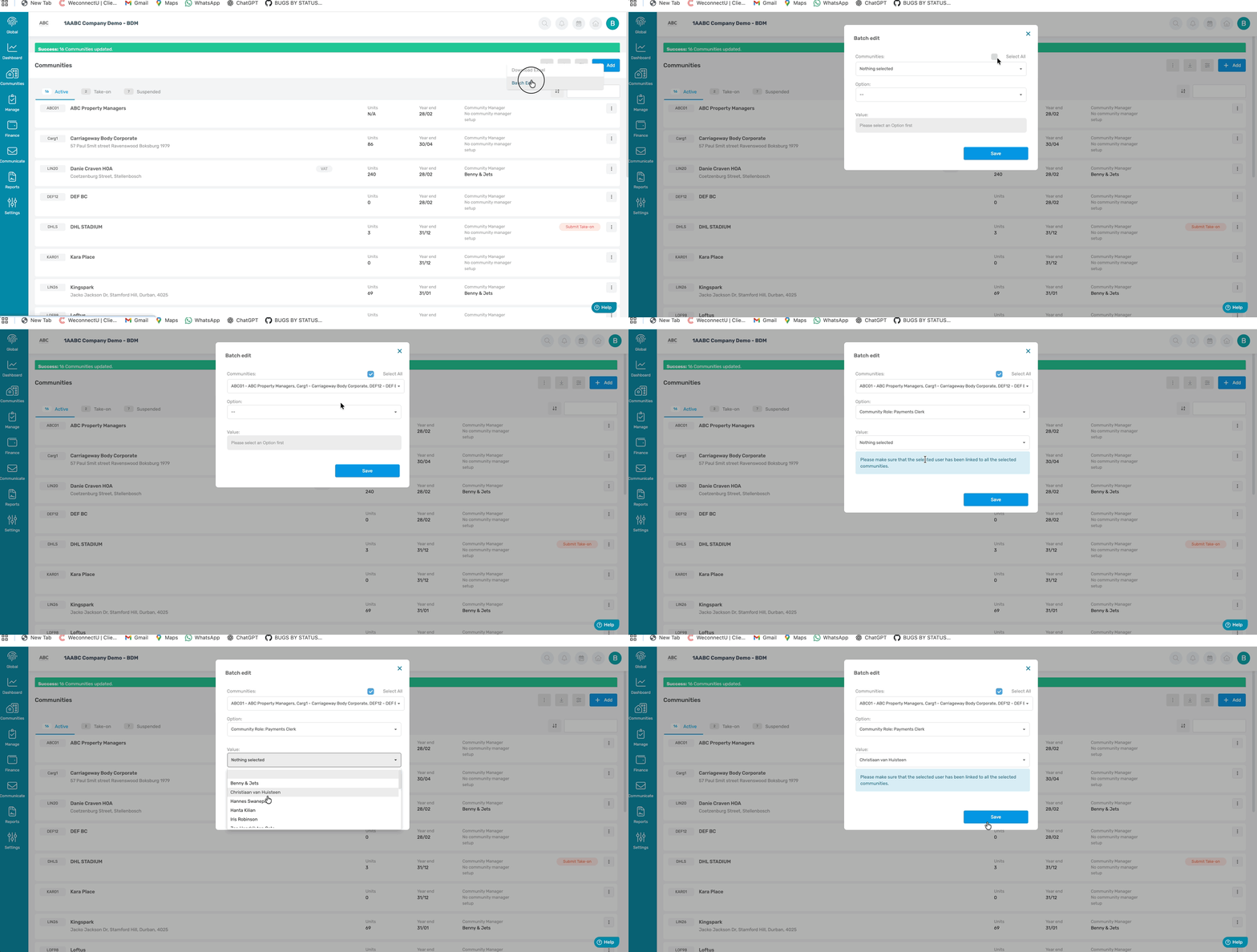
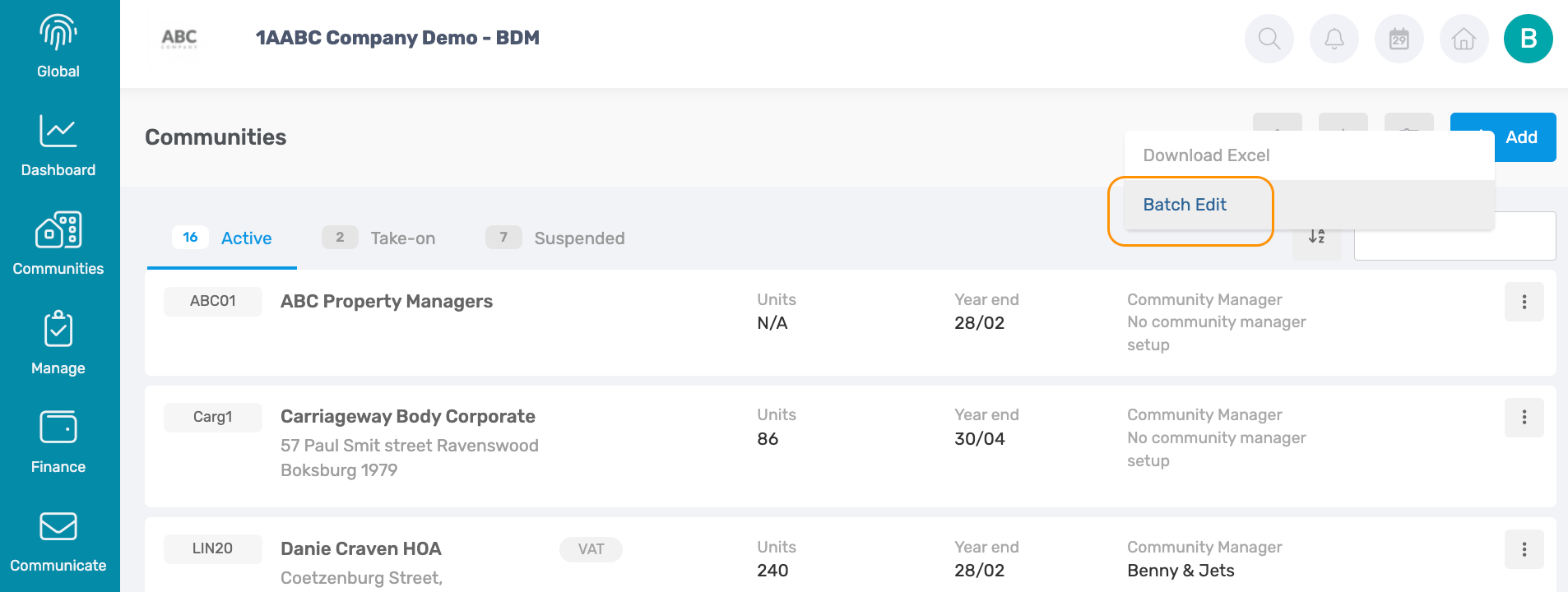
From the communities list, click on the menu options on the page and select Batch Edit. On the Pop-up selected which communities to be edited and which roles with what user should be assigned to that toned in the selected communities.
Note: You will only be able to amend roles and setting for communities you have access too. |
On the communities page, click not he menu options o n the page and select Batch Edit.
On the Pop-up select which communities which should be edited and which Role along with which Business User should be assigned to the Role.
On the Community Page, click on the Community and the Community Card will pop-up. Click on the Community Roles and the list of Roles and which Business User is responsible will appear.
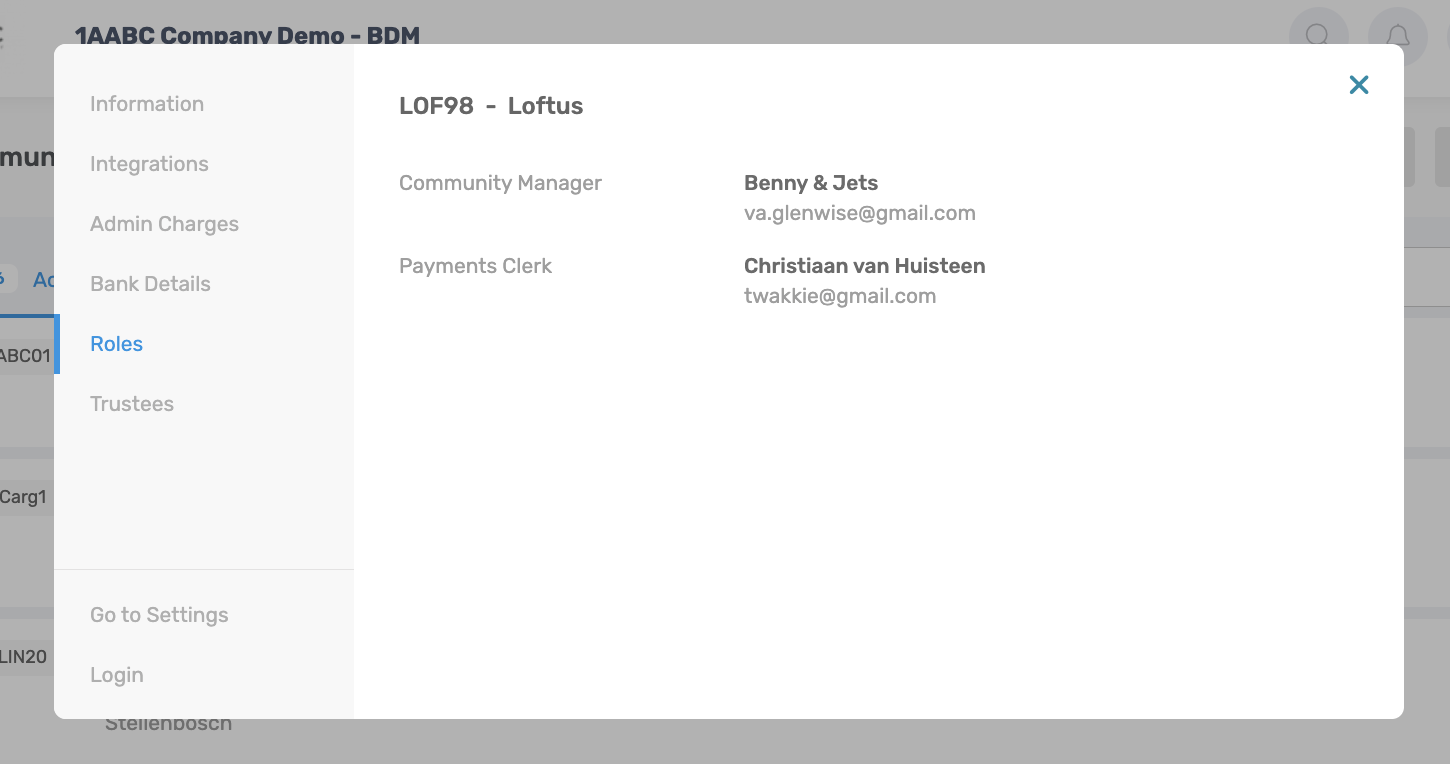
2.2 Applying Community Roles Community
Navigation: Community Level > Settings > Community Roles
Community Roles can also be applied on a community level
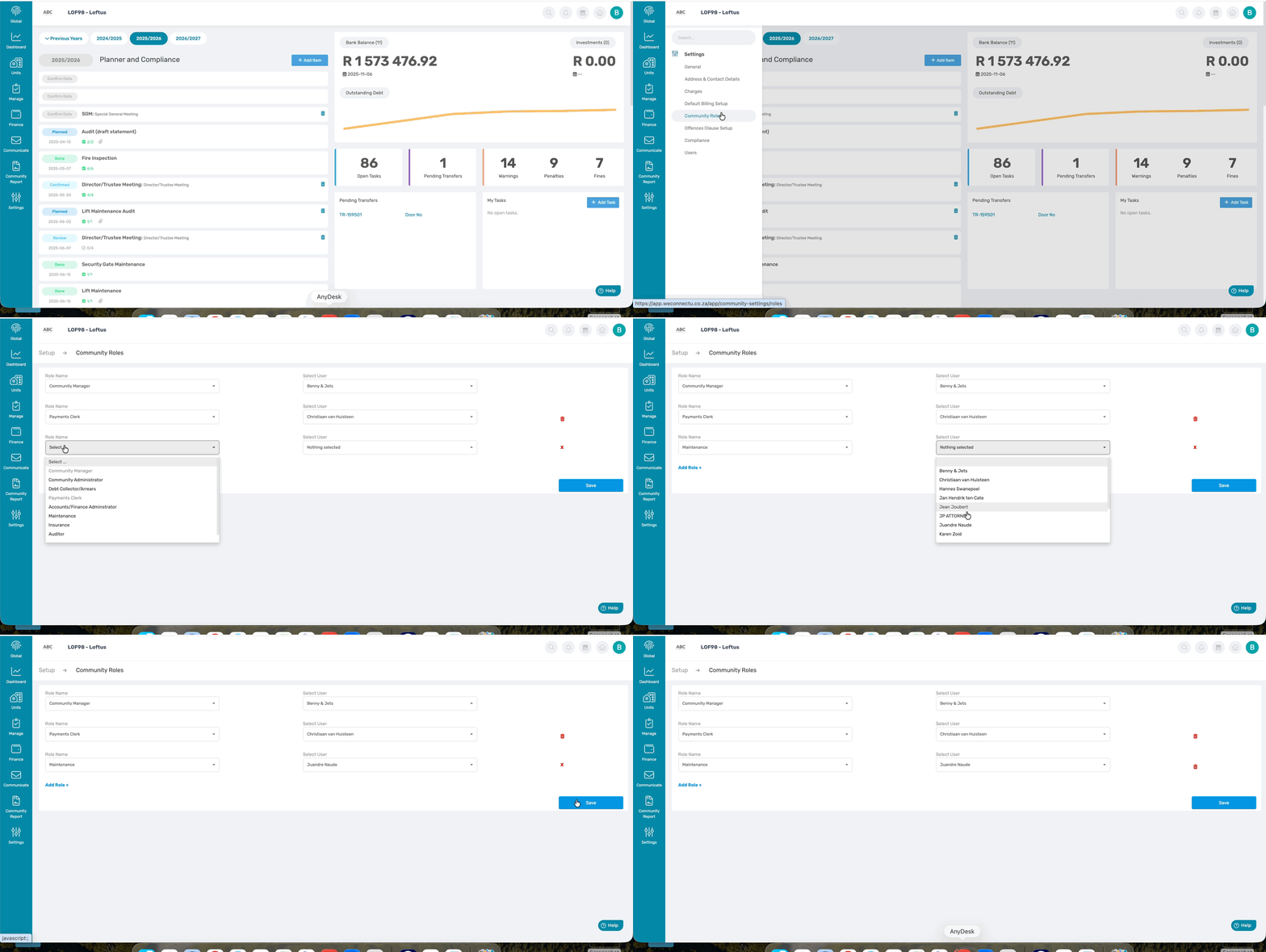
2.3 Bulk Communities Settings
Navigation: Global Overview > Communities Page
On the communities page, click on the menu options o n the page and select Batch Edit.
On the Pop-up select which communities which should be edited and which community settings to be edited.
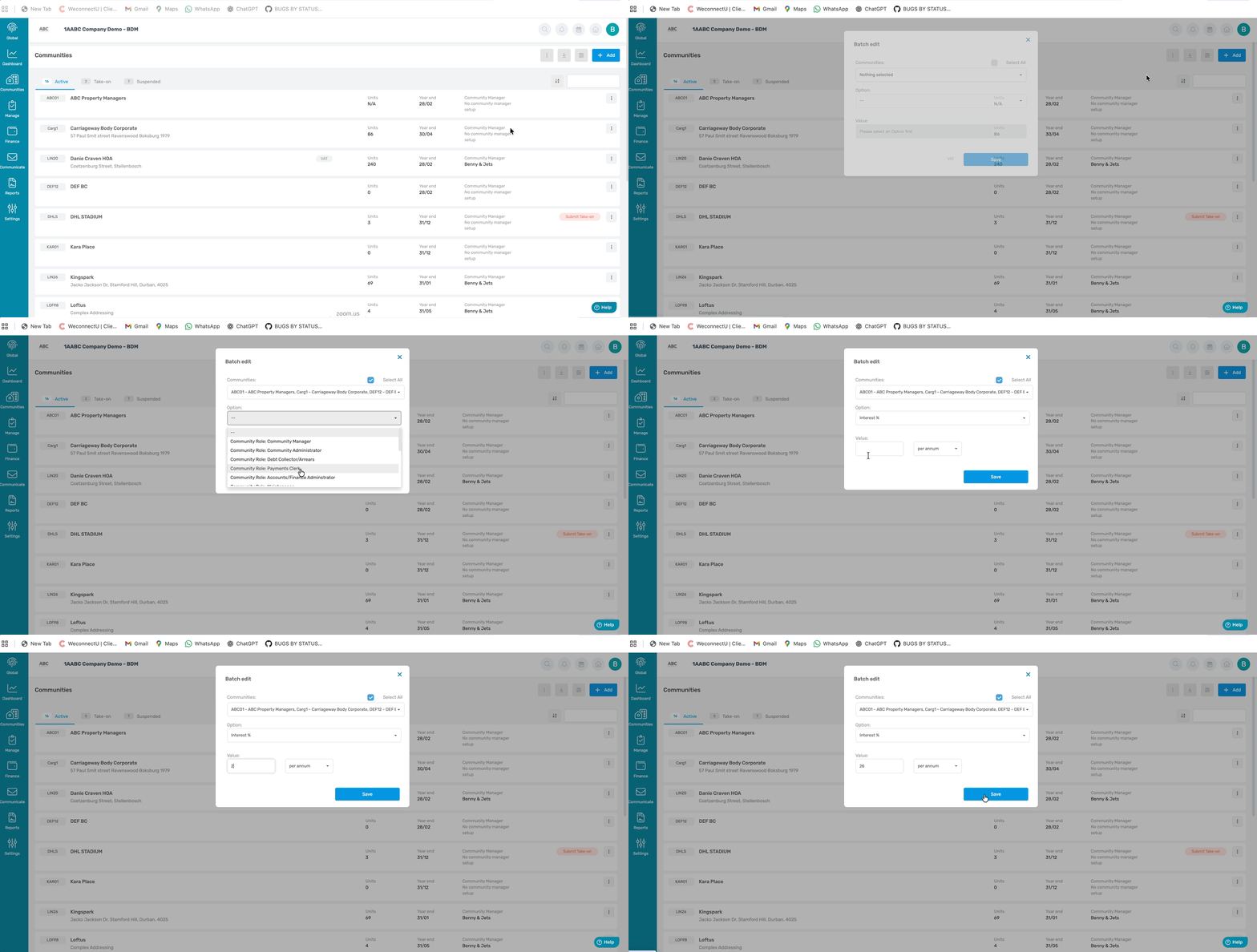
On the Community Page, click on the Community and the Community Card will pop-up. Click on the Admin Charges and the Community Settings will appear.
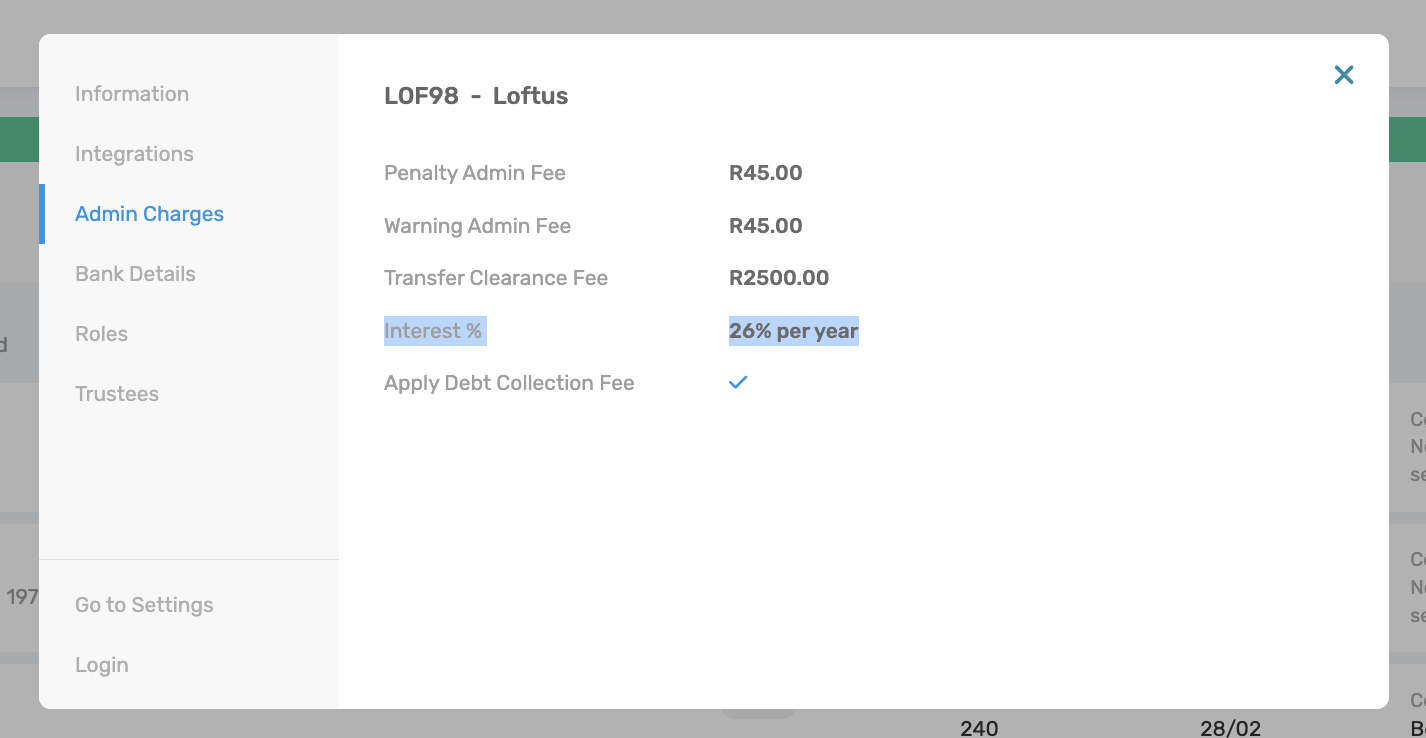
Note: You will only be able to bulk edit communities when the community settings and the edit permission is enabled and can be applied only to the communities you have access too. |
3. Enhanced Community Page
Navigation: Global Overview > Communities Page
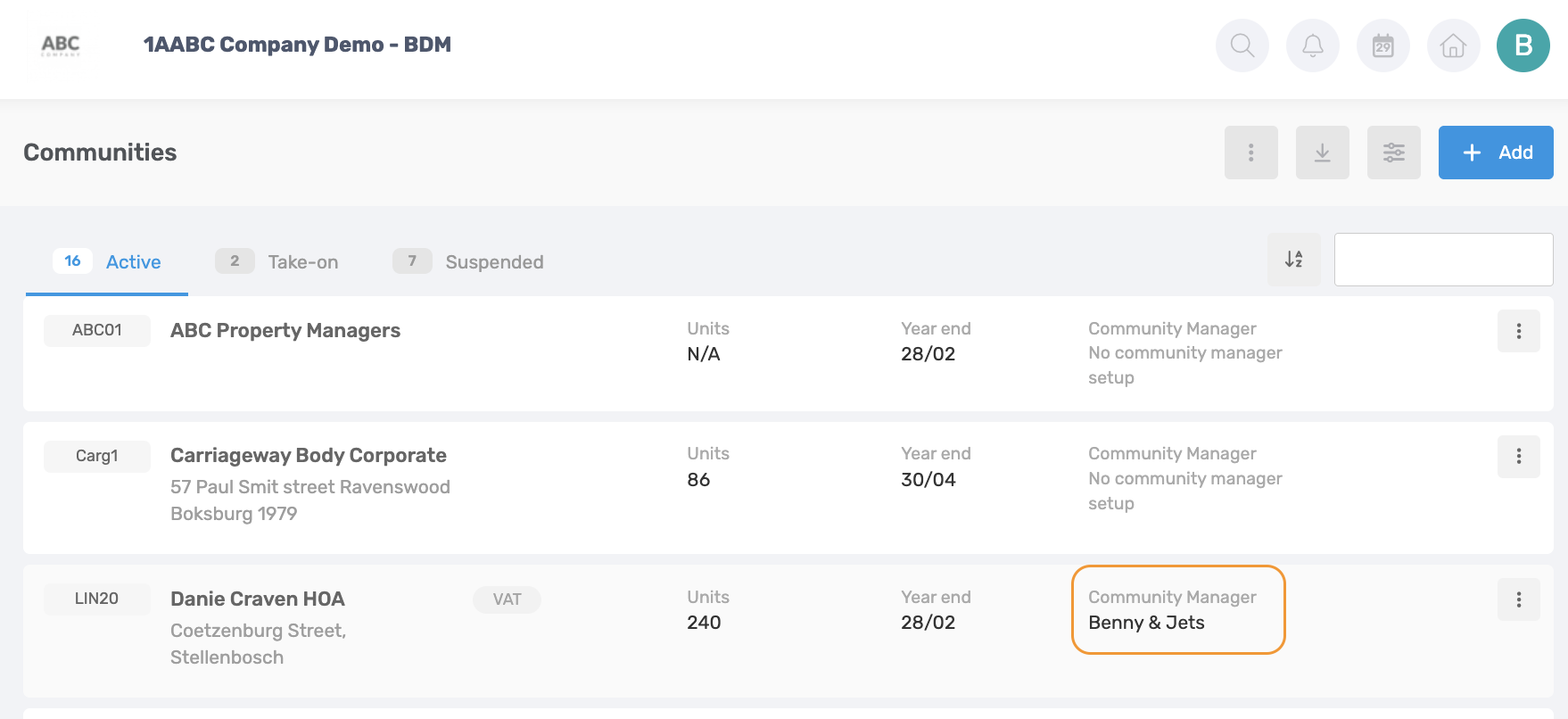
From the Community Page there are multiple ways to view the community list by filtering communities according to any role, see at a glance which roles are assigned to each community on the community pop-up.
By default on the communities page on the community card the Community Manager assigned will be displayed.
Was this article helpful?
That’s Great!
Thank you for your feedback
Sorry! We couldn't be helpful
Thank you for your feedback
Feedback sent
We appreciate your effort and will try to fix the article