The Community App is the ultimate tool to view, track and action important Trustee/Directors related items, anywhere, anytime. The App reduces reliance on email communication for requests and feedback, facilitating greater collaboration and teamwork between the Managing Agent and Trustees.
TABLE OF CONTENTS |
What can a Trustee/Director do on the Community App?
- View and approve Supplier Payments
- Manage and view Tasks
- View Default/Current Bank Balance
- Track Transfers of sold units that are in a Transfer stage
- Access Documents, such as Minutes, Financial Statements and other Community documents
- Access all linked Communities as a Trustee on one App
1. Accessing the Community App
1.1. Download App
The Community App is accessible via the Apple App Store for iOS users and the Google Play Store for Android users. Please use the links below to download the App.


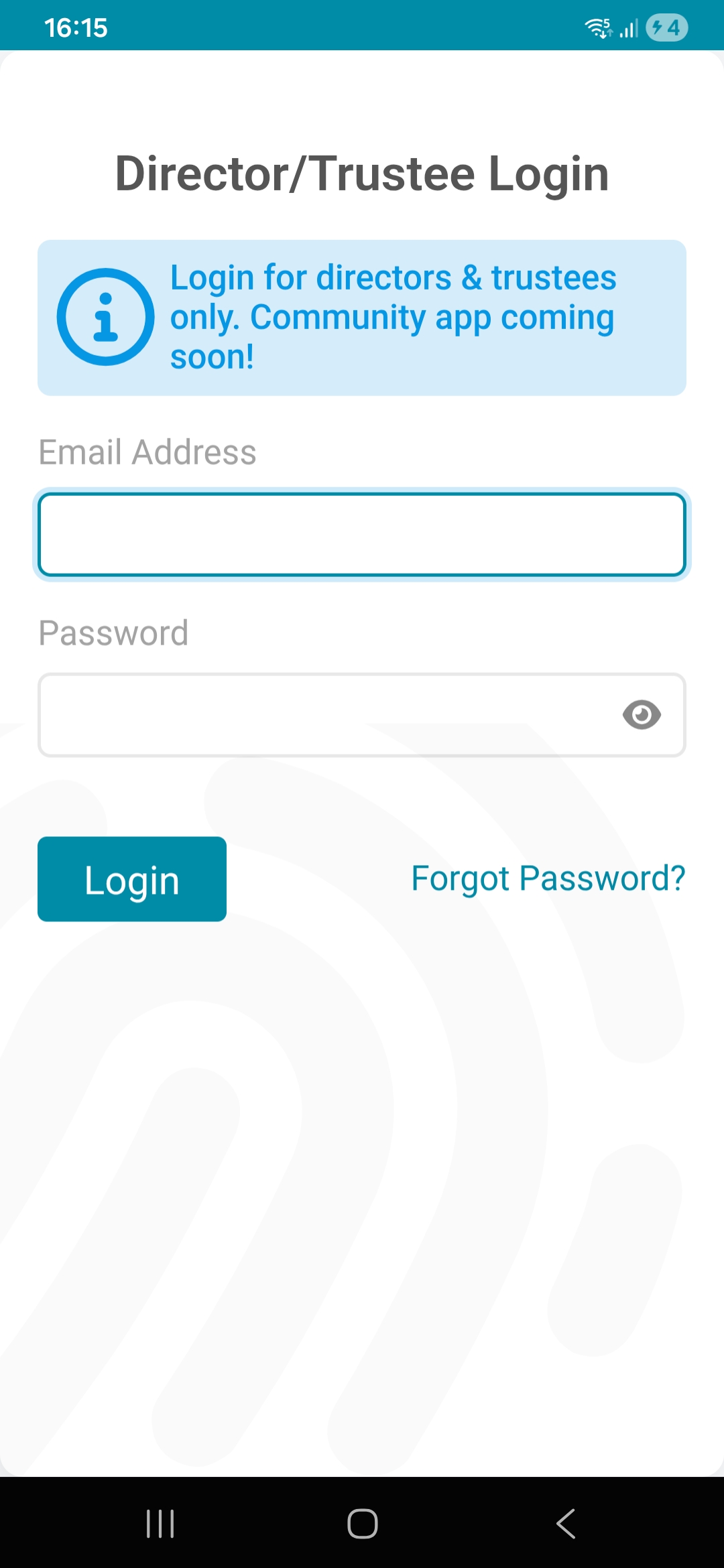
1.2. Log into the App
Use the same login details used to log into the Trustee/Director web-portal.
If not correct, then utilise the Forgot Password button to trigger the Password setup process.
1.3. Select Profile
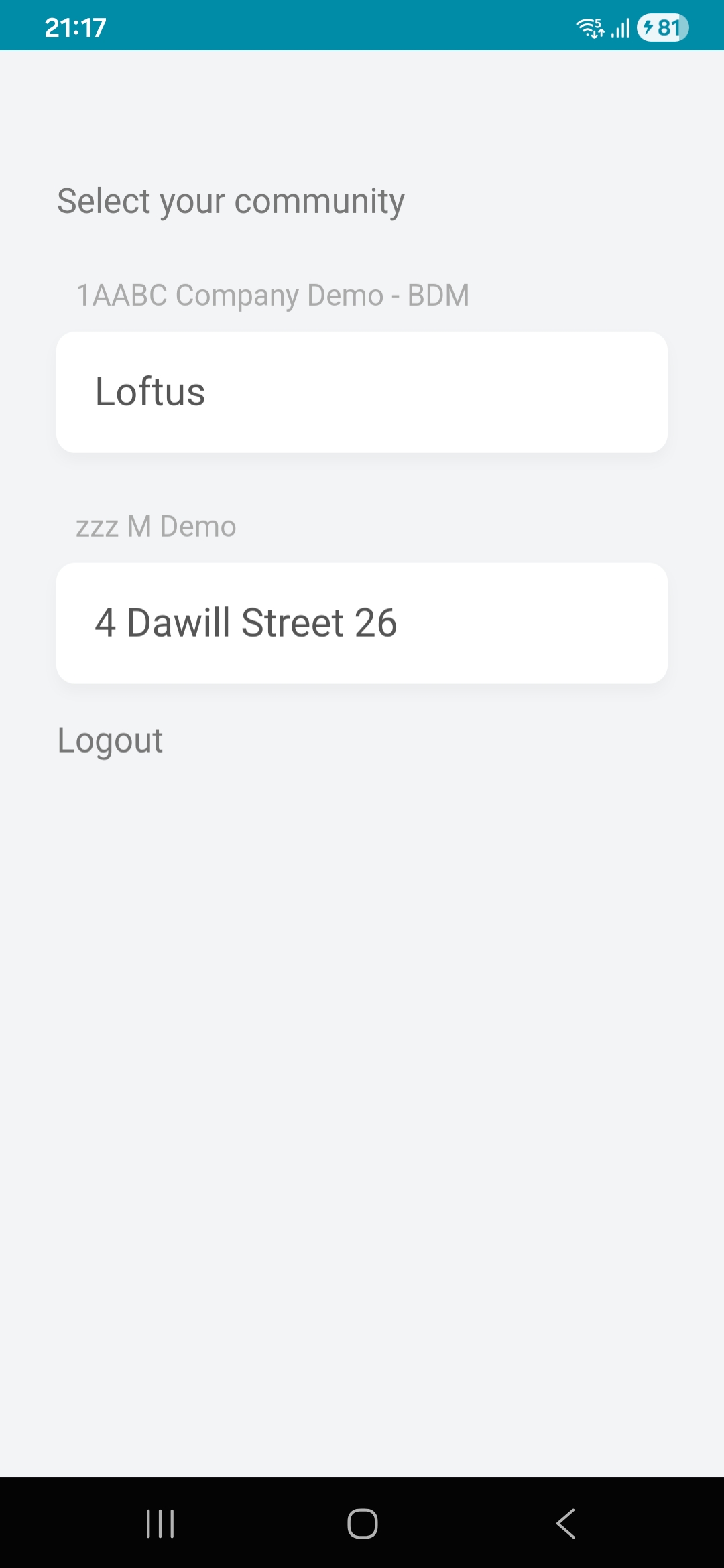
Trustees/Directors who associated with multiple Communities will have the option to select the relevant Community they would like to view.
2. Community App Dashboard
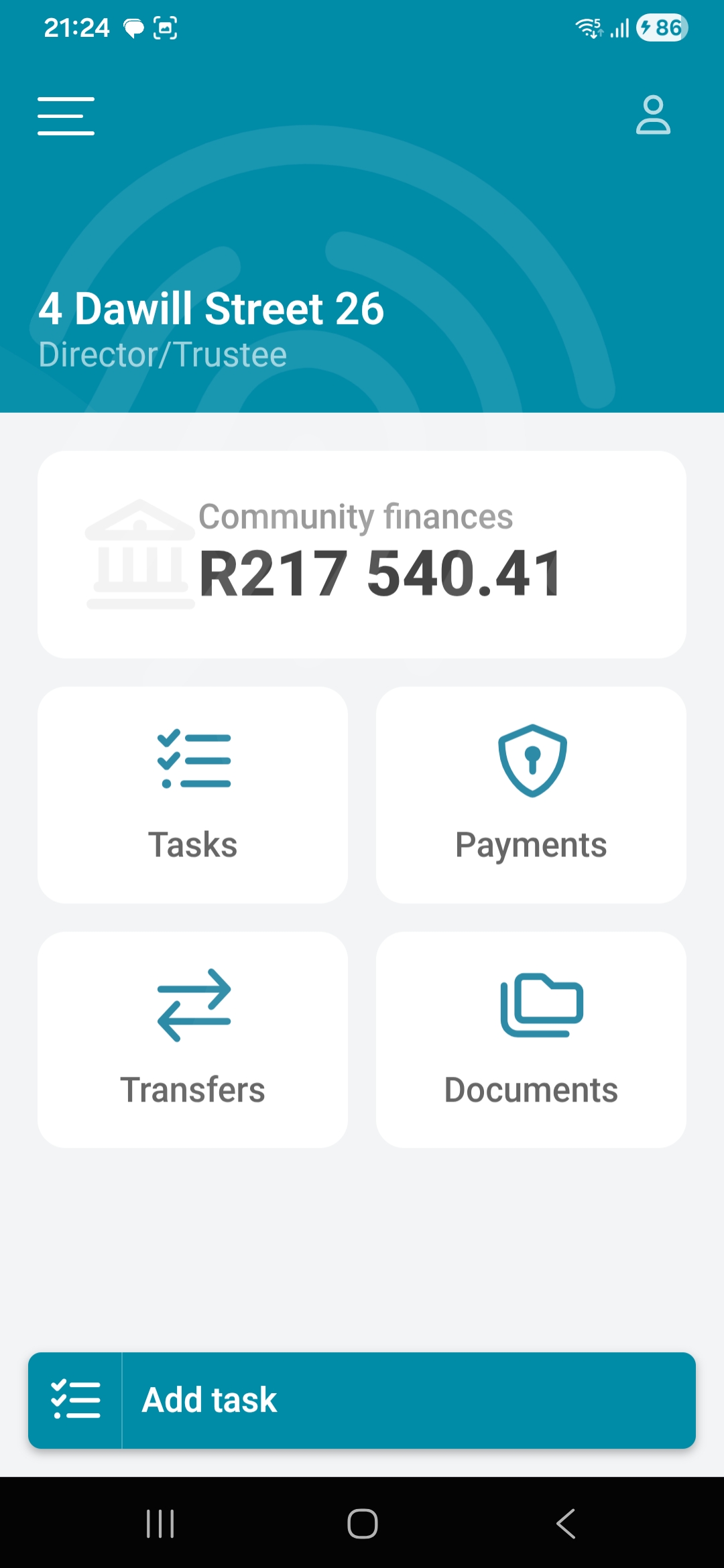
The following items are displayed on the Community Dashboard and can be accessed from the Menu option on the left:
2.1. Pending Payments
If there are any pending payments for authorisation, the dashboard will indicate this. Payments that do not require this user's authorisation will not be displayed.
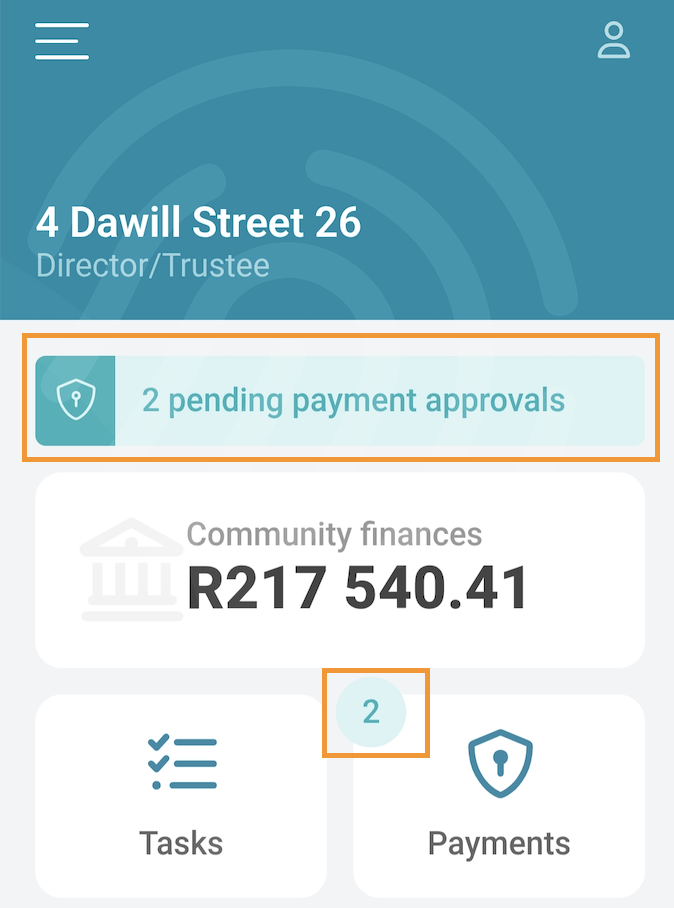
Note: This option will only display once the Managing Agent notify trustees/directors of payments to approve. Trustees/Directors will receive a push notification on their mobile phone. 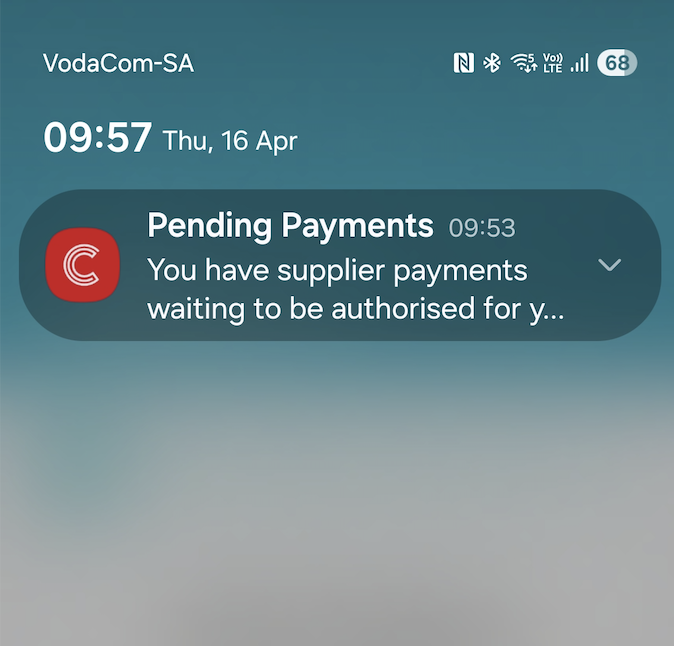 |
2.2. Community Finances
The amount of money in the Default Bank Account.
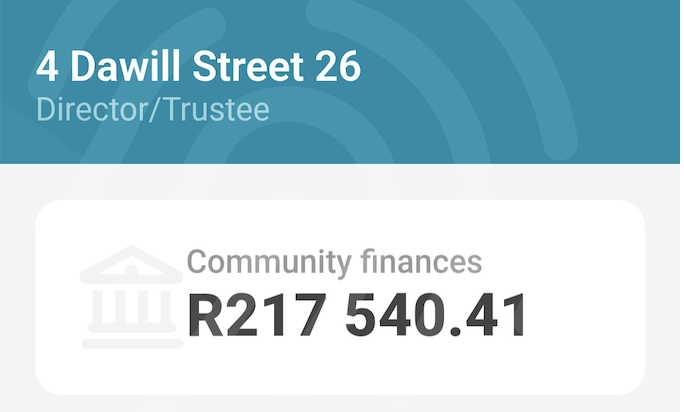
Note: Community Finances option is not clickable. |
2.3. Tasks
Navigation: Community Dashboard > Tasks
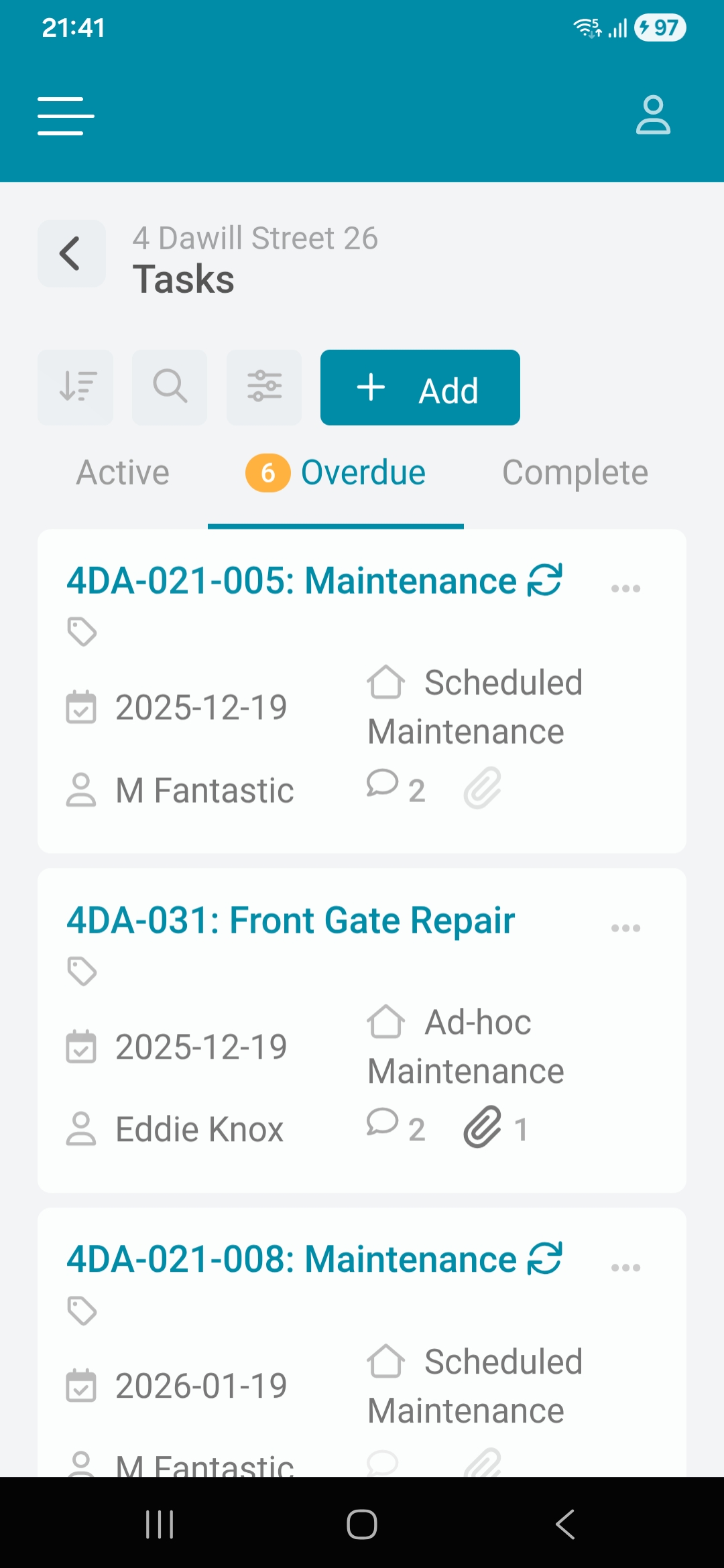
The trustee/director will see all the active, overdue, and completed tasks in this community scheme. These tasks can range from maintenance tickets to administration and finance items. They can see the deadline date, the person responsible for completing this task, and the status of the task.
2.3.1. Manage Tasks
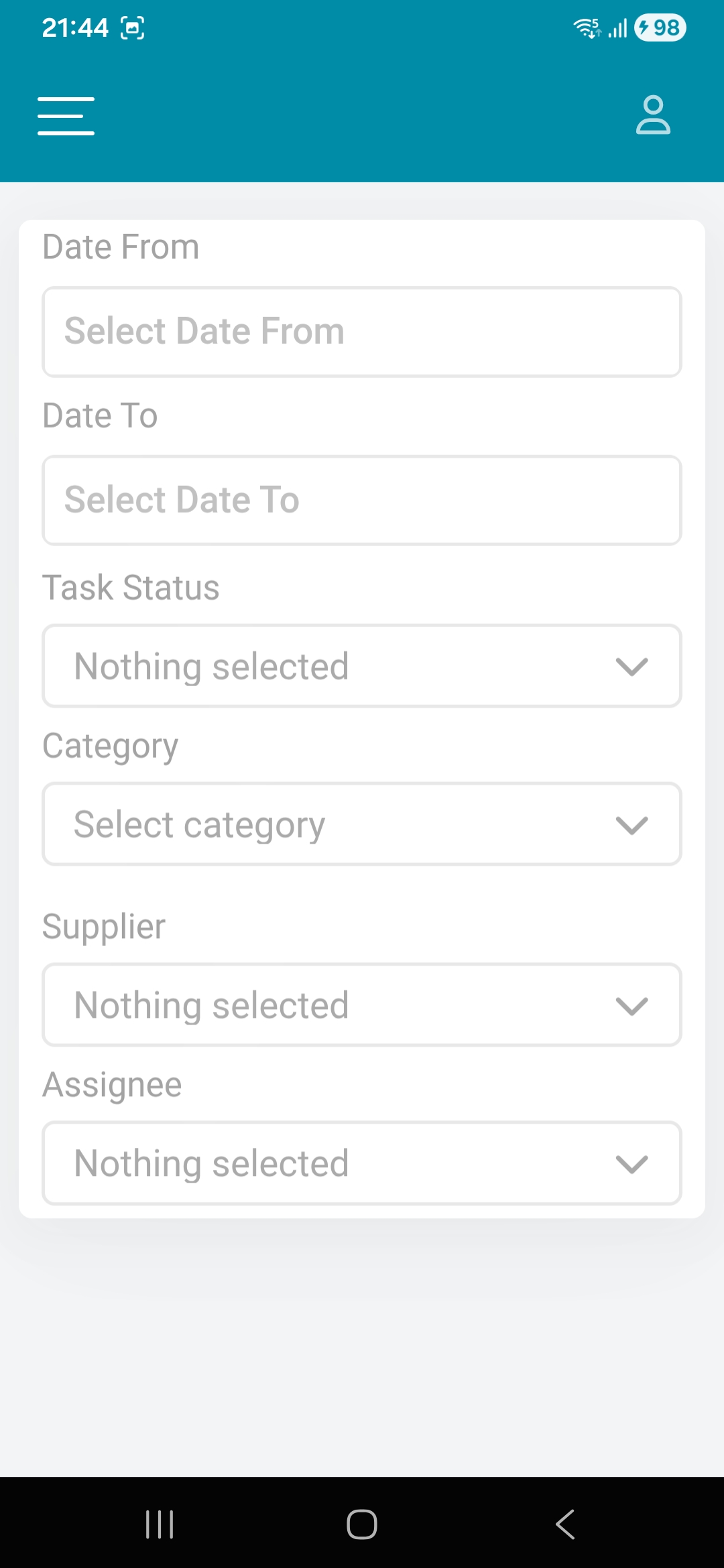
To filter the tasks, click on the Filter icon.
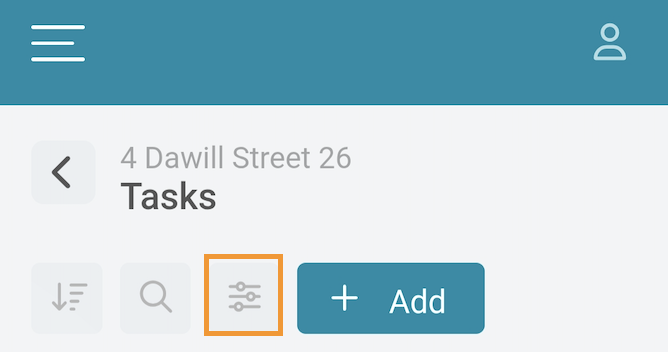
The filter menu will appear where multiple filter combinations can be applied to assist the trustee/director in being more efficient in viewing multiple tasks.
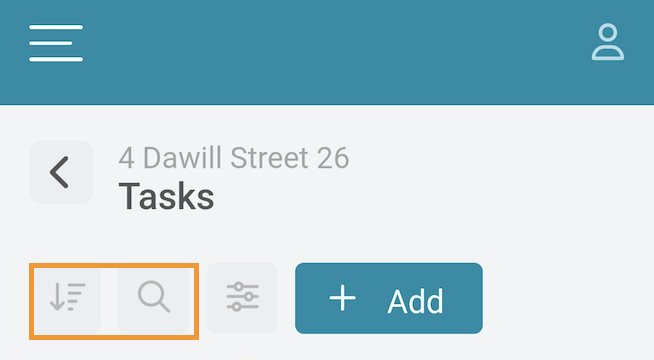
Tasks can also be sorted and search for.
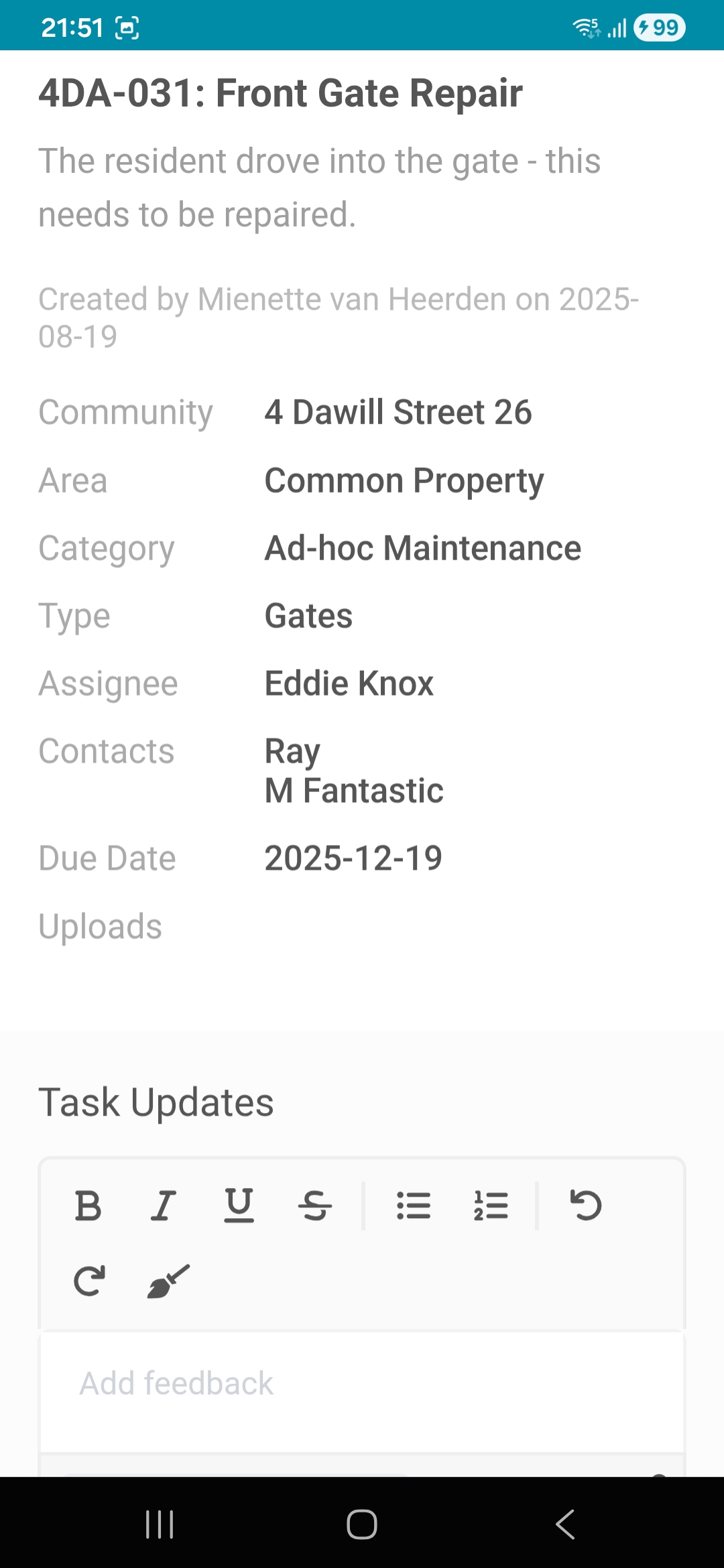
To view the details of a task, click on the task card. This would open the details of the task and the feedback that was provided on this task.
2.3.2. Add Tasks
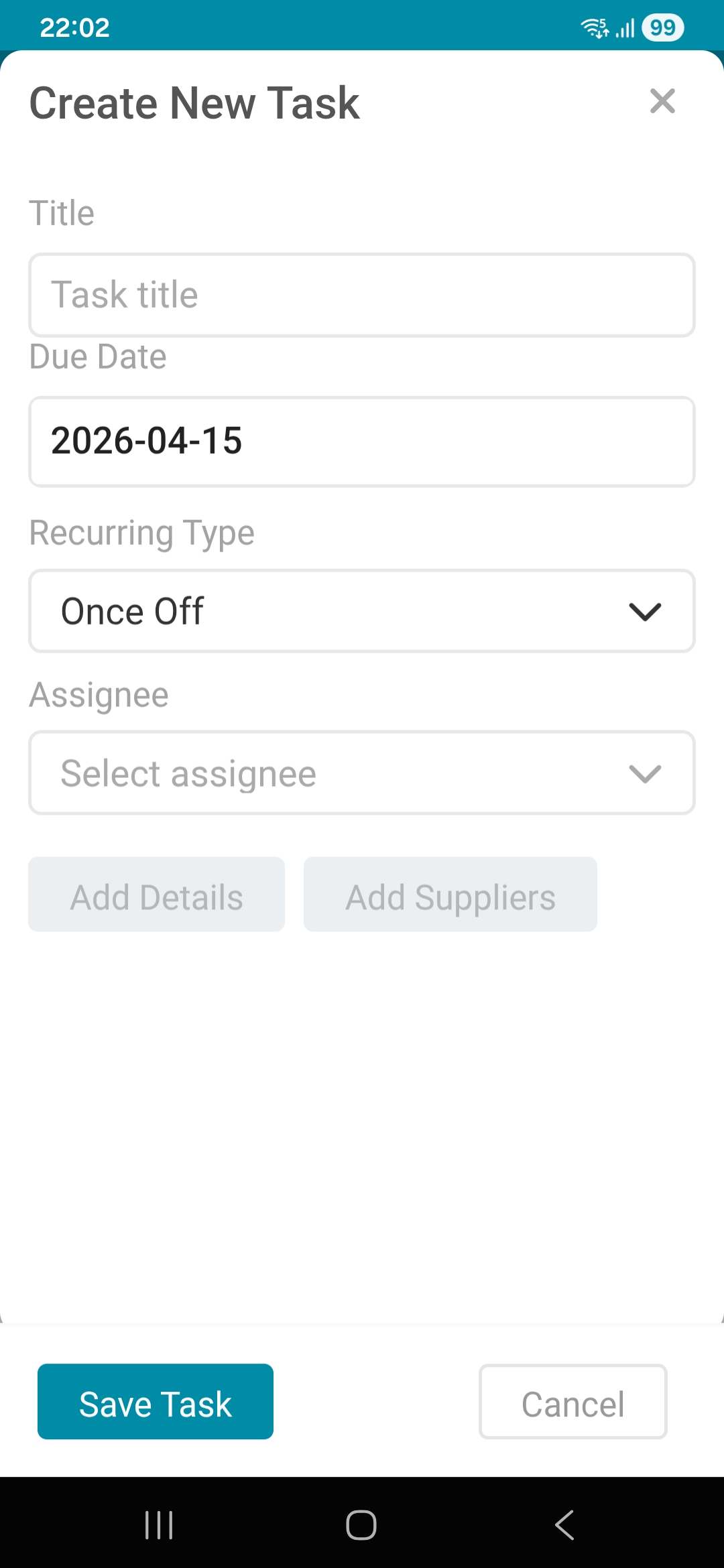
Complete all the necessary fields, such as the Task Title, Due date, Recurring End Date, Assignee, etc.
There will be two types of Task types:
1. Once-off tasks
Once-off tasks are specific tasks, projects, or activities that are performed only once, without repetition. The only mandatory fields are the Task Title, Due date & Assignee and the recurring type will default to Once Off.
2. Recurring Tasks
A recurring task is a project-related task that can repeat at regular intervals (such as daily, weekly, monthly, etc) and always has the same duration and attributes.
2.4. Transfers
Navigation: Community Dashboard > Transfers
On the Transfer screen, the trustee would be able to see all the completed and in-progress transfers. They would see which Erf/Section/Unit/Door number, the m2, the price, the price per m2, the date upon which the transfer happened, and the status of the transfer.
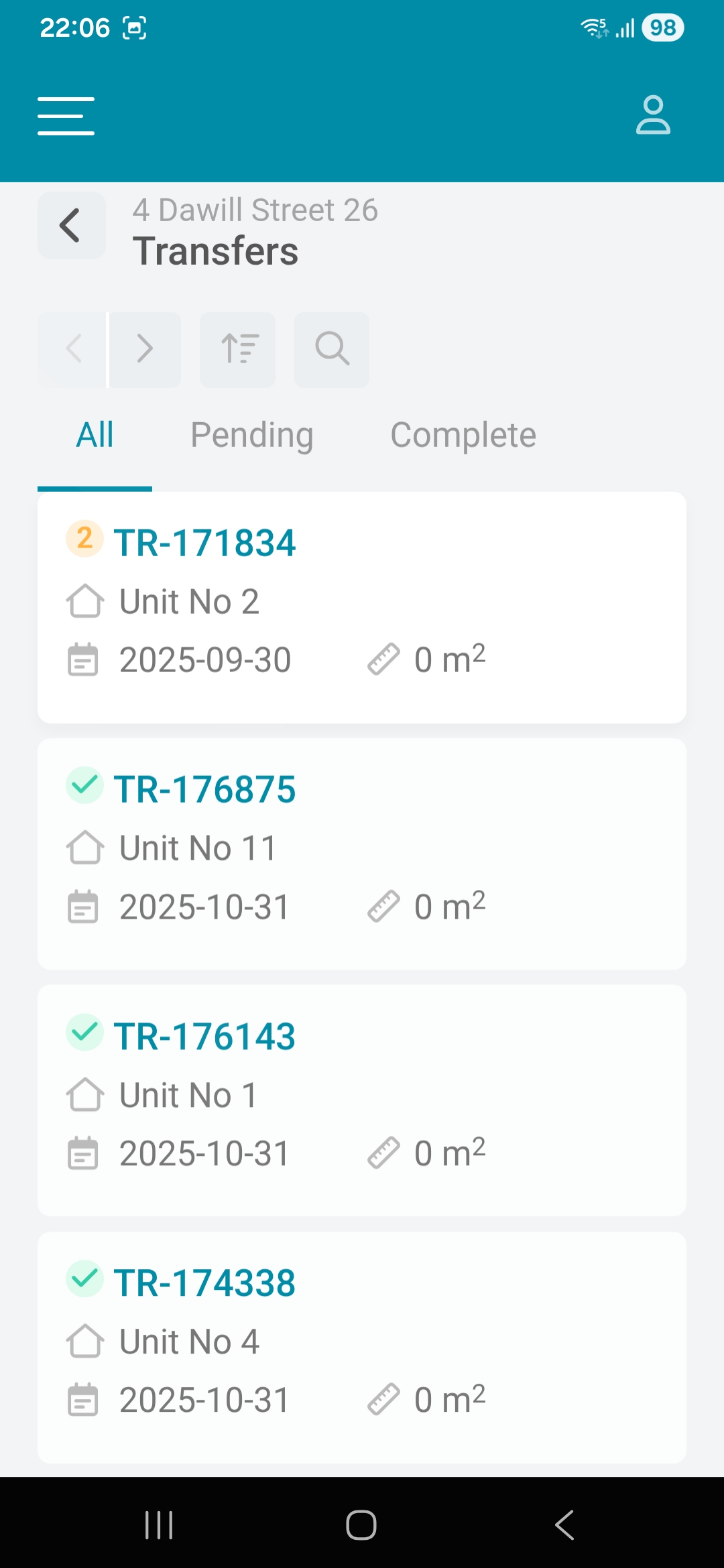
Note: The Transfer cards are not clickable and simply serves as a summary of the Transfers within the Community. |
2.5. Payments
Navigation: Community Dashboard > Payment
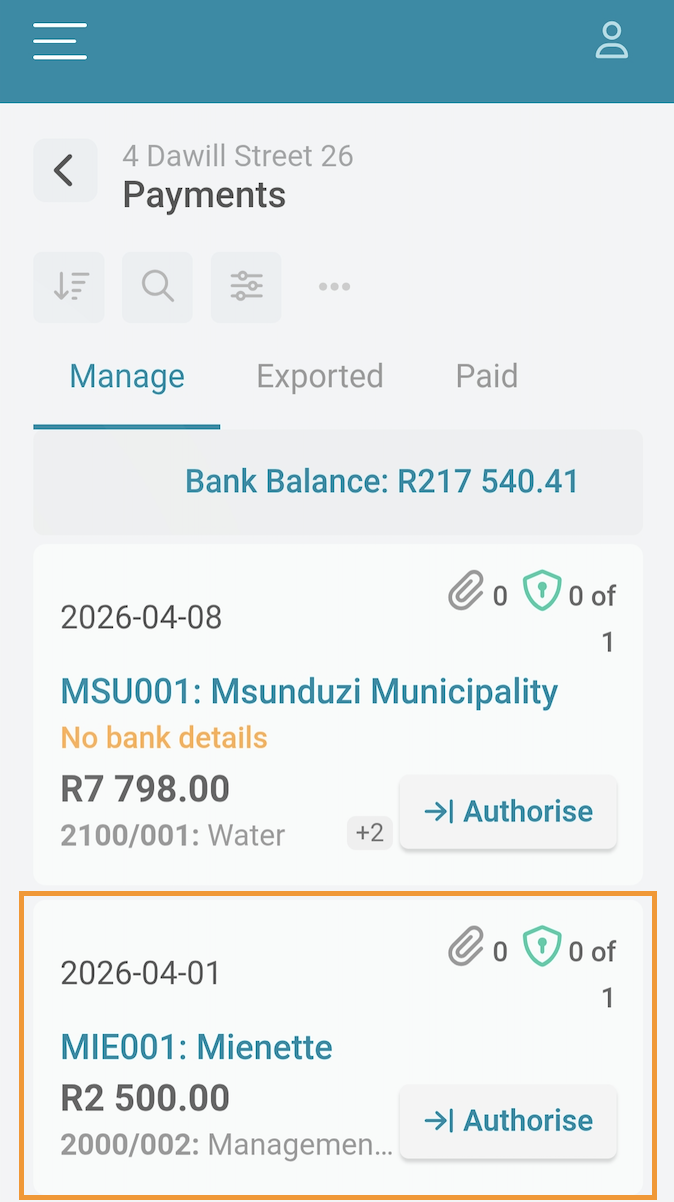
On the Payment screen, the trustee will see the pending payments that need authorization. When clicking anywhere on the Supplier Invoice, it will open the payment card.
 | 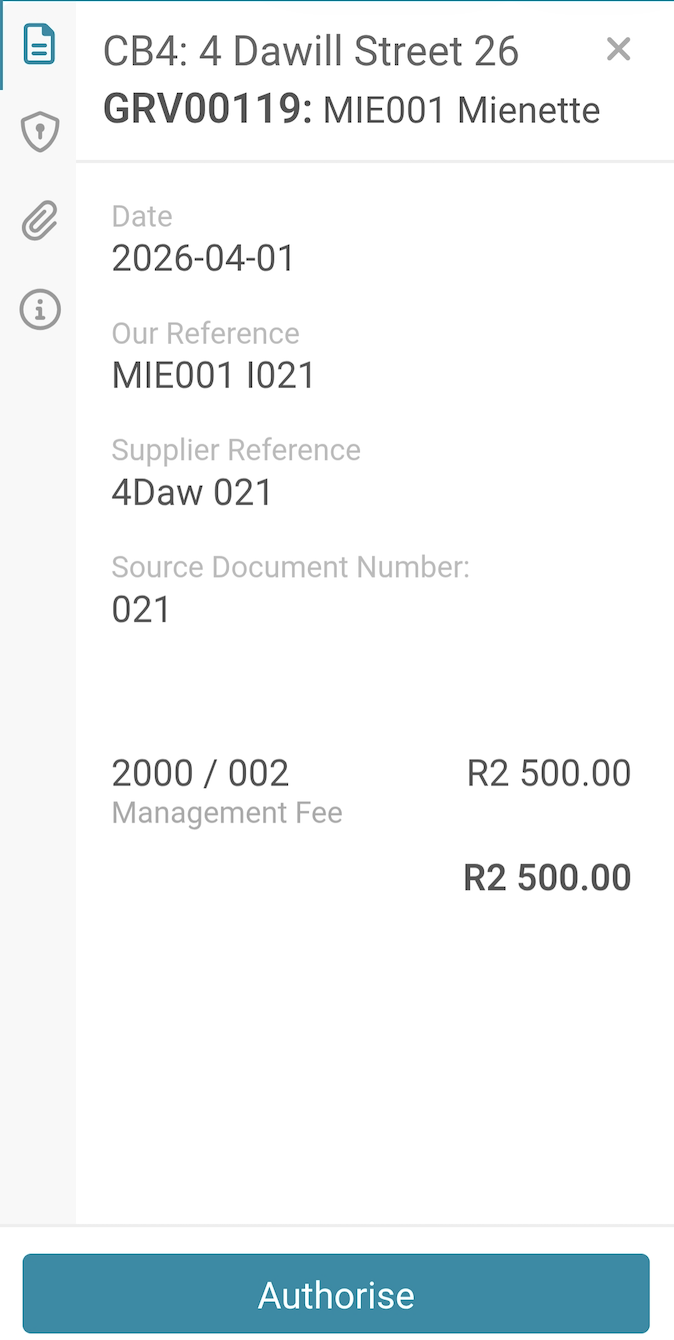 |
Here the trustee/director would be able to see all the Supplier Invoice Information, Action History, Documents (this would contain all source documents relevant to the payment), and lastly Supplier Information. This is to assist and ensure that the payments are correct.
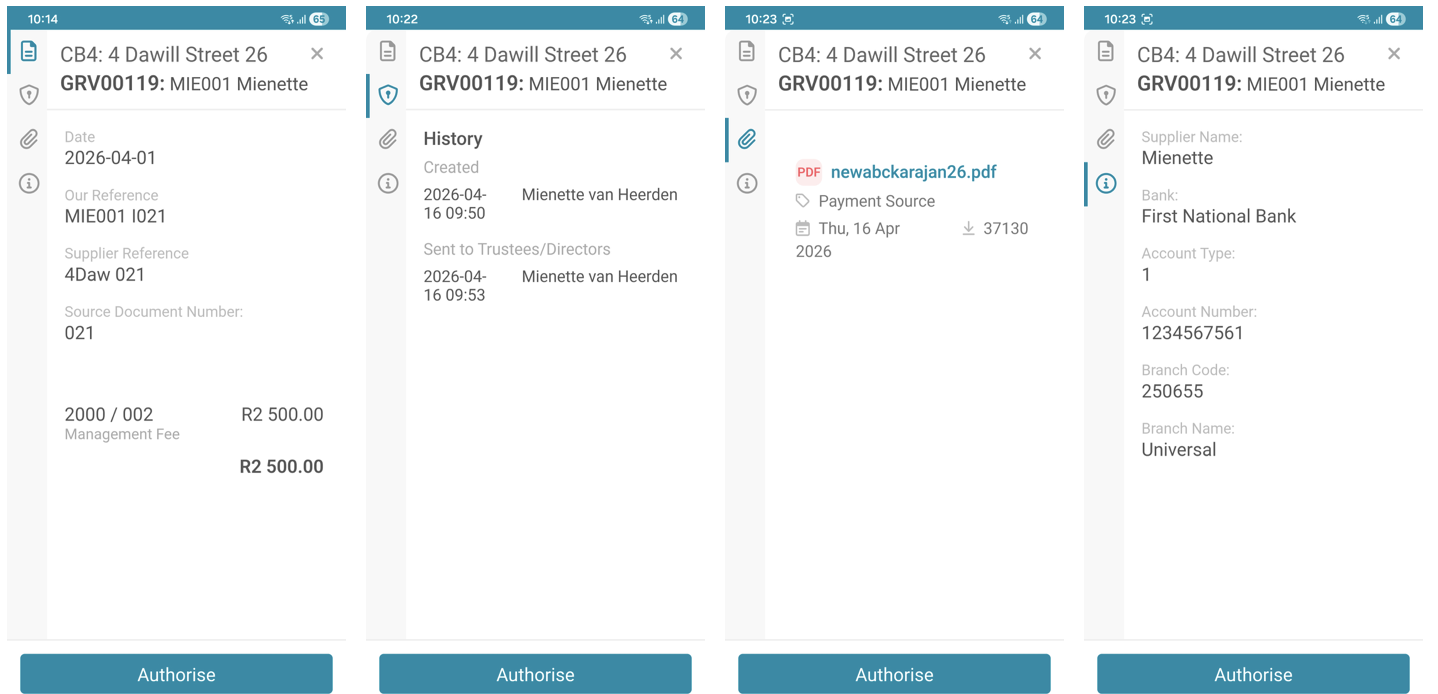
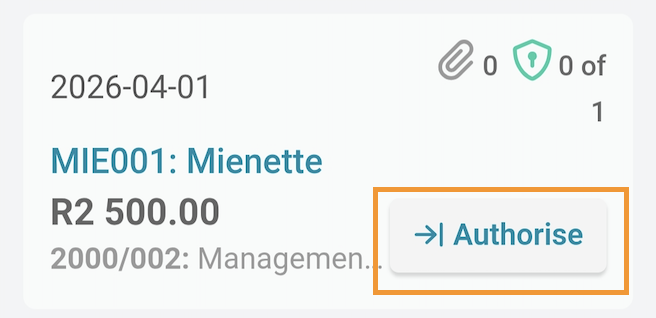
If the trustees/directors are happy with these payments, they can click on the blue (on the payment card that pops up) or the grey (on the payment screen) Authorise button.
2.5. Documents
Navigation: Community Dashboard > Documents
The trustees/directors can view and download all the documents relevant to the community, facilitating easy access to important information and resources.
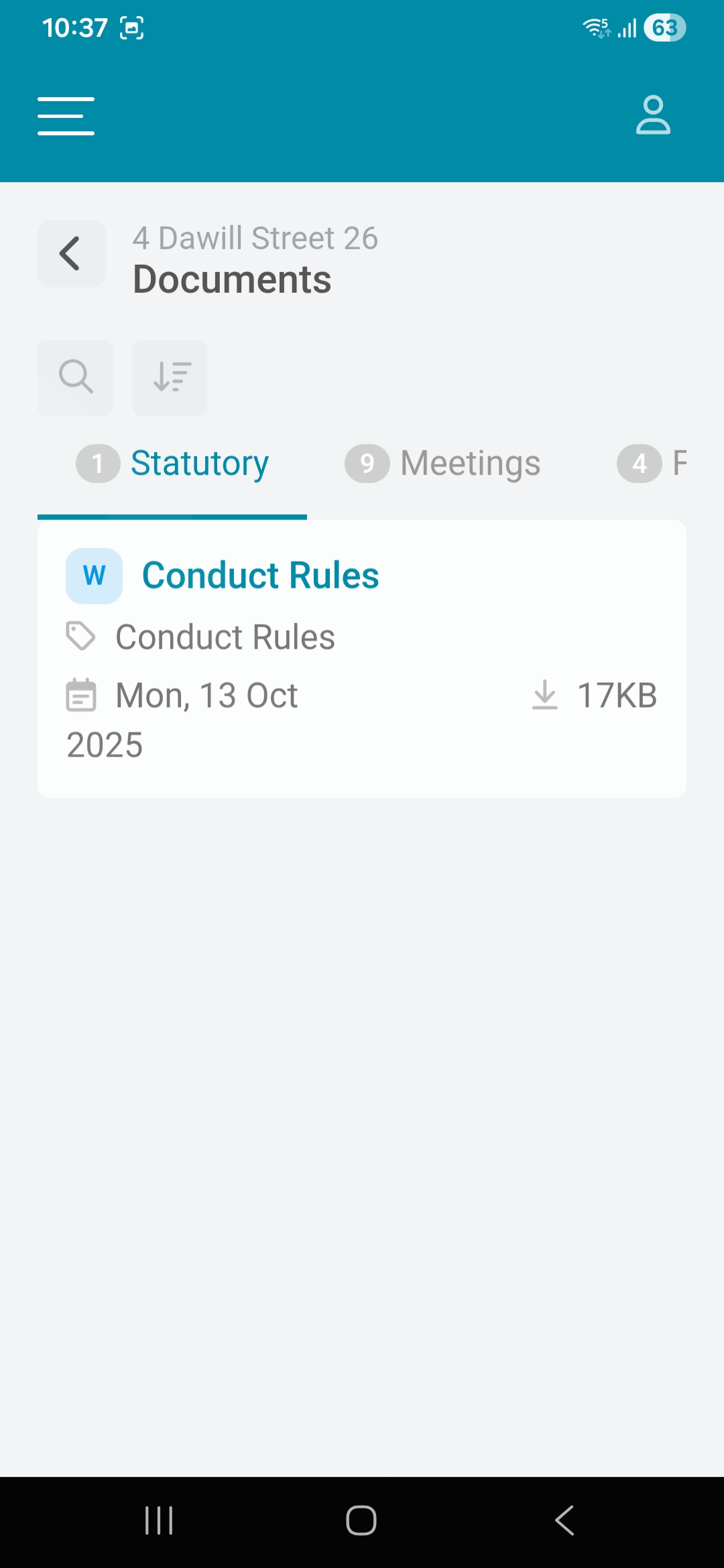
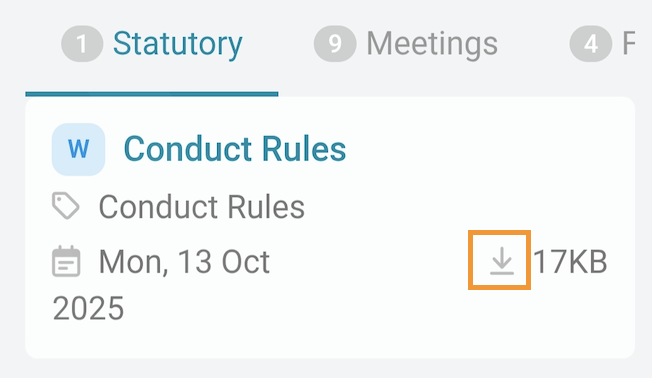
Community Planner-related documents can be accessed in the Meeting and Finance Document Category. Additional documents, such as conduct rules and other regulations, are typically categorized under Statutory and General Documents. To download any file, simply click on the download icon on the document card.
Resources: | ||
| Live Demonstration - The Community App for Directors and Trustees |
Was this article helpful?
That’s Great!
Thank you for your feedback
Sorry! We couldn't be helpful
Thank you for your feedback
Feedback sent
We appreciate your effort and will try to fix the article