The new Interest page replaces the existing Interest on Arrears functionality. In this updated process, interest is calculated on a daily basis for the selected period and is then capitalised on the specified transaction date, ensuring a more accurate and consistent calculation of interest charges.
Main Changes:
- User are now required to select both a start date and an end date for the period over which interest will be calculated and raised.
- Statements can now be emailed directly to customers from the Interest on Arrears page.
Before you can run interest on arrears, there are a few things that need to be set up. All of these things would be within a relevant community
1. Interest on Arrears Management
1.1 Interest Set Up
Navigation: Community Level > Settings > General
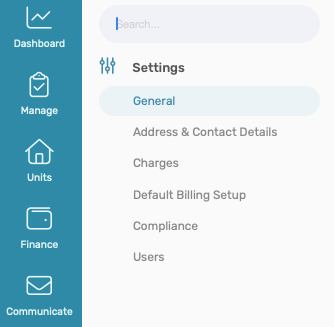
- Interest %: the community's percentage at which interest must be raised. The industry maximum is 24% per annum. However, it is normally determined by the trustees.
- Interest-exempt threshold: is a specified amount that dictates what balance is automatically exempt from Interest, should balances be below this amount.
For example: if the threshold is set at R100.00 and the customer has a balance of R99.99 and lower, they will not be charged for interest. |

1.2 Default Billing Set Up
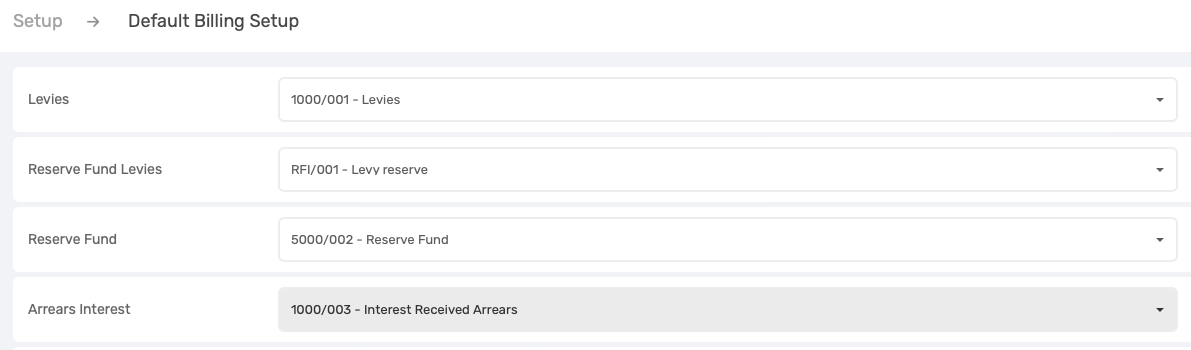
Navigation: Community Level > Settings > Default Billing Setup
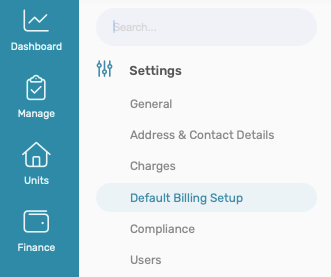
This default billing will be set up during the Take-On process via WeconnectU, however, it is always best practice to check if all default billing accounts are correctly set up.
1.3 Run Interest of Arrears
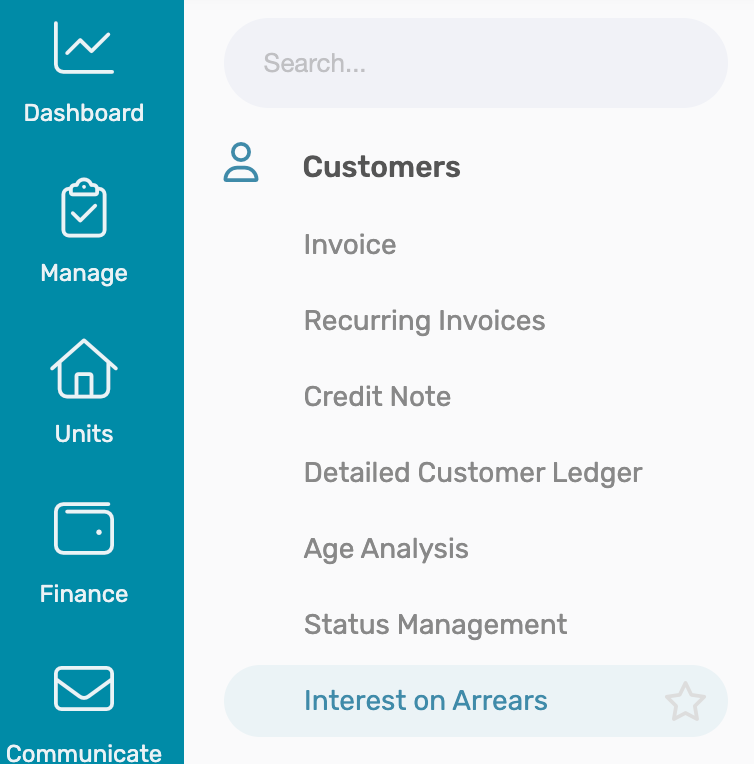
Navigation: Community Level > Finance > Customer > Interest on Arrears
Select the Interest period by selecting a start and end date for which interest should be calculated.
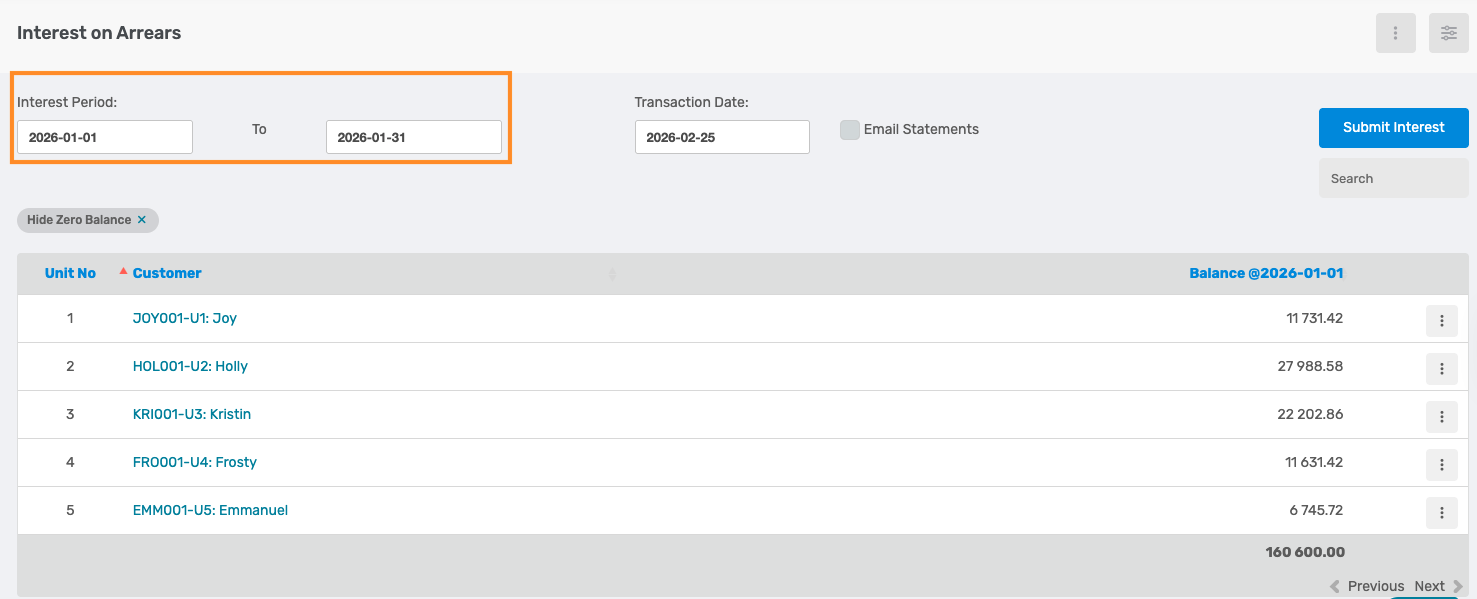
Note: If a date is selected that has already been included in a previous interest run, the Solution will display a warning. |
The Transaction Date is the date on which the interest journal will be recorded in the customer and general ledger.
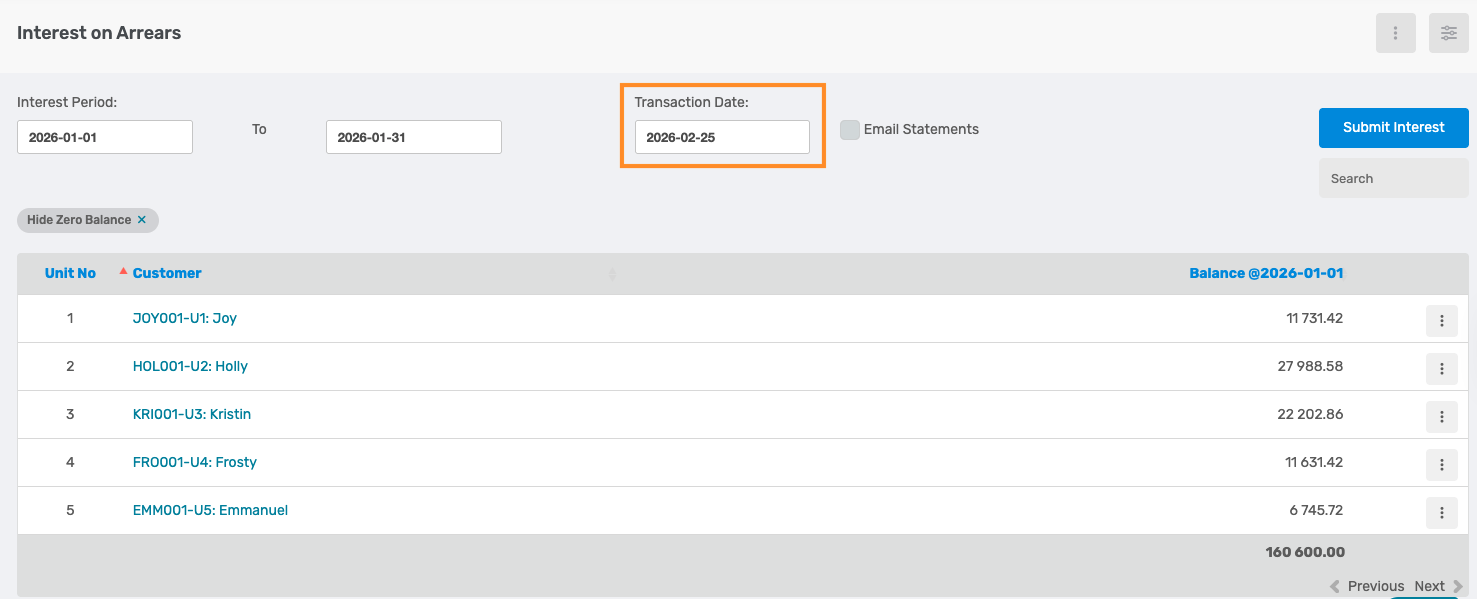
If the Email Statements is ticked, statements will be emailed to the ALL customers automatically after the interest process has been completed.

Note: By default, customers with zero balances are hidden. Other filters can be applied by clicking on the Filter option.  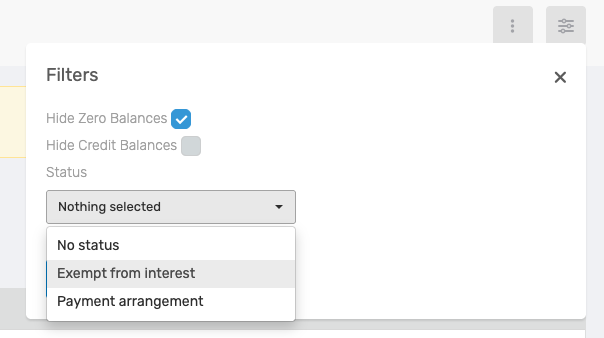 |
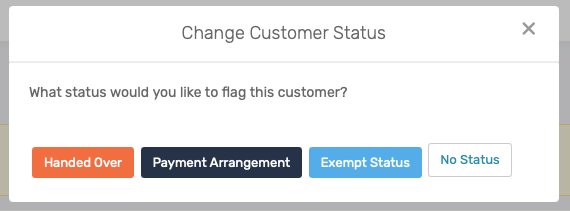
Should any customer be exempt from interest, Click on the menu option next to the customer and select Exempt Status:
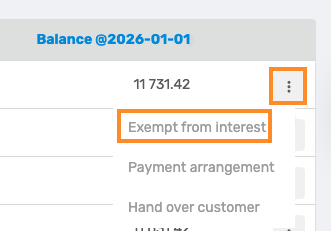
To run the interest, click on Submit Interest.

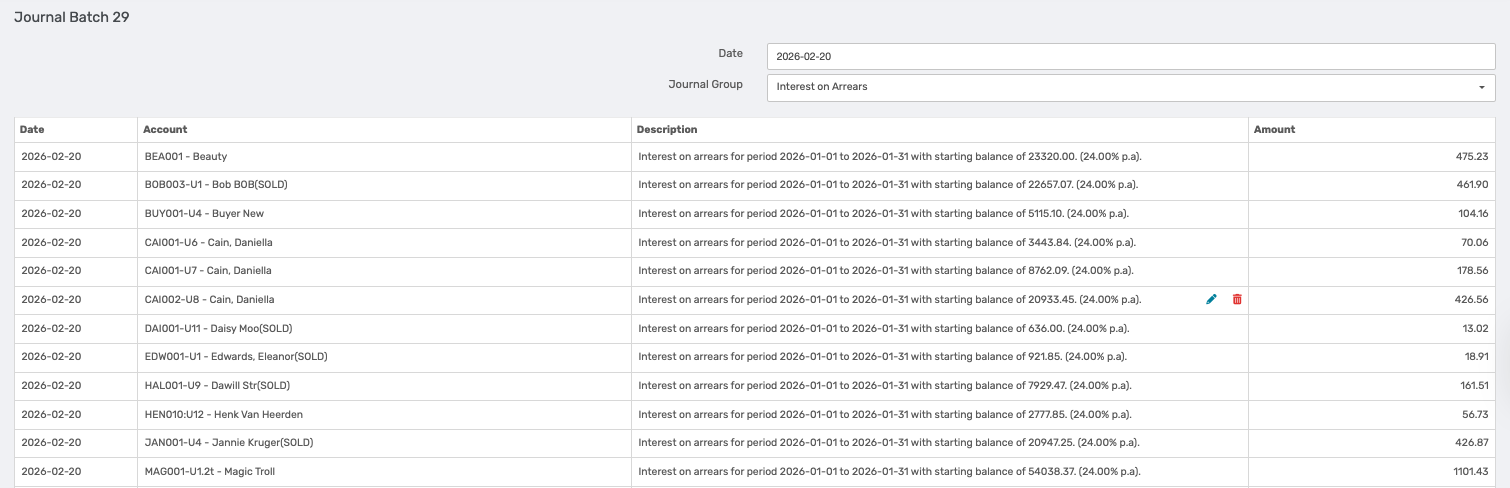
This will produce a journal that will be posted against every customer account that has an arrear balance higher than the interest threshold. The contra account will be the account chosen as the default billing account.

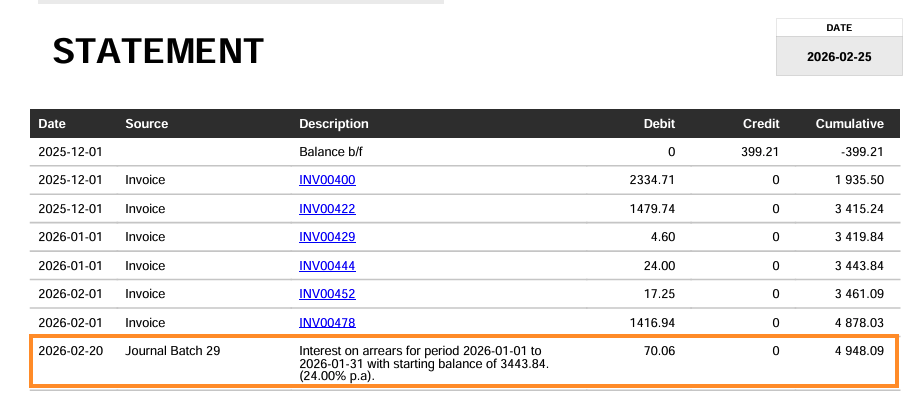
Note: For a single period selected when running interest, the Solution does not add the newly calculated interest for the one day to the balance of the following day for further interest calculation. The interest calculated for that period is only added to the balance on the transaction date after the interedst calculation has been completed. However, in subsequent interest runs, any previously capitalised interest (from earlier interest runs) that forms part of the balance is not excluded from the new interest calculation. |
1.4 Previous Interest Runs
To view previous interest run, click the menu option on the right-hand side of the page, and select Previous Interest Runs.

On the Previous Interest Run page, the last 15 interest run batches will be displayed.
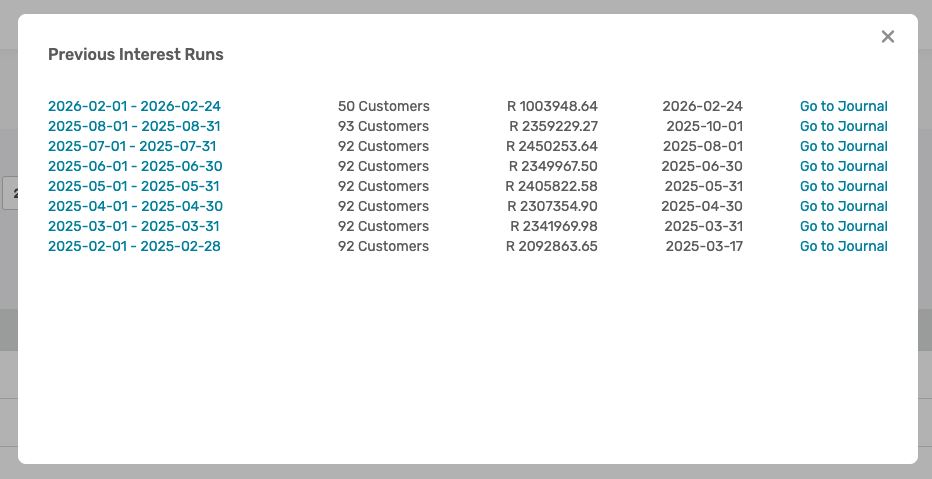
When the relevant interest period is selected, the specific interest run will be displayed. From there, the interest Calculation can be downloaded from each customer's menu options.
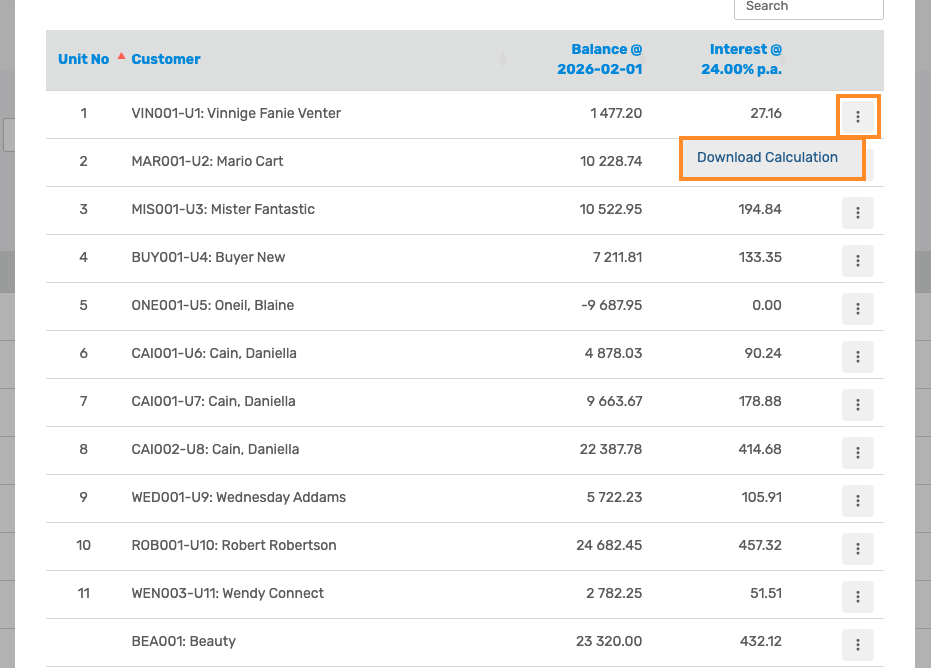
By clicking Go to Journal, the journal batch will open in a new tab.

How is Interest Calculated: (Balance on day) x 1/365 (or 366) x interest per annum. If the Communities interest is setup to be per month, the Solution multiply that by 12. This formula is applied to each balance of the period selected and is then sum together. 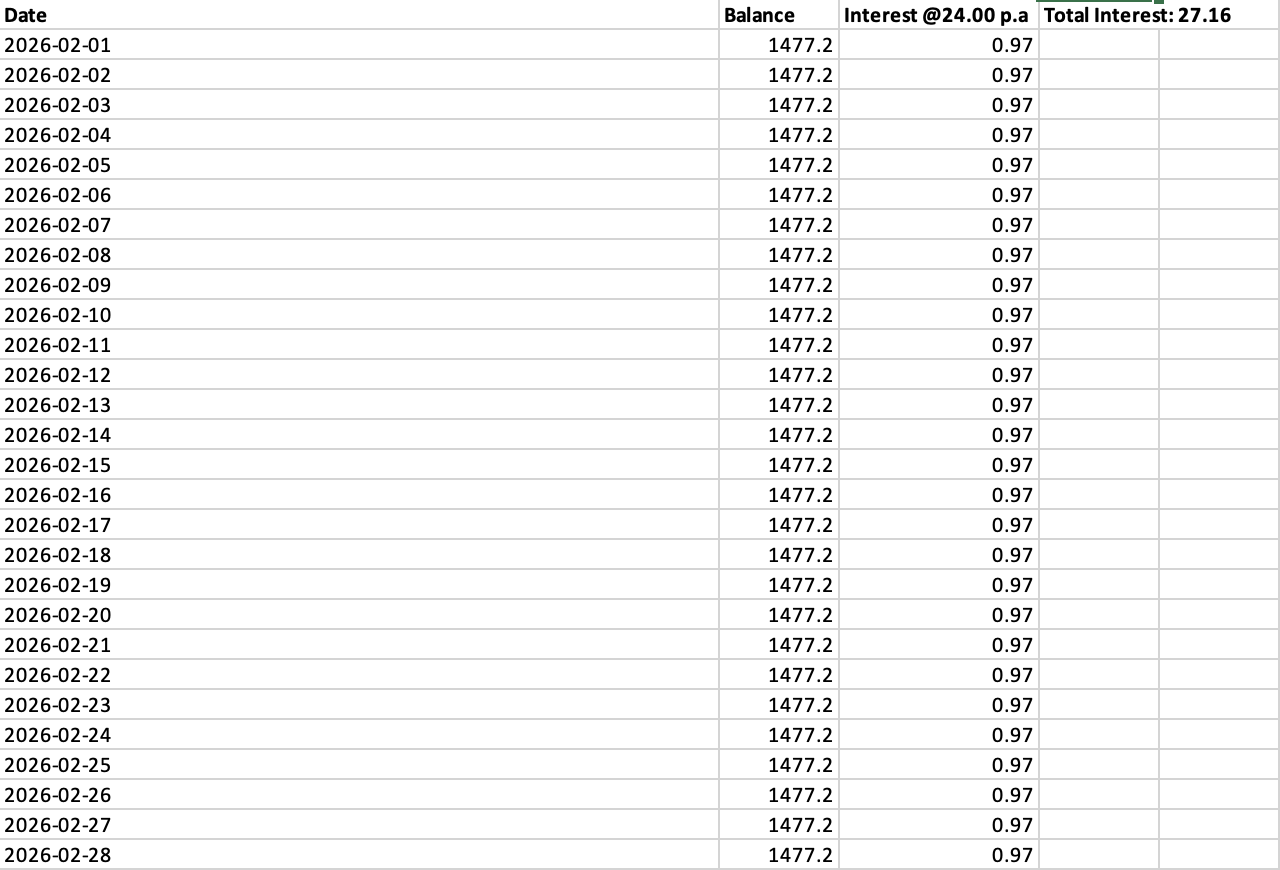 |
| Resources: | ||
| CMS - Daily Interest on Arrears |
Was this article helpful?
That’s Great!
Thank you for your feedback
Sorry! We couldn't be helpful
Thank you for your feedback
Feedback sent
We appreciate your effort and will try to fix the article